KDialog
element). You could use \n to insert a newline into some of them, but since not all of them accept it, it’s not demonstrated below. Many examples below use command substitution to combine commands.
Checklist
- Checklist example 1:

#!/bin/bash

##############################################################################
# This script opens a KDialog window with a single-line message that offers  #
# you a checklist from which to make one or more choices. Command            #
# substitution is used to save your choice to a variable. The script then    #
# tests the exit status of the command.                                      #
#                                                                            #
# The checklist returns a 0 exit code if the Enter key or the OK button is   #
# pressed. In that case, the script executes the action you assigned to the  #
# if section. In this example it displays a KDialog message box that         #
# corresponds to the value (key or, in this example, option number) you      #
# chose. In this example, each choice displays a custom message. The RED     #
# label has a value of "1" and the YELLOW label has a value of "2" and the   #
# GREEN label has a value of "3" and any combination of one or more of them  #
# can be chosen.                                                             #
#                                                                            #
# If an invalid choice was made (no choices were made and the Enter key or   #
# the OK button was pressed), the script displays the kdialog command usage  #
# text in the terminal window if the script was run from a terminal window.  #
# If the script was made executable and was clicked to run or run from a     #
# shortcut, then nothing happens when an invalid choice was made. Note that  #
# this behavior is not controlled by the script, but is handled directly by  #
# the kdialog command.                                                       #
#                                                                            #
# The checklist returns a 1 exit code if the Esc key or Cancel button is     #
# pressed. In that case, the script executes the action you assigned to the  #
# elif section. In this example it displays a KDialog sorry message.         #
#                                                                            #
# If anything else happens, the script executes the action you assigned to   #
# the else section. In this example it displays a KDialog error message.     #
##############################################################################

choice=$(kdialog --checklist "CHOOSE ONE OR MORE COLORS:" 1 "RED" on 2 "YELLOW" off 3 "GREEN" off);

if [ "$?" = 0 ]; then
	kdialog --msgbox "$choice";
elif [ "$?" = 1 ]; then
	kdialog --sorry "YOU CHOSE CANCEL";
else
	kdialog --error "ERROR";
fi;
Checklist example 2:

#!/bin/bash

##############################################################################
# This script opens a KDialog window with a two-line message (created by     #
# using an HTML <br> tag) that offers you a checklist from which to make one #
# or more choices. Command substitution is used to save your choice to a     #
# variable. The script then tests the exit status of the command.            #
#                                                                            #
# The checklist returns a 0 exit code if the Enter key or the OK button is   #
# pressed. In that case, the script executes the action you assigned to the  #
# if section. In this example it displays a KDialog message box that         #
# corresponds to the value (key or, in this example, option number) you      #
# chose. In this example, each choice displays a custom message. The RED     #
# label has a value of "1" and the YELLOW label has a value of "2" and the   #
# GREEN label has a value of "3" and any combination of one or more of them  #
# can be chosen.                                                             #
#                                                                            #
# If an invalid choice was made (no choices were made and the Enter key or   #
# the OK button was pressed), the script displays the kdialog command usage  #
# text in the terminal window if the script was run from a terminal window.  #
# If the script was made executable and was clicked to run or run from a     #
# shortcut, then nothing happens when an invalid choice was made. Note that  #
# this behavior is not controlled by the script, but is handled directly by  #
# the kdialog command.                                                       #
#                                                                            #
# The checklist returns a 1 exit code if the Esc key or Cancel button is     #
# pressed. In that case, the script executes the action you assigned to the  #
# elif section. In this example it displays a KDialog sorry message.         #
#                                                                            #
# If anything else happens, the script executes the action you assigned to   #
# the else section. In this example it displays a KDialog error message.     #
##############################################################################

choice=$(kdialog --checklist "CHOOSE ONE<br>OR MORE COLORS:" 1 "RED" on 2 "YELLOW" off 3 "GREEN" off);

if [ "$?" = 0 ]; then
	kdialog --msgbox "$choice";
elif [ "$?" = 1 ]; then
	kdialog --sorry "YOU CHOSE CANCEL";
else
	kdialog --error "ERROR";
fi;
Checklist example 3:

#!/bin/bash

##############################################################################
# This script opens a KDialog window with a single-line message that offers  #
# you a checklist from which to make one or more choices. Command            #
# substitution is used to save your choice to a variable. The script then    #
# tests the exit status of the command.                                      #
#                                                                            #
# The checklist returns a 0 exit code if the Enter key or the OK button is   #
# pressed. In that case, the script executes the action you assigned to the  #
# if section. In this example it displays a KDialog message box that         #
# corresponds to the value (key or, in this example, option number) you      #
# chose. In this example each choice displays a custom message. Since the    #
# --separate-output option was used with the kdialog command, The RED label  #
# has a value of 1 and the YELLOW label has a value of 2 and the GREEN label #
# has a value of 3 and any combination of one or more of them can be chosen. #
#                                                                            #
# If an invalid choice was made (no choices were made and the Enter key or   #
# the OK button was pressed), the script displays the kdialog command usage  #
# text in the terminal window if the script was run from a terminal window.  #
# If the script was made executable and was clicked to run or run from a     #
# shortcut, then nothing happens when an invalid choice was made. Note that  #
# this behavior is not controlled by the script, but is handled directly by  #
# the kdialog command.                                                       #
#                                                                            #
# The checklist returns a 1 exit code if the Esc key or Cancel button is     #
# pressed. In that case, the script executes the action you assigned to the  #
# elif section. In this example it displays a KDialog sorry message.         #
#                                                                            #
# If anything else happens, the script executes the action you assigned to   #
# the else section. In this example it displays a KDialog error message.     #
##############################################################################

choice=$(kdialog --separate-output --checklist "CHOOSE ONE OR MORE COLORS:" 1 "RED" on 2  "YELLOW" off 3 "GREEN" off);

if [ "$?" = 0 ]; then
	kdialog --msgbox "$choice";
elif [ "$?" = 1 ]; then
	kdialog --sorry "YOU CHOSE CANCEL";
else
	kdialog --error "ERROR";
fi;
Checklist example 4:

#!/bin/bash

##############################################################################
# This script opens a KDialog window with a single-line message that offers  #
# you a checklist from which to make one or more choices. Command            #
# substitution is used to save your choice to a variable. The script then    #
# tests the exit status of the command.                                      #
#                                                                            #
# The checklist returns a 0 exit code if the Enter key or the OK button is   #
# pressed. In that case, the script executes the action you assigned to the  #
# 0 pattern. In this example it displays a KDialog message box that          #
# corresponds to the value (key or, in this example, option number) you      #
# chose. In this example, each choice displays a custom message. The RED     #
# label has a value of "1" and the YELLOW label has a value of "2" and the   #
# GREEN label has a value of "3" and any combination of one or more of them  #
# can be chosen.                                                             #
#                                                                            #
# If an invalid choice was made (no choices were made and the Enter key or   #
# the OK button was pressed), the script displays the KDialog usage text in  #
# the terminal window if the script was run from a terminal window. If the   #
# script was made executable and was clicked to run or run from a shortcut,  #
# then nothing happens when an invalid choice was made. Note that this       #
# behavior is not controlled by the script, but is handled directly by the   #
# kdialog command.                                                           #
#                                                                            #
# The checklist returns a 1 exit code if the Esc key or Cancel button is     #
# pressed. In that case, the script executes the action you assigned to the  #
# 1 pattern - in this example it displays a KDialog sorry message.           #
#                                                                            #
# If anything else happens, the script executes the action you assigned to   #
# the * pattern - in this example it displays a KDialog error message.       #
##############################################################################

choice=$(kdialog --checklist "CHOOSE ONE OR MORE COLORS:" 1 "RED" on 2 "YELLOW" off 3 "GREEN" off);

case "$?" in
	0)
		kdialog --msgbox "$choice";
		;;
	1)
		kdialog --sorry "YOU CHOSE CANCEL";
		;;
	*)
		kdialog --error "ERROR";
		;;
esac;
Checklist example 5:

#!/bin/bash

##############################################################################
# This script opens a KDialog window with a two-line message (created by     #
# using an HTML <br> tag) that offers you a checklist from which to make one #
# or more choices. Command substitution is used to save your choice to a     #
# variable. The script then tests the exit status of the command.            #
#                                                                            #
# The checklist returns a 0 exit code if the Enter key or the OK button is   #
# pressed. In that case, the script executes the action you assigned to the  #
# 0 pattern. In this example it displays a KDialog message box that          #
# corresponds to the value (key or, in this example, option number) you      #
# chose. In this example, each choice displays a custom message. The RED     #
# label has a value of "1" and the YELLOW label has a value of "2" and the   #
# GREEN label has a value of "3" and any combination of one or more of them  #
# can be chosen.                                                             #
#                                                                            #
# If an invalid choice was made (no choices were made and the Enter key or   #
# the OK button was pressed), the script displays the kdialog command usage  #
# text in the terminal window if the script was run from a terminal window.  #
# If the script was made executable and was clicked to run or run from a     #
# shortcut, then nothing happens when an invalid choice was made. Note that  #
# this behavior is not controlled by the script, but is handled directly by  #
# the kdialog command.                                                       #
#                                                                            #
# The checklist returns a 1 exit code if the Esc key or Cancel button is     #
# pressed. In that case, the script executes the action you assigned to the  #
# 1 pattern - in this example it displays a KDialog sorry message.           #
#                                                                            #
# If anything else happens, the script executes the action you assigned to   #
# the * pattern - in this example it displays a KDialog error message.       #
##############################################################################

choice=$(kdialog --checklist "CHOOSE ONE<br>OR MORE COLORS:" 1 "RED" on 2 "YELLOW" off 3 "GREEN" off);

case "$?" in
	0)
		kdialog --msgbox "$choice";
		;;
	1)
		kdialog --sorry "YOU CHOSE CANCEL";
		;;
	*)
		kdialog --error "ERROR";
		;;
esac;
Checklist example 6:

#!/bin/bash

##############################################################################
# This script opens a KDialog window with a single-line message that offers  #
# you a checklist from which to make one or more choices. Command            #
# substitution is used to save your choice to a variable. The script then    #
# tests the exit status of the command.                                      #
#                                                                            #
# The checklist returns a 0 exit code if the Enter key or the OK button is   #
# pressed. In that case, the script executes the action you assigned to the  #
# 0 pattern. In this example it displays a KDialog message box that          #
# corresponds to the value (key or, in this example, option number) you      #
# chose. In this example, each choice displays a custom message. Since the   #
# --separate-output option was used with the kdialog command, The RED label  #
# has a value of "1" and the YELLOW label has a value of "2" and the GREEN   #
# label has a value of "3" and any combination of one or more of them can be #
# chosen.                                                                    #
#                                                                            #
# If an invalid choice was made (no choices were made and the Enter key or   #
# the OK button was pressed), the script displays the kdialog command usage  #
# text in the terminal window if the script was run from a terminal window.  #
# If the script was made executable and was clicked to run or run from a     #
# shortcut, then nothing happens when an invalid choice was made. Note that  #
# this behavior is not controlled by the script, but is handled directly by  #
# the kdialog command.                                                       #
#                                                                            #
# The checklist returns a 1 exit code if the Esc key or Cancel button is     #
# pressed. In that case, the script executes the action you assigned to the  #
# 1 pattern - in this example it displays a KDialog sorry message.           #
#                                                                            #
# If anything else happens, the script executes the action you assigned to   #
# the * pattern - in this example it displays a KDialog error message.       #
##############################################################################

choice=$(kdialog --separate-output --checklist "CHOOSE ONE OR MORE COLORS:" 1 "RED" on 2  "YELLOW" off 3 "GREEN" off);

case "$?" in
	0)
		kdialog --msgbox "$choice";
		;;
	1)
		kdialog --sorry "YOU CHOSE CANCEL";
		;;
	*)
		kdialog --error "ERROR";
		;;
esac;
Checklist example 7:

#!/bin/bash

##############################################################################
# This script opens a KDialog window with a single-line message that offers  #
# you a checklist from which to make one or more choices. Command            #
# substitution is used to save your choice to a variable. The script then    #
# tests the exit status of the command.                                      #
#                                                                            #
# The checklist returns a 0 exit code if the Enter key or the OK button is   #
# pressed. In that case, the script executes the action you assigned to the  #
# if section. In this example it evaluates the length of the $choice         #
# variable's value to determine if a valid choice was made (if one or more   #
# choices were made).                                                        #
#                                                                            #
# If a valid choice was made, the script executes the action you assigned to #
#  the nested if section. In this example it displays a KDialog message box  #
# that corresponds to the value (key or, in this example, option number) you #
# chose. In this example, each choice displays a custom message. The RED     #
# label has a value of "1" and the YELLOW label has a value of "2" and the   #
# GREEN label has a value of "3" and any combination of one or more of them  #
# can be chosen.                                                             #
#                                                                            #
# If an invalid choice was made (no choices were made and the Enter key or   #
# the OK button was pressed), the script executes the action you assigned to #
# the nested else section. In this example it displays a KDialog sorry       #
# message.                                                                   #
#                                                                            #
# The checklist returns a 1 exit code if the Esc key or Cancel button is     #
# pressed. In that case, the script executes the action you assigned to the  #
# elif section. In this example it displays a KDialog sorry message.         #
#                                                                            #
# If anything else happens, the script executes the action you assigned to   #
# the else section. In this example it displays a KDialog error message.     #
##############################################################################

choice=$(kdialog --checklist "CHOOSE ONE OR MORE COLORS:" 1 "RED" on 2 "YELLOW" off 3 "GREEN" off);

if [ "$?" = 0 ]; then
	if [ $(expr length "$choice") != 0 ]; then
		for result in $choice
			do
				if [ $result = '"1"' ]; then
					kdialog --msgbox "YOU CHOSE RED";
				fi;
				if [ $result = '"2"' ]; then
					kdialog --msgbox "YOU CHOSE YELLOW";
				fi;
				if [ $result = '"3"' ]; then
					kdialog --msgbox "YOU CHOSE GREEN";
				fi;
			done;
	else
		kdialog --sorry "NO SELECTION WAS MADE";
	fi;
elif [ "$?" = 1 ]; then
	kdialog --sorry "YOU CHOSE CANCEL";
else
	kdialog --error "ERROR";
fi;
Checklist example 8:

#!/bin/bash

##############################################################################
# This script opens a KDialog window with a two-line message (created by     #
# using an HTML <br> tag) that offers you a checklist from which to make one #
# or more choices. Command substitution is used to save your choice to a     #
# variable. The script then tests the exit status of the command.            #
#                                                                            #
# The checklist returns a 0 exit code if the Enter key or the OK button is   #
# pressed. In that case, the script executes the action you assigned to the  #
# if section. In this example it evaluates the length of the $choice         #
# variable's value to determine if a valid choice was made (if one or more   #
# choices were made).                                                        #
#                                                                            #
# If a valid choice was made, the script executes the action you assigned to #
# the nested if section. In this example it displays a KDialog message box   #
# that corresponds to the value (key or, in this example, option number) you #
# chose. In this example, each choice displays a custom message. The RED     #
# label has a value of "1" and the YELLOW label has a value of "2" and the   #
# GREEN label has a value of "3" and any combination of one or more of them  #
# can be chosen.                                                             #
#                                                                            #
# If an invalid choice was made (no choices were made and the Enter key or   #
# the OK button was pressed), the script executes the action you assigned to #
# the nested else section. It displays a KDialog sorry message.              #
#                                                                            #
# The checklist returns a 1 exit code if the Esc key or Cancel button is     #
# pressed. In that case, the script executes the action you assigned to the  #
# elif section. In this example it displays a KDialog sorry message.         #
#                                                                            #
# If anything else happens, the script executes the action you assigned to   #
# the else section. In this example it displays a KDialog error message.     #
##############################################################################

choice=$(kdialog --checklist "CHOOSE ONE<br>OR MORE COLORS:" 1 "RED" on 2 "YELLOW" off 3 "GREEN" off);

if [ "$?" = 0 ]; then
	if [ $(expr length "$choice") != 0 ]; then
		for result in $choice
			do
				if [ $result = '"1"' ]; then
					kdialog --msgbox "YOU CHOSE RED";
				fi;
				if [ $result = '"2"' ]; then
					kdialog --msgbox "YOU CHOSE YELLOW";
				fi;
				if [ $result = '"3"' ]; then
					kdialog --msgbox "YOU CHOSE GREEN";
				fi;
			done;
	else
		kdialog --sorry "NO SELECTION WAS MADE";
	fi;
elif [ "$?" = 1 ]; then
	kdialog --sorry "YOU CHOSE CANCEL";
else
	kdialog --error "ERROR";
fi;
Checklist example 9:

#!/bin/bash

##############################################################################
# This script opens a KDialog window with a single-line message that offers  #
# you a checklist from which to make one or more choices. Command            #
# substitution is used to save your choice to a variable. The script then    #
# tests the exit status of the command.                                      #
#                                                                            #
# The checklist returns a 0 exit code if the Enter key or the OK button is   #
# pressed. In that case, the script executes the action you assigned to the  #
# if section. In this example it evaluates the length of the $choice         #
# variable's value to determine if a valid choice was made (if one or more   #
# choices were made).                                                        #
#                                                                            #
# If a valid choice was made, the script executes the action you assigned to #
# the nested if section. In this example it displays a KDialog message box   #
# that corresponds to the value (key or, in this example, option number) you #
# chose. In this example, each choice displays a custom message. Since the   #
# --separate-output option was used with the kdialog command, The RED label  #
# has a value of 1 and the YELLOW label has a value of 2 and the GREEN label #
# has a value of 3 and any combination of one or more of them can be chosen. #
#                                                                            #
# If an invalid choice was made (no choices were made and the Enter key or   #
# the OK button was pressed), the script executes the action you assigned to #
# the nested else section. In this example it displays a KDialog sorry       #
# message.                                                                   #
#                                                                            #
# The checklist returns a 1 exit code if the Esc key or Cancel button is     #
# pressed. In that case, the script executes the action you assigned to the  #
# elif section. In this example it displays a KDialog sorry message.         #
#                                                                            #
# If anything else happens, the script executes the action you assigned to   #
# the else section. In this example it displays a KDialog error message.     #
##############################################################################

choice=$(kdialog --separate-output --checklist "CHOOSE ONE OR MORE COLORS:" 1 "RED" off 2  "YELLOW" off 3 "GREEN" off);

if [ "$?" = 0 ]; then
	if [ $(expr length "$choice") != 0 ]; then
		for result in $choice
			do
				if [ $result = '1' ]; then
					kdialog --msgbox "YOU CHOSE RED";
				fi;
				if [ $result = '2' ]; then
					kdialog --msgbox "YOU CHOSE YELLOW";
				fi;
				if [ $result = '3' ]; then
					kdialog --msgbox "YOU CHOSE GREEN";
				fi;
			done
	else
		kdialog --sorry "NO SELECTION WAS MADE";
	fi;
elif [ "$?" = 1 ]; then
	kdialog --sorry "YOU CHOSE CANCEL";
else
	kdialog --error "ERROR";
fi;
Checklist example 10:

#!/bin/bash

##############################################################################
# This script opens a KDialog window with a single-line message that offers  #
# you a checklist from which to make one or more choices. Command            #
# substitution is used to save your choice to a variable. The script then    #
# tests the exit status of the command.                                      #
#                                                                            #
# The checklist returns a 0 exit code if the Enter key or the OK button is   #
# pressed. In that case, the script executes the action you assigned to the  #
# 0 pattern. In this example it evaluates the length of the $choice          #
# variable's value to determine if a valid choice was made (if one or more   #
# choices were made).                                                        #
#                                                                            #
# If a valid choice was made, the script executes the action you assigned to #
#  the nested * pattern. In this example it displays a KDialog message box   #
# that corresponds to the value (key or, in this example, option number) you #
# chose. In this example, each choice displays a custom message. The RED     #
# label has a value of "1" and the YELLOW label has a value of "2" and the   #
# GREEN label has a value of "3" and any combination of one or more of them  #
# can be chosen.                                                             #
#                                                                            #
# If an invalid choice was made (no choices were made and the Enter key or   #
# the OK button was pressed), the script executes the action you assigned to #
# the nested 0 pattern. In this example it displays a KDialog sorry message. #
#                                                                            #
# The checklist returns a 1 exit code if the Esc key or Cancel button is     #
# pressed. In that case, the script executes the action you assigned to the  #
# 1 pattern. In this example it displays a KDialog sorry message.            #
#                                                                            #
# If anything else happens, the script executes the action you assigned to   #
# the * pattern. In this example it displays a KDialog error message.        #
##############################################################################

choice=$(kdialog --checklist "CHOOSE ONE OR MORE COLORS:" 1 "RED" on 2 "YELLOW" off 3 "GREEN" off);

case $? in
	0)
		case $(expr length "$choice") in
			0)
				kdialog --sorry "NO SELECTION WAS MADE";
				;;
			*)
				for result in $choice
					do
						case $result in
							'"1"')
								kdialog --msgbox "YOU CHOSE RED";
								;;
							'"2"')
								kdialog --msgbox "YOU CHOSE YELLOW";
								;;
							'"3"')
								kdialog --msgbox "YOU CHOSE GREEN";
								;;
						esac;
					done
					;;
		esac;
		;;
	1)
		kdialog --sorry "YOU CHOSE CANCEL";
		;;
	*)
		kdialog --error "ERROR";
		;;
esac;
Checklist example 11:

#!/bin/bash

##############################################################################
# This script opens a KDialog window with a two-line message (created by     #
# using an HTML <br> tag) that offers you a checklist from which to make one #
# or more choices. Command substitution is used to save your choice to a     #
# variable. The script then tests the exit status of the command.            #
#                                                                            #
# The checklist returns a 0 exit code if the Enter key or the OK button is   #
# pressed. In that case, the script executes the action you assigned to the  #
# 0 pattern. In this example it evaluates the length of the $choice          #
# variable's value to determine if a valid choice was made (if one or more   #
# choices were made).                                                        #
#                                                                            #
# If a valid choice was made, the script executes the action you assigned to #
#  the nested * pattern. In this example it displays a KDialog message box   #
# that corresponds to the value (key or, in this example, option number) you #
# chose. In this example, each choice displays a custom message. The RED     #
# label has a value of "1" and the YELLOW label has a value of "2" and the   #
# GREEN label has a value of "3" and any combination of one or more of them  #
# can be chosen.                                                             #
#                                                                            #
# If an invalid choice was made (no choices were made and the Enter key or   #
# the OK button was pressed), the script executes the action you assigned to #
# the nested 0 pattern. In this example it displays a KDialog sorry message. #
#                                                                            #
# The checklist returns a 1 exit code if the Esc key or Cancel button is     #
# pressed. In that case, the script executes the action you assigned to the  #
# 1 pattern. In this example it displays a KDialog sorry message.            #
#                                                                            #
# If anything else happens, the script executes the action you assigned to   #
# the * pattern. In this example it displays a KDialog error message.        #
##############################################################################

choice=$(kdialog --checklist "CHOOSE ONE<br>OR MORE COLORS:" 1 "RED" on 2 "YELLOW" off 3 "GREEN" off);

case $? in
	0)
		case $(expr length "$choice") in
			0)
				kdialog --sorry "NO SELECTION WAS MADE";
				;;
			*)
				for result in $choice
					do
						case $result in
							'"1"')
								kdialog --msgbox "YOU CHOSE RED";
								;;
							'"2"')
								kdialog --msgbox "YOU CHOSE YELLOW";
								;;
							'"3"')
								kdialog --msgbox "YOU CHOSE GREEN";
								;;
						esac;
					done
					;;
		esac;
		;;
	1)
		kdialog --sorry "YOU CHOSE CANCEL";
		;;
	*)
		kdialog --error "ERROR";
		;;
esac;
Checklist example 12:

#!/bin/bash

##############################################################################
# This script opens a KDialog window with a single-line message that offers  #
# you a checklist from which to make one or more choices. Command            #
# substitution is used to save your choice to a variable. The script then    #
# tests the exit status of the command.                                      #
#                                                                            #
# The checklist returns a 0 exit code if the Enter key or the OK button is   #
# pressed. In that case, the script executes the action you assigned to the  #
# 0 pattern. In this example it evaluates the length of the $choice          #
# variable's value to determine if a valid choice was made (if one or more   #
# choices were made).                                                        #
#                                                                            #
# If a valid choice was made, the script executes the action you assigned to #
#  the nested * pattern. In this example it displays a KDialog message box   #
# that corresponds to the value (key or, in this example, option number) you #
# chose. In this example, each choice displays a custom message. Since the   #
# --separate-output option was used with the KDialog command, the RED label  #
# has a value of 1 and the YELLOW label has a value of 2 and the GREEN label #
# has a value of 3 and any combination of one or more of them can be chosen. #
#                                                                            #
# If an invalid choice was made (no choices were made and the Enter key or   #
# the OK button was pressed), the script executes the action you assigned to #
# the nested 0 pattern. In this example it displays a KDialog sorry message. #
#                                                                            #
# The checklist returns a 1 exit code if the Esc key or Cancel button is     #
# pressed. In that case, the script executes the action you assigned to the  #
# 1 pattern. In this example it displays a KDialog sorry message.            #
#                                                                            #
# If anything else happens, the script executes the action you assigned to   #
# the * pattern. In this example it displays a KDialog error message.        #
##############################################################################

choice=$(kdialog --separate-output --checklist "CHOOSE ONE OR MORE COLORS:" 1 "RED" off 2  "YELLOW" off 3 "GREEN" off);

case $? in
	0)
		case $(expr length "$choice") in
			0)
				kdialog --sorry "NO SELECTION WAS MADE";
				;;
			*)
				for result in $choice
					do
						case $result in
							'1')
								kdialog --msgbox "YOU CHOSE RED";
								;;
							'2')
								kdialog --msgbox "YOU CHOSE YELLOW";
								;;
							'3')
								kdialog --msgbox "YOU CHOSE GREEN";
								;;
						esac;
					done;
		esac;
		;;
	1)
		kdialog --sorry "YOU CHOSE CANCEL";
		;;
	*)
		kdialog --error "ERROR";
		;;
esac;
Checklist example 13:
#!/bin/bash

##############################################################################
# This script opens a KDialog window with a single-line message that offers  #
# you a checklist from which to make one or more choices. Command            #
# substitution is used to save your choice to a variable. The script then    #
# tests the exit status of the command.                                      #
#                                                                            #
# The mouse or the arrow keys and space bar can be used to make your         #
# choice(s) from the selection.                                              #
#                                                                            #
# The checklist returns a 0 exit code if the Enter key or the OK button is   #
# pressed. In that case, the script executes the action you assigned to the  #
# if section. In this example it displays a KDialog CORRECT message box if   #
# you chose the first two items, or it displays an INCORRECT message if no   #
# choice or any other choice was made.                                       #
#                                                                            #
# The checklist returns a 1 exit code if the Esc key or Cancel button is     #
# pressed. In that case, the script executes the action you assigned to the  #
# elif section. In this example it displays a KDialog sorry message.         #
#                                                                            #
# If anything else happens, the script executes the action you assigned to   #
# the else section. In this example it displays a KDialog error message.     #
#                                                                            #
# IMPORTANT: When more than one choice is made, KDialog stores the combined  #
# value of the choices with an added space at the end. For example, if you   #
# want to test whether the first two choices were made, this test will not   #
# work:                                                                      #
#                     if [ "$variable" = '"1" "2"' ];                        #
# This test will work:                                                       #
#                     if [ "$variable" = '"1" "2" ' ];                       #
##############################################################################

variable=$(kdialog --checklist "CHOOSE ALL THAT APPLY:" 1 "RED" off 2 "YELLOW" off 3 "GREEN" off);

if [ "$?" = 0 ]; then
	if [ "$variable" = '"1" "2" ' ]; then
		kdialog --msgbox "CORRECT";
	else
		kdialog --sorry "INCORRECT";
	fi;
elif [ "$?" = 1 ]; then
	kdialog --sorry "YOU CHOSE CANCEL";
else
	kdialog --error "ERROR";
fi;
Checklist example 14:
#!/bin/bash

##############################################################################
# This script opens a KDialog window with a single-line message that offers  #
# you a checklist from which to make one or more choices. Command            #
# substitution is used to save your choice to a variable. The script then    #
# tests the exit status of the command.                                      #
#                                                                            #
# The mouse or the arrow keys and space bar can be used to make your         #
# choice(s) from the selection.                                              #
#                                                                            #
# The checklist returns a 0 exit code if the Enter key or the OK button is   #
# pressed. In that case, the script executes the action you assigned to the  #
# 0 pattern. In this example it displays a KDialog CORRECT message box if    #
# you chose the first two items, or it displays an INCORRECT message if no   #
# choice or any other choice was made.                                       #
#                                                                            #
# The checklist returns a 1 exit code if the Esc key or Cancel button is     #
# pressed. In that case, the script executes the action you assigned to the  #
# 1 pattern. In this example it displays a KDialog sorry message.            #
#                                                                            #
# If anything else happens, the script executes the action you assigned to   #
# * pattern. In this example it displays a KDialog error message.            #
#                                                                            #
# IMPORTANT: When more than one choice is made, KDialog stores the combined  #
# value of the choices with an added space at the end. For example, if you   #
# want to test whether the first two choices were made, this test will not   #
# work:                                                                      #
#		case "$choice" in                                            #
#			'"1" "2"')                                           #
# This test will work:                                                       #
#		case "$choice" in                                            #
#			'"1" "2" ')                                          #
##############################################################################

choice=$(kdialog --checklist "CHOOSE ALL THAT APPLY:" 1 "RED" off 2 "YELLOW" off 3 "GREEN" off);

case "$?" in
	0)
		case "$choice" in
			'"1" "2" ')
				kdialog --msgbox "CORRECT";
				;;
			*)
				kdialog --sorry "INCORRECT";
				;;
		esac;
		;;
	1)
		kdialog --sorry "YOU CHOSE CANCEL";
		;;
	*)
		kdialog --error "ERROR";
		;;
esac;
Combo box
- Combo box example 1:

#!/bin/bash

##############################################################################
# This script opens a KDialog window with a single-line message that offers  #
# you a combo box from which to make a choice. Command substitution is used  #
# to save your choice to a variable. The script then tests the exit status   #
# of the command.                                                            #
#                                                                            #
# The combo box returns a 0 exit code if the Enter key or the OK button is   #
# pressed. In that case, the script executes the action you assigned to the  #
# if section. In this example it executes the action you assigned to the     #
# nested if or nested elif section that corresponds to the value (text or    #
# label) that was chosen and displays a KDialog message box letting you know #
# which color you chose.                                                     #
#                                                                            #
# If an invalid choice was made (no choice was made and the Enter key or the #
# OK button was pressed), the script executes the action you assigned to the #
# nested else section. In this example it displays a KDialog sorry message.  #
#                                                                            #
# The combo box returns a 1 exit code if the Esc key or Cancel button is     #
# pressed. In that case, the script executes the action you assigned to the  #
# elif section. In this example it displays a KDialog sorry message.         #
#                                                                            #
# If anything else happens, the script executes the action you assigned to   #
# the else section. In this example it displays a KDialog error message.     #
##############################################################################

choice=$(kdialog --combobox "CHOOSE A COLOR:" "RED" "YELLOW" "GREEN");

if [ "$?" = 0 ]; then
	if [ "$choice" = RED ]; then
		kdialog --msgbox "YOU CHOSE RED";
	elif [ "$choice" = YELLOW ]; then
		kdialog --msgbox "YOU CHOSE YELLOW";
	elif [ "$choice" = GREEN ]; then
		kdialog --msgbox "YOU CHOSE GREEN";
	else
		kdialog --sorry "YOU DID NOT CHOOSE A COLOR";
	fi;
elif [ "$?" = 1 ]; then
	kdialog --sorry "YOU CHOSE CANCEL";
else
	kdialog --error "ERROR";
fi;
Combo box example 2:

#!/bin/bash

##############################################################################
# This script opens a KDialog window with a two-line message (created by     #
# using an HTML <br> tag) that offers you a combo box from which to make a   #
# choice. Command substitution is used to save your choice to a variable.    #
# The script then tests the exit status of the command.                      #
#                                                                            #
# The combo box returns a 0 exit code if the Enter key or the OK button is   #
# pressed. In that case, the script executes the action you assigned to the  #
# if section. In this example it executes the action you assigned to the     #
# nested if or nested elif section that corresponds to the value (text or    #
# label) that was chosen and displays a KDialog message box letting you know #
# which color you chose.                                                     #
#                                                                            #
# If an invalid choice was made (no choices were chosen and the Enter key or #
# the OK button was pressed), the script executes the action you assigned to #
# the nested else section. In this example it displays a KDialog sorry       #
# message.                                                                   #
#                                                                            #
# The combo box returns a 1 exit code if the Esc key or Cancel button is     #
# pressed. In that case, the script executes the action you assigned to the  #
# elif section. In this example it displays a KDialog sorry message.         #
#                                                                            #
# If anything else happens, the script executes the action you assigned to   #
# the else section. In this example it displays a KDialog error message.     #
##############################################################################

choice=$(kdialog --combobox "CHOOSE<br>A COLOR" "RED" "YELLOW" "GREEN");

if [ "$?" = 0 ]; then
	if [ "$choice" = RED ]; then
		kdialog --msgbox "YOU CHOSE RED";
	elif [ "$choice" = YELLOW ]; then
		kdialog --msgbox "YOU CHOSE YELLOW";
	elif [ "$choice" = GREEN ]; then
		kdialog --msgbox "YOU CHOSE GREEN";
	else
		kdialog --sorry "YOU DID NOT CHOOSE A COLOR";
	fi;
elif [ "$?" = 1 ]; then
	kdialog --sorry "YOU CHOSE CANCEL";
else
	kdialog --error "ERROR";
fi;
Combo box example 3:

#!/bin/bash

##############################################################################
# This script opens a KDialog window with a single-line message that offers  #
# you a combo box from which to make a choice. Command substitution is used  #
# to save your choice to a variable. The script then tests the exit status   #
# of the command.                                                            #
#                                                                            #
# The combo box returns a 0 exit code if the Enter key or the OK button is   #
# pressed. In that case, the script executes the action you assigned to the  #
# 0 pattern. In this example it executes the action you assigned to the      #
# nested RED, YELLOW, or GREEN pattern that corresponds to the value (text   #
# or label) that was chosen and displays a KDialog message box letting you   #
# know which color you chose.                                                #
#                                                                            #
# If an invalid choice was made (no choices were chosen and the Enter key or #
# the OK button was pressed), the script executes the action you assigned to #
# the nested * pattern. In this example it displays a KDialog sorry message. #
#                                                                            #
# The combo box returns a 1 exit code if the Esc key or Cancel button is     #
# pressed. In that case, the script executes the action you assigned to the  #
# 1 pattern. In this example it displays a KDialog sorry message.            #
#                                                                            #
# If anything else happens, the script executes the action you assigned to   #
# the * pattern. In this example it displays a KDialog error message.        #
##############################################################################

choice=$(kdialog --combobox "CHOOSE A COLOR:" "RED" "YELLOW" "GREEN");

case "$?" in
	0)
		case "$choice" in
			RED)
				kdialog --msgbox "YOU CHOSE RED";
				;;
			YELLOW)
				kdialog --msgbox "YOU CHOSE YELLOW";
				;;
			GREEN)
				kdialog --msgbox "YOU CHOSE GREEN";
				;;
			*)
				kdialog --sorry "YOU DID NOT CHOOSE A COLOR";
				;;
		esac;
		;;
	1)
		kdialog --sorry "YOU CHOSE CANCEL";
		;;
	*)
		kdialog --error "ERROR";
		;;
esac;
Combo box example 4:

#!/bin/bash

##############################################################################
# This script opens a KDialog window with a two-line message (created by     #
# using an HTML <br> tag) that offers you a combo box from which to make a   #
# choice. Command substitution is used to save your choice to a variable.    #
# The script then tests the exit status of the command.                      #
#                                                                            #
# The combo box returns a 0 exit code if the Enter key or the OK button is   #
# pressed. In that case, the script executes the action you assigned to the  #
# 0 pattern. In this example it executes the action you assigned to the      #
# nested RED, YELLOW, or GREEN pattern that corresponds to the value (text   #
# or label) that was chosen and displays a KDialog message box letting you   #
# know which color you chose.                                                #
#                                                                            #
# If an invalid choice was made (no choices were chosen and the Enter key or #
# the OK button was pressed), the script executes the action you assigned to #
# the nested * pattern. In this example it displays a KDialog sorry message. #
#                                                                            #
# The combo box returns a 1 exit code if the Esc key or Cancel button is     #
# pressed. In that case, the script executes the action you assigned to the  #
# 1 pattern. In this example it displays a KDialog sorry message.            #
#                                                                            #
# If anything else happens, the script executes the action you assigned to   #
# the * pattern. In this example it displays a KDialog error message.        #
##############################################################################

choice=$(kdialog --combobox "CHOOSE<br>A COLOR" "RED" "YELLOW" "GREEN");

case "$?" in
	0)
		case "$choice" in
			RED)
				kdialog --msgbox "YOU CHOSE RED";
				;;
			YELLOW)
				kdialog --msgbox "YOU CHOSE YELLOW";
				;;
			GREEN)
				kdialog --msgbox "YOU CHOSE GREEN";
				;;
			*)
				kdialog --sorry "YOU DID NOT CHOOSE A COLOR";
				;;
		esac;
		;;
	1)
		kdialog --sorry "YOU CHOSE CANCEL";
		;;
	*)
		kdialog --error "ERROR";
		;;
esac;
Combo box example 5:

#!/bin/bash

##############################################################################
# This script contains a function that opens a KDialog window with a         #
# single-line message that offers you a combo box from which to make a       #
# choice. Command substitution is used to save your choice to a variable.    #
# The script then tests the exit status of the command.                      #
#                                                                            #
# The combo box returns a 0 exit code if the Enter key or the OK button is   #
# pressed. In that case, the script executes the action you assigned to the  #
# if section. In this example it executes the action you assigned to the     #
# nested if or nested elif section that corresponds to the value (text or    #
# label) that was chosen and displays a KDialog message box letting you know #
# which color you chose.                                                     #
#                                                                            #
# If an invalid choice was made (no choices were chosen and the Enter key or #
# the OK button was pressed), the script executes the action you assigned to #
# the nested else section. In this example it executes the function in this  #
# script to present the user with the same choice again.                     #
#                                                                            #
# The combo box returns a 1 exit code if the Esc key or Cancel button is     #
# pressed. In that case, the script executes the action you assigned to the  #
# elif section. In this example it displays a KDialog sorry message.         #
#                                                                            #
# If anything else happens, the script executes the action you assigned to   #
# the else section. In this example it displays a KDialog error message.     #
##############################################################################

JOB () {
	choice=$(kdialog --combobox "CHOOSE A COLOR:" "RED" "YELLOW" "GREEN");

	if [ "$?" = 0 ]; then
		if [ "$choice" = RED ]; then
			kdialog --msgbox "YOU CHOSE RED";
		elif [ "$choice" = YELLOW ]; then
			kdialog --msgbox "YOU CHOSE BLUE";
		elif [ "$choice" = GREEN ]; then
			kdialog --msgbox "YOU CHOSE GREEN";
		else
			JOB;
		fi;
	elif [ "$?" = 1 ]; then
		kdialog --sorry "YOU CHOSE CANCEL";
	else
		kdialog --error "ERROR";
	fi;
	}
JOB;
Combo box example 6:

#!/bin/bash

##############################################################################
# This script contains a function that opens a KDialog window with a         #
# single-line message that offers you a combo box from which to make a       #
# choice. Command substitution is used to save your choice to a variable.    #
# The script then tests the exit status of the command.                      #
#                                                                            #
# The combo box returns a 0 exit code if the Enter key or the OK button is   #
# pressed. In that case, the script executes the action you assigned to the  #
# 0 pattern. In this example it executes the action you assigned to the      #
# nested RED, YELLOW, or GREEN pattern that corresponds to the value (text   #
# or label) that was chosen and displays a KDialog message box letting you   #
# know which color you chose.                                                #
#                                                                            #
# If an invalid choice was made (no choices were chosen and the Enter key or #
# the OK button was pressed), the script executes the action you assigned to #
# the nested * pattern. In this example it executes the function in this     #
# script to present the user with the same choice again.                     #
#                                                                            #
# The combo box returns a 1 exit code if the Esc key or Cancel button is     #
# pressed. In that case, the script executes the action you assigned to the  #
# 1 pattern. In this example it displays a KDialog sorry message.            #
#                                                                            #
# If anything else happens, the script executes the action you assigned to   #
# the * pattern. In this example it displays a KDialog error message.        #
##############################################################################

JOB () {
	choice=$(kdialog --combobox "CHOOSE A COLOR:" "RED" "YELLOW" "GREEN");

	case "$?" in
		0)
			case "$choice" in
				RED)
					kdialog --msgbox "YOU CHOSE RED";
					;;
				YELLOW)
					kdialog --msgbox "YOU CHOSE YELLOW";
					;;
				GREEN)
					kdialog --msgbox "YOU CHOSE GREEN";
					;;
				*)
					JOB;
					;;
			esac;
			;;
		1)
			kdialog --sorry "YOU CHOSE CANCEL";
			;;
		*)
			kdialog --error "ERROR";
			;;
	esac;
	}
JOB;
Combo box example 7:

#!/bin/bash

##############################################################################
# This script opens a KDialog window with a single-line message that offers  #
# you a combo box from which to make a choice. Since the --default option    #
# was used, "RED" has been selected by default. You can choose "RED" or      #
# another color. Command substitution is used to save your choice to a       #
# variable. The script then tests the exit status of the command.            #
#                                                                            #
# The combo box returns a 0 exit code if the Enter key or the OK button is   #
# pressed. In that case, the script executes the action you assigned to the  #
# if section. In this example it executes the action you assigned to the     #
# nested if or nested elif section that corresponds to the value (text or    #
# label) that was chosen and displays a KDialog message box letting you know #
# which color you chose.                                                     #
#                                                                            #
# If an unexpected error occurs while making a choice, the script executes   #
# the action you assigned to the nested else section. In this example it     #
# displays a KDialog error message.                                          #
#                                                                            #
# The combo box returns a 1 exit code if the Esc key or Cancel button is     #
# pressed. In that case, the script executes the action you assigned to the  #
# elif section. In this example it displays a KDialog sorry message.         #
#                                                                            #
# If anything else happens, the script executes the action you assigned to   #
# the else section. In this example it displays a KDialog error message.     #
##############################################################################

choice=$(kdialog --combobox "CHOOSE A COLOR:" "RED" "YELLOW" "GREEN" --default "RED");

if [ "$?" = 0 ]; then
	if [ "$choice" = RED ]; then
		kdialog --msgbox "YOU CHOSE RED";
	elif [ "$choice" = YELLOW ]; then
		kdialog --msgbox "YOU CHOSE YELLOW";
	elif [ "$choice" = GREEN ]; then
		kdialog --msgbox "YOU CHOSE GREEN";
	else
		kdialog --error "ERROR";
	fi;
elif [ "$?" = 1 ]; then
	kdialog --sorry "YOU CHOSE CANCEL";
else
	kdialog --error "ERROR";
fi;
Combo box example 8:

#!/bin/bash

##############################################################################
# This script opens a KDialog window with a single-line message that offers  #
# you a combo box from which to make a choice. Since the --default option    #
# was used, "RED" has been selected by default. You can choose "RED" or      #
# another color. Command substitution is used to save your choice to a       #
# variable. The script then tests the exit status of the command.            #
#                                                                            #
# The combo box returns a 0 exit code if the Enter key or the OK button is   #
# pressed. In that case, the script executes the action you assigned to the  #
# 0 pattern. In this example it executes the action you assigned to the      #
# nested RED, YELLOW, or GREEN pattern that corresponds to the value (text   #
# or label) that was chosen and displays a KDialog message box letting you   #
# know which color you chose.                                                #
#                                                                            #
# If an unexpected error occurs while making a choice, the script executes   #
# the action you assigned to the nested * pattern. In this example it        #
# displays a KDialog error message.                                          #
#                                                                            #
# The combo box returns a 1 exit code if the Esc key or Cancel button is     #
# pressed. In that case, the script executes the action you assigned to the  #
# 1 pattern. In this example it displays a KDialog sorry message.            #
#                                                                            #
# If anything else happens, the script executes the action you assigned to   #
# the * pattern. In this example it displays a KDialog error message.        #
##############################################################################

choice=$(kdialog --combobox "CHOOSE A COLOR:" "RED" "YELLOW" "GREEN" --default "RED");

case "$?" in
	0)
		case "$choice" in
			RED)
				kdialog --msgbox "YOU CHOSE RED";
				;;
			YELLOW)
				kdialog --msgbox "YOU CHOSE YELLOW";
				;;
			GREEN)
				kdialog --msgbox "YOU CHOSE GREEN";
				;;
			*)
				kdialog --sorry "YOU DID NOT CHOOSE A COLOR";
				;;
		esac;
		;;
	1)
		kdialog --sorry "YOU CHOSE CANCEL";
		;;
	*)
		kdialog --error "ERROR";
		;;
esac;
Error
- Error example 1:

#!/bin/bash

###############################################################################
# This script opens a KDialog window that displays your single-line error     #
# message. The command always returns a 0 exit code.                          #
###############################################################################

kdialog --error "YOUR MESSAGE HERE";
Error example 2:

#!/bin/bash

###############################################################################
# This script opens a KDialog window that displays your multiple-line error   #
# message. The \n escape code is used to add a carriage return. The command   #
# always returns a 0 exit code.                                               #
###############################################################################

kdialog --error "YOUR\nMESSAGE HERE";
or:
#!/bin/bash

###############################################################################
# This script opens a KDialog window that displays your multiple-line error   #
# message. The HTML <br> tag is used to add a carriage return. The            #
# command always returns a 0 exit code.                                       #
###############################################################################

kdialog --error "YOUR<br>MESSAGE HERE";
Error example 3:

#!/bin/bash

###############################################################################
# This script opens a titled KDialog window that displays your single-line    #
# error message with a title. The command always returns a 0 exit code.       #
###############################################################################

kdialog --error "YOUR MESSAGE HERE" --title "YOUR TITLE HERE";
Get existing directory
- Get existing directory example 1:

#!/bin/bash

##############################################################################
# This script opens a KDialog window that lets you browse to a directory or  #
# create a new one and browse to it. Command substitution is used to capture #
# the name of the directory you chose or created. The script then tests the  #
# exit status of the command.                                                #
#                                                                            #
# The command returns a 0 exit code if the New Folder... button is used to   #
# create a new folder and then the OK button or the Enter key is pressed, or #
# if an existing folder is selected and the OK button or the Enter key is    #
# pressed. The script then executes the action you assigned to the if        #
# section. In this example it displays a KDialog message box with the path   #
# to the folder you chose or created.                                        #
#                                                                            #
# The command returns a 1 exit code if the Esc key or Cancel button is       #
# pressed. In that case, the script executes the action you assigned to the  #
# elif section. In this example it displays a KDialog sorry message.         #
#                                                                            #
# If anything else happens, the script executes the action you assigned to   #
# the else section. In this example it displays a KDialog error message.     #
##############################################################################

variable=$(kdialog --getexistingdirectory *);

if [ "$?" = 0 ]; then
	kdialog --msgbox "$variable";
elif [ "$?" = 1 ]; then
	kdialog --sorry "YOU CHOSE CANCEL";
else
	kdialog --error "ERROR";
fi;
Get existing directory example 2:

#!/bin/bash

##############################################################################
# This script opens a KDialog window that lets you browse to a directory or  #
# create a new one and browse to it. Command substitution is used to capture #
# the name of the directory you chose or created. The script then tests the  #
# exit status of the command.                                                #
#                                                                            #
# The command returns a 0 exit code if the New Folder... button is used to   #
# create a new folder and then the OK button or the Enter key is pressed, or #
# if an existing folder is selected and the OK button or the Enter key is    #
# pressed. The script then executes the action you assigned to the 0         #
# pattern. In this example it displays a KDialog message box with the path   #
# to the folder you chose or created.                                        #
#                                                                            #
# The command returns a 1 exit code if the Esc key or Cancel button is       #
# pressed. In that case, the script executes the action you assigned to the  #
# 1 pattern. In this example it displays a KDialog sorry message.            #
#                                                                            #
# If anything else happens, the script executes the action you assigned to   #
# the * pattern. In this example it displays a KDialog error message.        #
##############################################################################

variable=$(kdialog --getexistingdirectory *);

case "$?" in
	0)
		kdialog --msgbox "$variable";
		;;
	1)
		kdialog --sorry "YOU CHOSE CANCEL";
		;;
	*)
		kdialog --error "ERROR";
		;;
esac;
Get open file name
- Get open file name example 1:

#!/bin/bash

###############################################################################
# This script opens a KDialog file browsing window that expects you to choose #
# a file to open starting in the current directory. Command substitution is   #
# used to save the path to the chosen file to a variable. The script then     #
# tests the exit status of the command.                                       #
#                                                                             #
# The kdialog command returns a 0 exit code if the Open button is pressed or  #
# if the Enter key is pressed when a file name has been selected or if a file #
# name is double-clicked. In that case, the script executes the action you    #
# assigned to the if section. In this example it displays a KDialog message   #
# box that displays the contents of the variable that contains your choice.   #
#                                                                             #
# The kdialog command returns a 1 exit code if the Esc key or Cancel button   #
# is pressed. In that case, the script executes the action in you assigned to #
# the elif section. In this example it displays a KDialog sorry message.      #
#                                                                             #
# If anything else happens, the script executes the action you assigned to    #
# the else section. In this example it displays a KDialog error message.      #
###############################################################################

variable=$(kdialog --getopenfilename .);

if [ "$?" = 0 ]; then
	kdialog --msgbox "$variable";
elif [ "$?" = 1 ]; then
	kdialog --sorry "YOU CHOSE CANCEL";
else
	kdialog --error "ERROR";
fi;
Get open file name example 2:

#!/bin/bash

###############################################################################
# This script opens a KDialog file browsing window that expects you to choose #
# a file to open starting in the current directory. Command substitution is   #
# used to save the path to the chosen file to a variable. The script then     #
# tests the exit status of the command.                                       #
#                                                                             #
# The kdialog command returns a 0 exit code if the Open button is pressed or  #
# if the Enter key is pressed when a file name has been selected or if a file #
# name is double-clicked. In that case, the script executes the action you    #
# assigned to the 0 pattern. In this example it displays a KDialog message    #
# box that displays the contents of the variable that contains your choice.   #
#                                                                             #
# The kdialog command returns a 1 exit code if the Esc key or Cancel button   #
# is pressed. In that case, the script executes the action in you assigned to #
# the 1 pattern. In this example it displays a KDialog sorry message.         #
#                                                                             #
# If anything else happens, the script executes the action you assigned to    #
# the * pattern. In this example it displays a KDialog error message.         #
###############################################################################

variable=$(kdialog --getopenfilename .);

case "$?" in
	0)
		kdialog --msgbox "$variable";
		;;
	1)
		kdialog --sorry "YOU CHOSE CANCEL";
		;;
	*)
		kdialog --error "ERROR";
		;;
esac;
Get open file name example 3:

#!/bin/bash

###############################################################################
# This script opens a KDialog file browsing window that expects you to choose #
# a file to open starting in the specified directory (in this example it's    #
# the /PATH/ directory). Command substitution is used to save the path to the #
# chosen file to a variable. The script then tests the exit status of the     #
# command.                                                                    #
#                                                                             #
# The kdialog command returns a 0 exit code if the Open button is pressed or  #
# if the Enter key is pressed when a file name has been selected or if a file #
# name is double-clicked. In that case, the script executes the action you    #
# assigned to the if section. In this example it displays a KDialog message   #
# box that displays the contents of the variable that contains your choice.   #
#                                                                             #
# The kdialog command returns a 1 exit code  if the Esc key or Cancel button  #
# is pressed. In that case, the script executes the action in you assigned to #
# the elif section. In this example it displays a KDialog sorry message.      #
#                                                                             #
# If anything else happens, the script executes the action you assigned to    #
# the else section. In this example it displays a KDialog error message.      #
###############################################################################

variable=$(kdialog --getopenfilename /PATH/.);

if [ "$?" = 0 ]; then
	kdialog --msgbox "$variable";
elif [ "$?" = 1 ]; then
	kdialog --sorry "YOU CHOSE CANCEL";
else
	kdialog --error "ERROR";
fi;
Get open file name example 4:

#!/bin/bash

###############################################################################
# This script opens a KDialog file browsing window that expects you to choose #
# a file with the specified extension (in this example the .txt and .html     #
# extensions are used) to open starting in the current directory. Command     #
# substitution is used to save the path to the file you choose to a variable. #
# The script then tests the exit status of the command.                       #
#                                                                             #
# The kdialog command returns a 0 exit code if the Open button is pressed or  #
# if the Enter key is pressed when a file name has been selected or if a file #
# name is double-clicked. In that case, the script executes the action you    #
# assigned to the if section. In this example it displays a KDialog message   #
# box that displays the contents of the variable that contains your choice.   #
#                                                                             #
# The kdialog command returns a 1 exit code  if the Esc key or Cancel button  #
# is pressed. In that case, the script executes the action in you assigned to #
# the elif section. In this example it displays a KDialog sorry message.      #
#                                                                             #
# If anything else happens, the script executes the action you assigned to    #
# the else section. In this example it displays a KDialog error message.      #
###############################################################################

variable=$(kdialog --getopenfilename . "*.txt *.html");

if [ "$?" = 0 ]; then
	kdialog --msgbox "$variable";
elif [ "$?" = 1 ]; then
	kdialog --sorry "YOU CHOSE CANCEL";
else
	kdialog --error "ERROR";
fi;
Get open file name example 5:

#!/bin/bash

###############################################################################
# This script opens a KDialog file browsing window that expects you to choose #
# a file of the specified mime type (this example uses the image/png mime     #
# type) to open starting in the current directory. Command substitution is    #
# used to save the path to the file you choose to a variable. The script then #
# tests the exit status of the command.                                       #
#                                                                             #
# The kdialog command returns a 0 exit code if the Open button is pressed or  #
# if the Enter key is pressed when a file name has been selected or if a file #
# name is double-clicked. In that case, the script executes the action you    #
# assigned to the if section. In this example it displays a KDialog message   #
# box that displays the contents of the variable that contains your choice.   #
#                                                                             #
# The kdialog command returns a 1 exit code  if the Esc key or Cancel button  #
# is pressed. In that case, the script executes the action in you assigned to #
# the elif section. In this example it displays a KDialog sorry message.      #
#                                                                             #
# If anything else happens, the script executes the action you assigned to    #
# the else section. In this example it displays a KDialog error message.      #
###############################################################################

variable=$(kdialog --getopenfilename . "image/png");

if [ "$?" = 0 ]; then
	kdialog --msgbox "$variable";
elif [ "$?" = 1 ]; then
	kdialog --sorry "YOU CHOSE CANCEL";
else
	kdialog --error "ERROR";
fi;
Get open file name example 6:

#!/bin/bash

###############################################################################
# This script opens a KDialog file browsing window that expects you to choose #
# a file of the specified mime type (in this example the image/png, the       #
# txt/html, and the text/plain mime types are used) to open starting in the   #
# current directory. Command substitution is used to save the path to the     #
# file you choose to a variable. The script then tests the exit status of the #
# command.                                                                    #
#                                                                             #
# The kdialog command returns a 0 exit code if the Open button is pressed or  #
# if the Enter key is pressed when a file name has been selected or if a file #
# name is double-clicked. In that case, the script executes the action you    #
# assigned to the if section. In this example it displays a KDialog message   #
# box that displays the contents of the variable that contains your choice.   #
#                                                                             #
# The kdialog command returns a 1 exit code  if the Esc key or Cancel button  #
# is pressed. In that case, the script executes the action in you assigned to #
# the elif section. In this example it displays a KDialog sorry message.      #
#                                                                             #
# If anything else happens, the script executes the action you assigned to    #
# the else section. In this example it displays a KDialog error message.      #
###############################################################################

variable=$(kdialog --getopenfilename . "image/png text/html text/plain");

if [ "$?" = 0 ]; then
	kdialog --msgbox "$variable";
elif [ "$?" = 1 ]; then
	kdialog --sorry "YOU CHOSE CANCEL";
else
	kdialog --error "ERROR";
fi;
Get save file name
- Get save file name example 1:

#!/bin/bash

###############################################################################
# This script opens a KDialog file browsing window that expects you to        #
# provide a name for a file to be created in the current directory. Command   #
# substitution is used to save the path to the file in a variable. The script #
# then tests the exit status of the command.                                  #
#                                                                             #
# The kdialog command returns a 0 exit code if a file is selected and the     #
# Save button is pressed, or if a file name is double-clicked. In that case,  #
# the script executes the action you assigned to the if section. In this      #
# example it displays a kdialog message box that displays the contents of the #
# variable that contains your choice.                                         #
#                                                                             #
# The kdialog command returns a 1 exit code if the Esc key or Cancel button   #
# is pressed. In that case, the script executes the action in you assigned to #
# the elif section. In this example it displays a KDialog sorry message.      #
#                                                                             #
# If anything else happens, the script executes the action you assigned to    #
# the else section. In this example it displays a KDialog error message.      #
###############################################################################

variable=$(kdialog --getsavefilename :);

if [ "$?" = 0 ]; then
	kdialog --msgbox "$variable";
elif [ "$?" = 1 ]; then
	kdialog --sorry "YOU CHOSE CANCEL";
else
	kdialog --error "ERROR";
fi;
Get save file name example 2:

#!/bin/bash

###############################################################################
# This script opens a KDialog file browsing window that expects you to        #
# provide a name for a file to be created in the current directory. Command   #
# substitution is used to save the path to the file in a variable. The script #
# then tests the exit status of the command.                                  #
#                                                                             #
# The kdialog command returns a 0 exit code if a file is selected and the     #
# Save button is pressed, or if a file name is double-clicked. In that case,  #
# the script executes the action you assigned to the 0 pattern. In this       #
# example it displays a kdialog message box that displays the contents of the #
# variable that contains your choice.                                         #
#                                                                             #
# The kdialog command returns a 1 exit code if the Esc key or Cancel button   #
# is pressed. In that case, the script executes the action in you assigned to #
# the 1 pattern. In this example it displays a KDialog sorry message.         #
#                                                                             #
# If anything else happens, the script executes the action you assigned to    #
# the * pattern. In this example it displays a KDialog error message.         #
###############################################################################

variable=$(kdialog --getsavefilename :);

case "$?" in
	0)
		kdialog --msgbox "$variable";
		;;
	1)
		kdialog --sorry "YOU CHOSE CANCEL";
		;;

	*)
		kdialog --error "ERROR";
		;;
esac;
Get save file name example 3:

#!/bin/bash

###############################################################################
# This script opens a KDialog file browsing window that expects you to        #
# provide a name for a file to be created in the specified directory (this    #
# example uses the /PATH/ directory). Command substitution is used to save    #
# the path to the file in a variable. The script then tests the exit status   #
# of the command.                                                             #
#                                                                             #
# The kdialog command returns a 0 exit code if a file is selected and the     #
# Save button is pressed, or if a file name is double-clicked. In that case,  #
# the script executes the action you assigned to the if section. In this      #
# example it displays a kdialog message box that displays the contents of the #
# variable that contains your choice.                                         #
#                                                                             #
# The kdialog command returns a 1 exit code if the Esc key or Cancel button   #
# is pressed. In that case, the script executes the action in you assigned to #
# the elif section. In this example it displays a KDialog sorry message.      #
#                                                                             #
# If anything else happens, the script executes the action you assigned to    #
# the else section. In this example it displays a KDialog error message.      #
###############################################################################

variable=$(kdialog --getsavefilename /PATH/.);

if [ "$?" = 0 ]; then
	kdialog --msgbox "$variable";
elif [ "$?" = 1 ]; then
	kdialog --sorry "YOU CHOSE CANCEL";
else
	kdialog --error "ERROR";
fi;
Get save file name example 4:

#!/bin/bash

###############################################################################
# This script opens a KDialog file browsing window that expects you to        #
# provide a name for a file to be created in the specified directory (this    #
# example uses the /PATH/ directory). Command substitution is used to save    #
# the path to the file in a variable. The script then tests the exit status   #
# of the command.                                                             #
#                                                                             #
# The kdialog command returns a 0 exit code if a file is selected and the     #
# Save button is pressed, or if a file name is double-clicked. In that case,  #
# the script executes the action you assigned to the 0 pattern. In this       #
# example it displays a kdialog message box that displays the contents of the #
# variable that contains your choice.                                         #
#                                                                             #
# The kdialog command returns a 1 exit code if the Esc key or Cancel button   #
# is pressed. In that case, the script executes the action in you assigned to #
# the 1 pattern. In this example it displays a KDialog sorry message.         #
#                                                                             #
# If anything else happens, the script executes the action you assigned to    #
# the * pattern. In this example it displays a KDialog error message.         #
###############################################################################

variable=$(kdialog --getsavefilename /PATH/.);

case "$?" in
	0)
		kdialog --msgbox "$variable";
		;;
	1)
		kdialog --sorry "YOU CHOSE CANCEL";
		;;

	*)
		kdialog --error "ERROR";
		;;
esac;
Get save file name example 5:

#!/bin/bash

###############################################################################
# This script opens a KDialog file browsing window that expects you to        #
# provide a name for a file of the specified type (in this example files with #
# the .txt extension are acceptable) to be created in the current directory.  #
# Command substitution is used to save the path to the file in a variable.    #
# The script then tests the exit status of the command.                       #
#                                                                             #
# The kdialog command returns a 0 exit code if a file is selected and the     #
# Save button is pressed, or if a file name is double-clicked. In that case,  #
# the script executes the action you assigned to the if section. In this      #
# example it displays a kdialog message box that displays the contents of the #
# variable that contains your choice.                                         #
#                                                                             #
# The kdialog command returns a 1 exit code if the Esc key or Cancel button   #
# is pressed. In that case, the script executes the action in you assigned to #
# the elif section. In this example it displays a KDialog sorry message.      #
#                                                                             #
# If anything else happens, the script executes the action you assigned to    #
# the else section. In this example it displays a KDialog error message.      #
###############################################################################

variable=$(kdialog --getsavefilename : "*.txt");

if [ "$?" = 0 ]; then
	kdialog --msgbox "$variable";
	touch "$variable";
elif [ "$?" = 1 ]; then
	kdialog --sorry "YOU CHOSE CANCEL";
else
	kdialog --error "ERROR";
fi;
Get save file name example 6:

#!/bin/bash

###############################################################################
# This script opens a KDialog file browsing window that expects you to        #
# provide a name for a file of the specified type (in this example files with #
# the .txt extension are acceptable) to be created in the current directory.  #
# Command substitution is used to save the path to the file in a variable.    #
# The script then tests the exit status of the command.                       #
#                                                                             #
# The kdialog command returns a 0 exit code if a file is selected and the     #
# Save button is pressed, or if a file name is double-clicked. In that case,  #
# the script executes the action you assigned to the 0 pattern. In this       #
# example it displays a kdialog message box that displays the contents of the #
# variable that contains your choice.                                         #
#                                                                             #
# The kdialog command returns a 1 exit code if the Esc key or Cancel button   #
# is pressed. In that case, the script executes the action in you assigned to #
# the 1 pattern. In this example it displays a KDialog sorry message.         #
#                                                                             #
# If anything else happens, the script executes the action you assigned to    #
# the * pattern. In this example it displays a KDialog error message.         #
###############################################################################

variable=$(kdialog --getsavefilename : "*.txt");

case "$?" in
	0)
		kdialog --msgbox "$variable";
		;;
	1)
		kdialog --sorry "YOU CHOSE CANCEL";
		;;

	*)
		kdialog --error "ERROR";
		;;
esac;
Get save file name example 7:

#!/bin/bash

###############################################################################
# This script opens a KDialog file browsing window that expects you to        #
# provide a name for a file of the specified type (in this example files with #
# the .txt extension are acceptable) to be created in the current directory.  #
# A suggested name is supplied by the command. Command substitution is used   #
# to save the path to the file in a variable. The script then tests the exit  #
# status of the command.                                                      #
#                                                                             #
# The kdialog command returns a 0 exit code if a file is selected and the     #
# Save button is pressed, or if a file name is double-clicked. In that case,  #
# the script executes the action you assigned to the if section. In this      #
# example it displays a kdialog message box that displays the contents of the #
# variable that contains your choice.                                         #
#                                                                             #
# The kdialog command returns a 1 exit code if the Esc key or Cancel button   #
# is pressed. In that case, the script executes the action in you assigned to #
# the elif section. In this example it displays a KDialog sorry message.      #
#                                                                             #
# If anything else happens, the script executes the action you assigned to    #
# the else section. In this example it displays a KDialog error message.      #
###############################################################################

variable=$(kdialog --getsavefilename :SUGGESTEDNAME "*.txt");

if [ "$?" = 0 ]; then
	kdialog --msgbox "$variable";
	touch "$variable";
elif [ "$?" = 1 ]; then
	kdialog --sorry "YOU CHOSE CANCEL";
else
	kdialog --error "ERROR";
fi;
Get save file name example 8:

#!/bin/bash

###############################################################################
# This script opens a KDialog file browsing window that expects you to        #
# provide a name for a file of the specified type (in this example files with #
# the .txt extension are acceptable) to be created in the current directory.  #
# A suggested name is supplied by the command. Command substitution is used   #
# to save the path to the file in a variable. The script then tests the exit  #
# status of the command.                                                      #
#                                                                             #
# The kdialog command returns a 0 exit code if a file is selected and the     #
# Save button is pressed, or if a file name is double-clicked. In that case,  #
# the script executes the action you assigned to the 0 pattern. In this       #
# example it displays a kdialog message box that displays the contents of the #
# variable that contains your choice.                                         #
#                                                                             #
# The kdialog command returns a 1 exit code if the Esc key or Cancel button   #
# is pressed. In that case, the script executes the action in you assigned to #
# the 1 pattern. In this example it displays a KDialog sorry message.         #
#                                                                             #
# If anything else happens, the script executes the action you assigned to    #
# the * pattern. In this example it displays a KDialog error message.         #
###############################################################################

variable=$(kdialog --getsavefilename :SUGGESTEDNAME "*.txt");

case "$?" in
	0)
		kdialog --msgbox "$variable";
		;;
	1)
		kdialog --sorry "YOU CHOSE CANCEL";
		;;

	*)
		kdialog --error "ERROR";
		;;
esac;
Input box
- Input box example 1:

#!/bin/bash

###############################################################################
# This script opens a KDialog window with a single-line message that asks you #
# to type in some input. Command substitution is used to save your input to a #
# variable. The script then tests the exit status of the command.             #
#                                                                             #
# The kdialog command returns a 0 exit code if the Enter key or the OK button #
# is pressed. In that case, the script executes the action you assigned to    #
# the if section. In this example it displays a KDialog message box that      #
# contains your input.                                                        #
#                                                                             #
# The kdialog command returns a 1 exit code if the Esc key or Cancel button   #
# is pressed. In that case, the script executes the action you assigned to    #
# the elif section. In this example it displays a KDialog sorry message.      #
#                                                                             #
# If anything else happens, the script executes the action you assigned to    #
# the else section. In this example it displays a KDialog error message.      #
###############################################################################

variable=$(kdialog --inputbox "PLEASE ENTER SOME TEXT");

if [ "$?" = 0 ]; then
	kdialog --msgbox "$variable";
elif [ "$?" = 1 ]; then
	kdialog --sorry "YOU CHOSE CANCEL";
else
	kdialog --error "ERROR";
fi;
Input box example 2:

#!/bin/bash

###############################################################################
# This script opens a KDialog window with a single-line message that asks you #
# to type in some input. Command substitution is used to save your input to a #
# variable. The script then tests the exit status of the command.             #
#                                                                             #
# The kdialog command returns a 0 exit code if the Enter key or the OK button #
# is pressed. In that case, the script executes the action you assigned to    #
# the 0 pattern. In this example it displays a KDialog message box that       #
# contains your input.                                                        #
#                                                                             #
# The kdialog command returns a 1 exit code if the Esc key or Cancel button   #
# is pressed. In that case, the script executes the action in you assigned to #
# the 1 pattern. In this example it displays a KDialog sorry message.         #
#                                                                             #
# If anything else happens, the script executes the action you assigned to    #
# the * pattern. In this example it dosplays a KDialog error message.         #
###############################################################################

variable=$(kdialog --inputbox "PLEASE ENTER SOME TEXT");

case "$?" in
	0)
		kdialog --msgbox "$variable";
		;;
	1)
		kdialog --sorry "YOU CHOSE CANCEL";
		;;
	*)
		kdialog --error "ERROR";
		;;
esac;
Input box example 3:

#!/bin/bash

###############################################################################
# This script opens a KDialog window with a two-line message (created by      #
# using an HTML <br> tag) that asks you to type in some input. Command        #
# substitution is used to save your input to a variable. The script then      #
# tests the exit status of the command.                                       #
#                                                                             #
# The kdialog command returns a 0 exit code if the Enter key or the OK button #
# is pressed. In that case, the script executes the action you assigned to    #
# the if section. In this example it displays a KDialog message box that      #
# contains your input.                                                        #
#                                                                             #
# The kdialog command returns a 1 exit code if the Esc key or Cancel button   #
# is pressed. In that case, the script executes the action you assigned to    #
# the elif section. In this example it displays a KDialog sorry message.      #
#                                                                             #
# If anything else happens, the script executes the action you assigned to    #
# the else section. In this example it displays a KDialog error message.      #
###############################################################################

variable=$(kdialog --inputbox "PLEASE ENTER<br>SOME TEXT");

if [ "$?" = 0 ]; then
	kdialog --msgbox "$variable";
elif [ "$?" = 1 ]; then
	kdialog --sorry "YOU CHOSE CANCEL";
else
	kdialog --error "ERROR";
fi;
Input box example 4:

#!/bin/bash

###############################################################################
# This script opens a KDialog window with a two-line message (created by      #
# using an HTML <br> tag) that asks you to type in some input. Command        #
# substitution is used to save your input to a variable. The script then      #
# tests the exit status of the command.                                       #
#                                                                             #
# The kdialog command returns a 0 exit code if the Enter key or the OK button #
# is pressed. In that case, the script executes the action you assigned to    #
# the 0 pattern. In this example it displays a KDialog message box that       #
# contains your input.                                                        #
#                                                                             #
# The kdialog command returns a 1 exit code if the Esc key or Cancel button   #
# is pressed. In that case, the script executes the action you assigned to    #
# the 1 pattern. In this example it displays a KDialog sorry message.         #
#                                                                             #
# If anything else happens, the script executes the action you assigned to    #
# the * pattern In this example it displays a KDialog error message.          #
###############################################################################

variable=$(kdialog --inputbox "PLEASE ENTER<br>SOME TEXT");

case "$?" in
	0)
		kdialog --msgbox "$variable";
		;;
	1)
		kdialog --sorry "YOU CHOSE CANCEL";
		;;
	*)
		kdialog --error "ERROR";
		;;
esac;
Input box example 5:

#!/bin/bash

###############################################################################
# This script opens a KDialog window with a single-line message that asks you #
# to type in some input. Example input is provided in the input box. Command  #
# substitution is used to save your input to a variable. The script then      #
# tests the exit status of the command.                                       #
#                                                                             #
# The kdialog command returns a 0 exit code if the Enter key or the OK button #
# is pressed. In that case, the script executes the action you assigned to    #
# the if section. In this example it displays a KDialog message box that      #
# contains your input.                                                        #
#                                                                             #
# The kdialog command returns a 1 exit code if the Esc key or Cancel button   #
# is pressed. In that case, the script executes the action you assigned to    #
# the elif section. In this example it displays a KDialog sorry message.      #
#                                                                             #
# If anything else happens, the script executes the action you assigned to    #
# the else section. In this example it displays a KDialog error message.      #
###############################################################################

variable=$(kdialog --inputbox "PLEASE ENTER SOME TEXT" "DEFAULT");

if [ "$?" = 0 ]; then
	kdialog --msgbox "$variable";
elif [ "$?" = 1 ]; then
	kdialog --sorry "YOU CHOSE CANCEL";
else
	kdialog --error "ERROR";
fi;
Input box example 6:

#!/bin/bash

###############################################################################
# This script opens a KDialog window with a single-line message that asks you #
# to type in some input. Example input is provided in the input box. Command  #
# substitution is used to save your input to a variable. The script then      #
# tests the exit status of the command.                                       #
#                                                                             #
# The kdialog command returns a 0 exit code if the Enter key or the OK button #
# is pressed. In that case, the script executes the action you assigned to    #
# the 0 pattern. In this example it displays a KDialog message box that       #
# contains your input.                                                        #
#                                                                             #
# The kdialog command returns a 1 exit code if the Esc key or Cancel button   #
# is pressed. In that case, the script executes the action you assigned to    #
# the 1 pattern. In this example it displays a KDialog sorry message.         #
#                                                                             #
# If anything else happens, the script executes the action you assigned to    #
# the * pattern. In this example it displays a KDialog error message.         #
###############################################################################

variable=$(kdialog --inputbox "PLEASE ENTER SOME TEXT" "DEFAULT");

case "$?" in
	0)
		kdialog --msgbox "$variable";
		;;
	1)
		kdialog --sorry "YOU CHOSE CANCEL";
		;;
	*)
		kdialog --error "ERROR";
		;;
esac;
Input box example 7:

#!/bin/bash

###############################################################################
# This script opens a titled KDialog window with a single-line message that   #
# asks you to type in some input. Command substitution is used to save your   #
# input to a variable. The script then tests the exit status of the command.  #
#                                                                             #
# The kdialog command returns a 0 exit code if the Enter key or the OK button #
# is pressed. In that case, the script executes the action you assigned to    #
# the if section. In this example it displays a KDialog message box that      #
# contains your input.                                                        #
#                                                                             #
# The kdialog command returns a 1 exit code if the Esc key or Cancel button   #
# is pressed. In that case, the script executes the action you assigned to    #
# the elif section. In this example it displays a KDialog sorry message.      #
#                                                                             #
# If anything else happens, the script executes the action you assigned to    #
# the else section. In this example it displays a KDialog error message.      #
###############################################################################

variable=$(kdialog --inputbox "PLEASE ENTER SOME TEXT" --title "YOUR TITLE HERE");

if [ "$?" = 0 ]; then
	kdialog --msgbox "$variable";
elif [ "$?" = 1 ]; then
	kdialog --sorry "YOU CHOSE CANCEL";
else
	kdialog --error "ERROR";
fi;
Input box example 8:

#!/bin/bash

###############################################################################
# This script opens a titled KDialog window with a single-line message that   #
# asks you to type in some input. Command substitution is used to save your   #
# input to a variable. The script then tests the exit status of the command.  #
#                                                                             #
# The kdialog command returns a 0 exit code if the Enter key or the OK button #
# is pressed. In that case, the script executes the action you assigned to    #
# the 0 pattern. In this example it displays a KDialog message box that       #
# contains your input.                                                        #
#                                                                             #
# The kdialog command returns a 1 exit code if the Esc key or Cancel button   #
# is pressed. In that case, the script executes the action you assigned to    #
# the 1 pattern. In this example it displays a KDialog sorry message.         #
#                                                                             #
# If anything else happens, the script executes the action you assigned to    #
# the * pattern. In this example it displays a KDialog error message.         #
###############################################################################

variable=$(kdialog --inputbox "PLEASE ENTER SOME TEXT" --title "YOUR TITLE HERE");

case "$?" in
	0)
		kdialog --msgbox "$variable";
		;;
	1)
		kdialog --sorry "YOU CHOSE CANCEL";
		;;
	*)
		kdialog --error "ERROR";
		;;
esac;
Input box example 9:

#!/bin/bash

###############################################################################
# This script opens a KDialog window with a single-line message that asks you #
# to type in some input. Command substitution is used to save your input to a #
# variable. The script then tests the exit status of the command.             #
#                                                                             #
# The kdialog command returns a 0 exit code if the Enter key or the OK button #
# is pressed. In that case, the script executes the action you assigned to    #
# the if section. In this example it writes your input to the file named      #
# FILENAME in the current directory, creating it if it doesn't exist and      #
# overwriting it if it does.                                                  #
#                                                                             #
# The kdialog command returns a 1 exit code if the Esc key or Cancel button   #
# is pressed. In that case, the script executes the action in you assigned to #
# the elif section. In this example it displays a KDialog sorry message.      #
#                                                                             #
# If anything else happens, the script executes the action you assigned to    #
# the else section. In this example it displays a KDialog error message.      #
###############################################################################

variable=$(kdialog --inputbox "PLEASE ENTER SOME TEXT");

if [ "$?" = 0 ]; then
	echo "$variable" > FILENAME;
elif [ "$?" = 1 ]; then
	kdialog --sorry "YOU CHOSE CANCEL";
else
	kdialog --error "ERROR";
fi;
Input box example 10:

#!/bin/bash

###############################################################################
# This script opens a KDialog window with a single-line message that asks you #
# to type in some input. Command substitution is used to save your input to a #
# variable. The script then tests the exit status of the command.             #
#                                                                             #
# The kdialog command returns a 0 exit code if the Enter key or the OK button #
# is pressed. In that case, the script executes the action you assigned to    #
# the 0 pattern. In this example it writes your input to the file named       #
# FILENAME in the current directory, creating it if it doesn't exist and      #
# overwriting it if it does.                                                  #
#                                                                             #
# The kdialog command returns a 1 exit code if the Esc key or Cancel button   #
# is pressed. In that case, the script executes the action in you assigned to #
# the 1 pattern. In this example it displays a KDialog sorry message.         #
#                                                                             #
# If anything else happens, the script executes the action you assigned to    #
# the * pattern. In this example it displays a KDialog error message.         #
###############################################################################

variable=$(kdialog --inputbox "PLEASE ENTER SOME TEXT");

case "$?" in
	0)
		echo "$variable" > FILENAME;
		;;
	1)
		kdialog --sorry "YOU CHOSE CANCEL";
		;;
	*)
		kdialog --error "ERROR";
		;;
esac;
Menu
- Menu example 1:

#!/bin/bash

##############################################################################
# This script opens a KDialog window with a single-line message that offers  #
# you a menu from which to make a choice. Command substitution is used to    #
# save your choice to a variable. The script then tests the exit status of   #
# the command.                                                               #
#                                                                            #
# The menu returns a 0 exit code if the Enter key or the OK button is        #
# pressed. In that case, the script executes the action you assigned to the  #
# nested if section. In this example it displays a KDialog message box that  #
# corresponds to the value (in this example, the letter) you chose. In this  #
# example, each choice displays a custom message. The RED label has a value  #
# of 1 and the YELLOW label has a value of 2 and the GREEN label has a value #
# of 3 and only one can be chosen.                                           #
#                                                                            #
# The menu returns a 1 exit code if the Esc key or Cancel button is pressed. #
# In that case, the script executes the action you assigned to the elif      #
# section. In this example it displays a KDialog sorry message.              #
#                                                                            #
# If anything else happens, the script executes the action you assigned to   #
# the else section. In this example it displays a KDialog error message.     #
##############################################################################

choice=$(kdialog --menu "CHOOSE ONE:" 1 "RED" 2 "YELLOW" 3 "GREEN");

if [ "$?" = 0 ]; then
	if [ "$choice" = 1 ]; then
		kdialog --msgbox "YOU CHOSE RED";
	elif [ "$choice" = 2 ]; then
		kdialog --msgbox "YOU CHOSE YELLOW";
	elif [ "$choice" = 3 ]; then
		kdialog --msgbox "YOU CHOSE GREEN";
	else
		kdialog --error "ERROR";
	fi;
elif [ "$?" = 1 ]; then
	kdialog --sorry "YOU CHOSE CANCEL";
else
	kdialog --error "ERROR";
fi;
Menu example 2:

#!/bin/bash

##############################################################################
# This script opens a KDialog window with a single-line message that offers  #
# you a menu from which to make a choice. Command substitution is used to    #
# save your choice to a variable. The script then tests the exit status of   #
# the command.                                                               #
#                                                                            #
# The menu returns a 0 exit code if the Enter key or the OK button is        #
# pressed. In that case, the script executes the action you assigned to the  #
# nested case section. In this example it displays a KDialog message box     #
# that corresponds to the value (in this example, the letter) you chose. In  #
# this example, each choice displays a custom message. The RED label has a   #
# value of 1 and the YELLOW label has a value of 2 and the GREEN label has a #
# value of 3 and only one can be chosen.                                     #
#                                                                            #
# The menu returns a 1 exit code if the Esc key or Cancel button is pressed. #
# In that case, the script executes the action you assigned to the 1         #
# pattern. In this example it displays a KDialog sorry message.              #
#                                                                            #
# If anything else happens, the script executes the action you assigned to   #
# the * pattern. In this example it displays a KDialog error message.        #
##############################################################################

choice=$(kdialog --menu "CHOOSE ONE:" 1 "RED" 2 "YELLOW" 3 "GREEN");

case "$?" in
	0)
		case "$choice" in
			1)
				kdialog --msgbox "YOU CHOSE RED";
				;;
			2)
				kdialog --msgbox "YOU CHOSE YELLOW";
				;;
			3)
				kdialog --msgbox "YOU CHOSE GREEN";
				;;
			*)
				kdialog --error "ERROR";
				;;
		esac;
		;;
	1)
		kdialog --sorry "YOU CHOSE CANCEL";
		;;
	*)
		kdialog --error "ERROR";
		;;
esac;
Menu example 3:

#!/bin/bash

##############################################################################
# This script opens a titled KDialog window with a single-line message that  #
# offers you a menu from which to make a choice. Command substitution is     #
# used to save your choice to a variable. The script then tests the exit     #
# status of the command.                                                     #
#                                                                            #
# The menu returns a 0 exit code if the Enter key or the OK button is        #
# pressed. In that case, the script executes the action you assigned to the  #
# nested if section. In this example it displays a KDialog message box that  #
# corresponds to the value (in this example, the letter) you chose. In this  #
# example, each choice displays a custom message. The RED label has a value  #
# of 1 and the YELLOW label has a value of 2 and the GREEN label has a value #
# of 3 and only one can be chosen.                                           #
#                                                                            #
# The menu returns a 1 exit code if the Esc key or Cancel button is pressed. #
# In that case, the script executes the action you assigned to the elif      #
# section. In this example it displays a KDialog sorry message.              #
#                                                                            #
# If anything else happens, the script executes the action you assigned to   #
# the else section. In this example it displays a KDialog error message.     #
##############################################################################

choice=$(kdialog --menu "CHOOSE ONE:" 1 "RED" 2 "YELLOW" 3 "GREEN" --title "YOUR TITLE HERE");

if [ "$?" = 0 ]; then
	if [ "$choice" = 1 ]; then
		kdialog --msgbox "YOU CHOSE RED";
	elif [ "$choice" = 2 ]; then
		kdialog --msgbox "YOU CHOSE YELLOW";
	elif [ "$choice" = 3 ]; then
		kdialog --msgbox "YOU CHOSE GREEN";
	else
		kdialog --error "ERROR";
	fi;
elif [ "$?" = 1 ]; then
	kdialog --sorry "YOU CHOSE CANCEL";
else
	kdialog --error "ERROR";
fi;
Menu example 4:

#!/bin/bash

##############################################################################
# This script opens a titled KDialog window with a single-line message that  #
# offers you a menu from which to make a choice. Command substitution is     #
# used to save your choice to a variable. The script then tests the exit     #
# status of the command.                                                     #
#                                                                            #
# The menu returns a 0 exit code if the Enter key or the OK button is        #
# pressed. In that case, the script executes the action you assigned to the  #
# nested case section. In this example it displays a KDialog message box     #
# that corresponds to the value (in this example, the letter) you chose. In  #
# this example, each choice displays a custom message. The RED label has a   #
# value of 1 and the YELLOW label has a value of 2 and the GREEN label has a #
# value of 3 and only one can be chosen.                                     #
#                                                                            #
# The menu returns a 1 exit code if the Esc key or Cancel button is pressed. #
# In that case, the script executes the action you assigned to the 1         #
# pattern. In this example it displays a KDialog sorry message.              #
#                                                                            #
# If anything else happens, the script executes the action you assigned to   #
# the * pattern. In this example it displays a KDialog error message.        #
##############################################################################

choice=$(kdialog --menu "CHOOSE ONE:" 1 "RED" 2 "YELLOW" 3 "GREEN" --title "YOUR TITLE HERE");

case "$?" in
	0)
		case "$choice" in
			1)
				kdialog --msgbox "YOU CHOSE RED";
				;;
			2)
				kdialog --msgbox "YOU CHOSE YELLOW";
				;;
			3)
				kdialog --msgbox "YOU CHOSE GREEN";
				;;
			*)
				kdialog --error "ERROR";
				;;
		esac;
		;;
	1)
		kdialog --sorry "YOU CHOSE CANCEL";
		;;
	*)
		kdialog --error "ERROR";
		;;
esac;
Menu example 5:

#!/bin/bash

##############################################################################
# This script opens a KDialog window with a two-line message (created by     #
# using an HTML <br> tag) that offers you a menu from which to make a        #
# choice. Command substitution is used to save your choice to a variable.    #
# The script then tests the exit status of the command.                      #
#                                                                            #
# The menu returns a 0 exit code if the Enter key or the OK button is        #
# pressed. In that case, the script executes the action you assigned to the  #
# nested if section. In this example it displays a KDialog message box that  #
# corresponds to the value (in this example, the letter) you chose. In this  #
# example, each choice displays a custom message. The RED label has a value  #
# of 1 and the YELLOW label has a value of 2 and the GREEN label has a value #
# of 3 and only one can be chosen.                                           #
#                                                                            #
# The menu returns a 1 exit code if the Esc key or Cancel button is pressed. #
# In that case, the script executes the action you assigned to the elif      #
# section. In this example it displays a KDialog sorry message.              #
#                                                                            #
# If anything else happens, the script executes the action you assigned to   #
# the else section. In this example it displays a KDialog error message.     #
##############################################################################

choice=$(kdialog --menu "CHOOSE<br>ONE:" 1 "RED" 2 "YELLOW" 3 "GREEN");

if [ "$?" = 0 ]; then
	if [ "$choice" = 1 ]; then
		kdialog --msgbox "YOU CHOSE RED";
	elif [ "$choice" = 2 ]; then
		kdialog --msgbox "YOU CHOSE YELLOW";
	elif [ "$choice" = 3 ]; then
		kdialog --msgbox "YOU CHOSE GREEN";
	else
		kdialog --error "ERROR";
	fi;
elif [ "$?" = 1 ]; then
	kdialog --sorry "YOU CHOSE CANCEL";
else
	kdialog --error "ERROR";
fi;
Menu example 6:

#!/bin/bash

##############################################################################
# This script opens a KDialog window with a two-line message (created by     #
# using an HTML <br> tag) that offers you a menu from which to make a        #
# choice. Command substitution is used to save your choice to a variable.    #
# The script then tests the exit status of the command.                      #
#                                                                            #
# The menu returns a 0 exit code if the Enter key or the OK button is        #
# pressed. In that case, the script executes the action you assigned to the  #
# nested case section. In this example it displays a KDialog message box     #
# that corresponds to the value (in this example, the letter) you chose. In  #
# this example, each choice displays a custom message. The RED label has a   #
# value of 1 and the YELLOW label has a value of 2 and the GREEN label has a #
# value of 3 and only one can be chosen.                                     #
#                                                                            #
# The menu returns a 1 exit code if the Esc key or Cancel button is pressed. #
# In that case, the script executes the action you assigned to the 1         #
# pattern. In this example it displays a KDialog sorry message.              #
#                                                                            #
# If anything else happens, the script executes the action you assigned to   #
# the * pattern. In this example it displays a KDialog error message.        #
##############################################################################

choice=$(kdialog --menu "CHOOSE<br>ONE:" 1 "RED" 2 "YELLOW" 3 "GREEN");

case "$?" in
	0)
		case "$choice" in
			1)
				kdialog --msgbox "YOU CHOSE RED";
				;;
			2)
				kdialog --msgbox "YOU CHOSE YELLOW";
				;;
			3)
				kdialog --msgbox "YOU CHOSE GREEN";
				;;
			*)
				kdialog --error "ERROR";
				;;
		esac;
		;;
	1)
		kdialog --sorry "YOU CHOSE CANCEL";
		;;
	*)
		kdialog --error "ERROR";
		;;
esac;
Menu example 7:

#!/bin/bash

##############################################################################
# This script opens a KDialog window with a single-line message that offers  #
# you a menu from which to make a choice. Since the --default option was     #
# used, "RED" has been selected by default. You can choose "RED" or another  #
# color. Command substitution is used to save your choice to a variable. The #
# script then tests the exit status of the command.                          #
#                                                                            #
# The menu returns a 0 exit code if the Enter key or the OK button is        #
# pressed. In that case, the script executes the action you assigned to the  #
# nested if section. In this example it displays a KDialog message box that  #
# corresponds to the value (in this example, the letter) you chose. In this  #
# example, each choice displays a custom message. The RED label has a value  #
# of 1 and the YELLOW label has a value of 2 and the GREEN label has a value #
# of 3 and only one can be chosen.                                           #
#                                                                            #
# The menu returns a 1 exit code if the Esc key or Cancel button is pressed. #
# In that case, the script executes the action you assigned to the elif      #
# section. In this example it displays a KDialog sorry message.              #
#                                                                            #
# If anything else happens, the script executes the action you assigned to   #
# the else section. In this example it displays a KDialog error message.     #
##############################################################################

choice=$(kdialog --menu "CHOOSE ONE:" 1 "RED" 2 "YELLOW" 3 "GREEN" --default "RED");

if [ "$?" = 0 ]; then
	if [ "$choice" = 1 ]; then
		kdialog --msgbox "YOU CHOSE RED";
	elif [ "$choice" = 2 ]; then
		kdialog --msgbox "YOU CHOSE YELLOW";
	elif [ "$choice" = 3 ]; then
		kdialog --msgbox "YOU CHOSE GREEN";
	else
		kdialog --error "ERROR";
	fi;
elif [ "$?" = 1 ]; then
	kdialog --sorry "YOU CHOSE CANCEL";
else
	kdialog --error "ERROR";
fi;
Menu example 8:

#!/bin/bash

##############################################################################
# This script opens a KDialog window with a single-line message that offers  #
# you a menu from which to make a choice. Since the --default option was     #
# used, "RED" has been selected by default. You can choose "RED" or another  #
# color. Command substitution is used to save your choice to a variable. The #
# script then tests the exit status of the command.                          #
#                                                                            #
# The menu returns a 0 exit code if the Enter key or the OK button is        #
# pressed. In that case, the script executes the action you assigned to the  #
# nested case section. In this example it displays a KDialog message box     #
# that corresponds to the value (in this example, the letter) you chose. In  #
# this example, each choice displays a custom message. The RED label has a   #
# value of 1 and the YELLOW label has a value of 2 and the GREEN label has a #
# value of 3 and only one can be chosen.                                     #
#                                                                            #
# The menu returns a 1 exit code if the Esc key or Cancel button is pressed. #
# In that case, the script executes the action you assigned to the 1         #
# pattern. In this example it displays a KDialog sorry message.              #
#                                                                            #
# If anything else happens, the script executes the action you assigned to   #
# the * pattern. In this example it displays a KDialog error message.        #
##############################################################################

choice=$(kdialog --menu "CHOOSE ONE:" 1 "RED" 2 "YELLOW" 3 "GREEN" --default "RED");

case "$?" in
	0)
		case "$choice" in
			1)
				kdialog --msgbox "YOU CHOSE RED";
				;;
			2)
				kdialog --msgbox "YOU CHOSE YELLOW";
				;;
			3)
				kdialog --msgbox "YOU CHOSE GREEN";
				;;
			*)
				kdialog --error "ERROR";
				;;
		esac;
		;;
	1)
		kdialog --sorry "YOU CHOSE CANCEL";
		;;
	*)
		kdialog --error "ERROR";
		;;
esac;
Menu example 9:

#!/bin/bash

##############################################################################
# This script opens a KDialog window with a single-line message that offers  #
# you a menu from which to make a choice. The menu is gotten by using        #
# command substitution to read the contents of a file (in this example I     #
# used FILENAME). Command substitution is used to save your choice to a      #
# variable. The script then tests the exit status of the command.            #
#                                                                            #
# The menu returns a 0 exit code if the Enter key or the OK button is        #
# pressed. In that case, the script executes the action you assigned to the  #
# nested if section. In this example it displays a KDialog message box that  #
# corresponds to the value (in this example, the letter) you chose. In this  #
# example, each choice displays a custom message. The RED label has a value  #
# of 1 and the YELLOW label has a value of 2 and the GREEN label has a value #
# of 3 and only one can be chosen.                                           #
#                                                                            #
# The menu returns a 1 exit code if the Esc key or Cancel button is pressed. #
# In that case, the script executes the action you assigned to the elif      #
# section. In this example it displays a KDialog sorry message.              #
#                                                                            #
# If anything else happens, the script executes the action you assigned to   #
# the else section. In this example it displays a KDialog error message.     #
##############################################################################

choice=$(kdialog --menu "CHOOSE ONE:" $(cat FILENAME));

if [ "$?" = 0 ]; then
	if [ "$choice" = 1 ]; then
		kdialog --msgbox "YOU CHOSE RED";
	elif [ "$choice" = 2 ]; then
		kdialog --msgbox "YOU CHOSE YELLOW";
	elif [ "$choice" = 3 ]; then
		kdialog --msgbox "YOU CHOSE GREEN";
	else
		kdialog --error "ERROR";
	fi;
elif [ "$?" = 1 ]; then
	kdialog --sorry "YOU CHOSE CANCEL";
else
	kdialog --error "ERROR";
fi;
Menu example 10:

#!/bin/bash

##############################################################################
# This script opens a KDialog window with a single-line message that offers  #
# you a menu from which to make a choice. The menu is gotten by using        #
# command substitution to read the contents of a file (in this example I     #
# used FILENAME). Command substitution is used to save your choice to a      #
# variable. The script then tests the exit status of the command.            #
#                                                                            #
# The menu returns a 0 exit code if the Enter key or the OK button is        #
# pressed. In that case, the script executes the action you assigned to the  #
# nested case section. In this example it displays a KDialog message box     #
# that corresponds to the value (in this example, the letter) you chose. In  #
# this example, each choice displays a custom message. The RED label has a   #
# value of 1 and the YELLOW label has a value of 2 and the GREEN label has a #
# value of 3 and only one can be chosen.                                     #
#                                                                            #
# The menu returns a 1 exit code if the Esc key or Cancel button is pressed. #
# In that case, the script executes the action you assigned to the 1         #
# pattern. In this example it displays a KDialog sorry message.              #
#                                                                            #
# If anything else happens, the script executes the action you assigned to   #
# the * pattern. In this example it displays a KDialog error message.        #
##############################################################################

choice=$(kdialog --menu "CHOOSE ONE:" $(cat FILENAME));

case "$?" in
	0)
		case "$choice" in
			1)
				kdialog --msgbox "YOU CHOSE RED";
				;;
			2)
				kdialog --msgbox "YOU CHOSE YELLOW";
				;;
			3)
				kdialog --msgbox "YOU CHOSE GREEN";
				;;
			*)
				kdialog --error "ERROR";
				;;
		esac;
		;;
	1)
		kdialog --sorry "YOU CHOSE CANCEL";
		;;
	*)
		kdialog --error "ERROR";
		;;
esac;
Menu example 11:

#!/bin/bash

##############################################################################
# This script opens a KDialog window with a single-line message that offers  #
# you a menu from which to make a choice. The menu is gotten by using        #
# command substitution to read the contents of a file (in this example I     #
# used FILENAME) and save them to a variable. Command substitution is used   #
# to save your choice to a variable. The script then tests the exit status   #
# of the command.                                                            #
#                                                                            #
# The menu returns a 0 exit code if the Enter key or the OK button is        #
# pressed. In that case, the script executes the action you assigned to the  #
# nested if section. In this example it displays a KDialog message box that  #
# corresponds to the value (in this example, the letter) you chose. In this  #
# example, each choice displays a custom message. The RED label has a value  #
# of 1 and the YELLOW label has a value of 2 and the GREEN label has a value #
# of 3 and only one can be chosen.                                           #
#                                                                            #
# The menu returns a 1 exit code if the Esc key or Cancel button is pressed. #
# In that case, the script executes the action you assigned to the elif      #
# section. In this example it displays a KDialog sorry message.              #
#                                                                            #
# If anything else happens, the script executes the action you assigned to   #
# the else section. In this example it displays a KDialog error message.     #
##############################################################################

contents=$(cat FILENAME);
choice=$(kdialog --menu "CHOOSE ONE:" $contents);

if [ "$?" = 0 ]; then
	if [ "$choice" = 1 ]; then
		kdialog --msgbox "YOU CHOSE RED";
	elif [ "$choice" = 2 ]; then
		kdialog --msgbox "YOU CHOSE YELLOW";
	elif [ "$choice" = 3 ]; then
		kdialog --msgbox "YOU CHOSE GREEN";
	else
		kdialog --error "ERROR";
	fi;
elif [ "$?" = 1 ]; then
	kdialog --sorry "YOU CHOSE CANCEL";
else
	kdialog --error "ERROR";
fi;
Menu example 12:

#!/bin/bash

##############################################################################
# This script opens a KDialog window with a single-line message that offers  #
# you a menu from which to make a choice. The menu is gotten by using        #
# command substitution to read the contents of a file (in this example I     #
# used FILENAME) and save them to a variable. Command substitution is used   #
# to save your choice to a variable. The script then tests the exit status   #
# of the command.                                                            #
#                                                                            #
# The menu returns a 0 exit code if the Enter key or the OK button is        #
# pressed. In that case, the script executes the action you assigned to the  #
# nested case section. In this example it displays a KDialog message box     #
# that corresponds to the value (in this example, the letter) you chose. In  #
# this example, each choice displays a custom message. The RED label has a   #
# value of 1 and the YELLOW label has a value of 2 and the GREEN label has a #
# value of 3 and only one can be chosen.                                     #
#                                                                            #
# The menu returns a 1 exit code if the Esc key or Cancel button is pressed. #
# In that case, the script executes the action you assigned to the 1         #
# pattern. In this example it displays a KDialog sorry message.              #
#                                                                            #
# If anything else happens, the script executes the action you assigned to   #
# the * pattern. In this example it displays a KDialog error message.        #
##############################################################################

contents=$(cat FILENAME);
choice=$(kdialog --menu "CHOOSE ONE:" $contents);

case "$?" in
	0)
		case $choice in
			1)
				kdialog --msgbox "YOU CHOSE RED";
				;;
			2)
				kdialog --msgbox "YOU CHOSE YELLOW";
				;;
			3)
				kdialog --msgbox "YOU CHOSE GREEN";
				;;
			*)
				kdialog --error "ERROR";
				;;
		esac;
		;;
	1)
		kdialog --sorry "YOU CHOSE CANCEL";
		;;
	*)
		kdialog --error "ERROR";
		;;
esac;
Message box
- Message box example 1:

#!/bin/bash

###############################################################################
# This script opens a KDialog window that displays your single-line           #
# message box. The command always returns a 0 exit code.                      #
###############################################################################

kdialog --msgbox "YOUR MESSAGE HERE";
Message box example 2:

#!/bin/bash

###############################################################################
# This script opens a KDialog window that displays your two-line message box  #
# (created by using an HTML <br> tag). The command always returns a 0 exit    #
# code.                                                                       #
###############################################################################

kdialog --msgbox "YOUR<br>MESSAGE HERE";
Message box example 3:

#!/bin/bash

###############################################################################
# This script opens a titled KDialog window that displays your single-line    #
# message box. The command always returns a 0 exit code.                      #
###############################################################################

kdialog --msgbox "YOUR MESSAGE HERE" --title "YOUR TITLE HERE";
Message box example 4:

#!/bin/bash

###############################################################################
# This script opens a KDialog window that is attached to the current window.  #
# The Kdialog window displays your single-line message box. The command       #
# always returns a 0 exit code.                                               #
###############################################################################

kdialog ${WINDOWID:+--attach $WINDOWID} --msgbox "YOUR MESSAGE HERE";
Passive pop-up
- Passive pop-up example 1:

#!/bin/bash

#############################################################################
# This script opens a KDialog passive pop-up window that displays a         #
# single-line message for a specified number of seconds. The command always #
# returns a 0 exit code.                                                    #
#############################################################################

kdialog --passivepopup "TEXT" 5;
Passive pop-up example 2:

#!/bin/bash

#############################################################################
# This script opens a KDialog passive pop-up window that displays a         #
# two-line message (created by using an HTML <br> tag) for a specified      #
# number of seconds. The command always returns a 0 exit code.              #
#############################################################################

kdialog --passivepopup "LINE1<br>LINE2" 5;
Passive pop-up example 3:

#!/bin/bash

#############################################################################
# This script opens a titled KDialog passive pop-up window that displays a  #
# single-line message for a specified number of seconds. The command always #
# returns a 0 exit code.                                                    #
#############################################################################

kdialog --title "EXAMPLE" --passivepopup "MESSAGE" 5;
Password
- Password example 1:

#!/bin/bash

###############################################################################
# This script opens a Kdialog password input window with a single-line        #
# message that asks you to enter your password. Command substitution is used  #
# to store your response, if any, in a variable. The script then tests the    #
# exit status of the command.                                                 #
#                                                                             #
# The command returns nothing and inserts a blank line into the terminal      #
# window if nothing is entered into the box and the OK button or the Enter    #
# key is pressed.                                                             #
#                                                                             #
# The command returns a 0 exit code if input is entered into the box and the  #
# OK button or the Enter key is pressed. It then executes the action you      #
# assigned to the if section. In this example it displays a KDialog message   #
# box with the contents of the variable (the password you typed in).          #
#                                                                             #
# The command returns a 1 exit code if the Cancel button or the Enter key is  #
# pressed. It then executes the action you assigned to the elif section. In   #
# this example it displays a KDialog sorry message.                           #
#                                                                             #
# If anything else happens, the script executes the action you assigned to    #
# the else section. In this example it displays a KDialog error message.      #
###############################################################################

variable=$(kdialog --password "PLEASE ENTER YOUR PASSWORD");

if [ "$?" = 0 ]; then
	kdialog --msgbox "$variable";
elif [ "$?" = 1 ]; then
	kdialog --sorry "YOU CHOSE CANCEL";
else
	kdialog --error "ERROR";
fi;
Password example 2:

#!/bin/bash

###############################################################################
# This script opens a Kdialog password input window with a single-line        #
# message that asks you to enter your password. Command substitution is used  #
# to store your response, if any, in a variable. The script then tests the    #
# exit status of the command.                                                 #
#                                                                             #
# The command returns nothing and inserts a blank line into the terminal      #
# window if nothing is entered into the box and the OK button or the Enter    #
# key is pressed.                                                             #
#                                                                             #
# The command returns a 0 exit code if input is entered into the box and the  #
# OK button or the Enter key is pressed. It then executes the action you      #
# assigned to the 0 pattern. In this example it displays a KDialog message    #
# box with the contents of the variable (the password you typed in).          #
#                                                                             #
# The command returns a 1 exit code if the Cancel button or the Enter key is  #
# pressed. It then executes the action you assigned to the 1 pattern. In this #
# example it displays a KDialog sorry message.                                #
#                                                                             #
# If anything else happens, the script executes the action you assigned to    #
# * pattern. In this example it displays a KDialog error message.             #
###############################################################################

variable=$(kdialog --password "PLEASE ENTER YOUR PASSWORD");

case "$?" in
	0)
		kdialog --msgbox "$variable";
		;;
	1)
		kdialog --sorry "YOU CHOSE CANCEL";
		;;
	*)
		kdialog --error "ERROR";
		;;
esac;
Password example 3:

#!/bin/bash

###############################################################################
# This script opens a Kdialog password input window with a two-line message   #
# (created by using an HTML <br> tag) message that asks you to enter your     #
# password. Command substitution is used to store your response, if any, in a #
# variable. The script then tests the exit status of the command.             #
#                                                                             #
# The command returns nothing and inserts a blank line into the terminal      #
# window if nothing is entered into the box and the OK button or the Enter    #
# key is pressed.                                                             #
#                                                                             #
# The command returns a 0 exit code if input is entered into the box and the  #
# OK button or the Enter key is pressed. It then executes the action you      #
# assigned to the if section. In this example it displays a KDialog message   #
# box with the contents of the variable (the password you typed in).          #
#                                                                             #
# The command returns a 1 exit code if the Cancel button or the Enter key is  #
# pressed. It then executes the action you assigned to the elif section. In   #
# this example it displays a KDialog sorry message.                           #
#                                                                             #
# If anything else happens, the script executes the action you assigned to    #
# the else section. In this example it displays a KDialog error message.      #
###############################################################################

variable=$(kdialog --password "PLEASE ENTER<br>YOUR PASSWORD");

if [ "$?" = 0 ]; then
	kdialog --msgbox "$variable";
elif [ "$?" = 1 ]; then
	kdialog --sorry "YOU CHOSE CANCEL";
else
	kdialog --error "ERROR";
fi;
Password example 4:

#!/bin/bash

###############################################################################
# This script opens a Kdialog password input window with a two-line message   #
# (created by using an HTML <br> tag) message that asks you to enter your     #
# password. Command substitution is used to store your response, if any, in a #
# variable. The script then tests the exit status of the command.             #
#                                                                             #
# The command returns nothing and inserts a blank line into the terminal      #
# window if nothing is entered into the box and the OK button or the Enter    #
# key is pressed.                                                             #
#                                                                             #
# The command returns a 0 exit code if input is entered into the box and the  #
# OK button or the Enter key is pressed. It then executes the action you      #
# assigned to the 0 pattern. In this example it displays a KDialog message    #
# box with the contents of the variable (the password you typed in).          #
#                                                                             #
# The command returns a 1 exit code if the Cancel button or the Enter key is  #
# pressed. It then executes the action you assigned to the 1 pattern. In this #
# example it displays a KDialog sorry message.                                #
#                                                                             #
# If anything else happens, the script executes the action you assigned to    #
# the * pattern. In this example it displays a KDialog error message.         #
###############################################################################

variable=$(kdialog --password "PLEASE ENTER<br>YOUR PASSWORD");

case "$?" in
	0)
		kdialog --msgbox "$variable";
		;;
	1)
		kdialog --sorry "YOU CHOSE CANCEL";
		;;
	*)
		kdialog --error "ERROR";
		;;
esac;
Password example 5:

#!/bin/bash

###############################################################################
# This script opens a titled Kdialog password input window with a single-line #
# message that asks you to enter your password. Command substitution is used  #
# to store your response, if any, in a variable. The script then tests the    #
# exit status of the command.                                                 #
#                                                                             #
# The command returns nothing and inserts a blank line into the terminal      #
# window if nothing is entered into the box and the OK button or the Enter    #
# key is pressed.                                                             #
#                                                                             #
# The command returns a 0 exit code if input is entered into the box and the  #
# OK button or the Enter key is pressed. It then executes the action you      #
# assigned to the if section. In this example it displays a KDialog message   #
# box with the contents of the variable (the password you typed in).          #
#                                                                             #
# The command returns a 1 exit code if the Cancel button or the Enter key is  #
# pressed. It then executes the action you assigned to the elif section. In   #
# this example it displays a KDialog sorry message.                           #
#                                                                             #
# If anything else happens, the script executes the action you assigned to    #
# the else section. In this example it displays a KDialog error message.      #
###############################################################################

variable=$(kdialog --password "PLEASE ENTER YOUR PASSWORD" --title "YOUR TITLE HERE");

if [ "$?" = 0 ]; then
	kdialog --msgbox "$variable";
elif [ "$?" = 1 ]; then
	kdialog --sorry "YOU CHOSE CANCEL";
else
	kdialog --error "ERROR";
fi;
Password example 6:

#!/bin/bash

###############################################################################
# This script opens a titled Kdialog password input window with a single-line #
# message that asks you to enter your password. Command substitution is used  #
# to store your response, if any, in a variable. The script then tests the    #
# exit status of the command.                                                 #
#                                                                             #
# The command returns nothing and inserts a blank line into the terminal      #
# window if nothing is entered into the box and the OK button or the Enter    #
# key is pressed.                                                             #
#                                                                             #
# The command returns a 0 exit code if input is entered into the box and the  #
# OK button or the Enter key is pressed. It then executes the action you      #
# assigned to the 0 pattern. In this example it displays a KDialog message    #
# box with the contents of the variable (the password you typed in).          #
#                                                                             #
# The command returns a 1 exit code if the Cancel button or the Enter key is  #
# pressed. It then executes the action you assigned to the 1 pattern. In this #
# example it displays a KDialog sorry message.                                #
#                                                                             #
# If anything else happens, the script executes the action you assigned to    #
# * pattern. In this example it displays a KDialog error message.             #
###############################################################################

variable=$(kdialog --password "PLEASE ENTER YOUR PASSWORD" --title "YOUR TITLE HERE");

case "$?" in
	0)
		kdialog --msgbox "$variable";
		;;
	1)
		kdialog --sorry "YOU CHOSE CANCEL";
		;;
	*)
		kdialog --error "ERROR";
		;;
esac;
Progress bar
- Progress bar example 1:

#!/bin/bash

##############################################################################
# This script opens a KDialog window with a single-line message and a        #
# progress bar that moves in increments until the bar is full, and then      #
# closes. The command always returns a 0 exit code.                          #
#                                                                            #
# In this example 4 increments have been defined in a qdbus  (a              #
# communication-interface for qt-based applications) statement, with each    #
# increment controlled by qdbus to increase the progress bar by the amount   #
# corresponding to the number of increments that have been defined.          #
#                                                                            #
# An action you define is taken between each increment. In this example, the #
# sleep command pauses the script for 1 second.                              #
#                                                                            #
# The last line closes the progress bar window automatically when the        #
# progress bar is full.                                                      #
#                                                                            #
# The use of > /dev/null redirects the qdbus output to the /dev/null device  #
# file to dispose of it so it won't insert an empty line into your terminal  #
# window, which is its default behavior.                                     #
##############################################################################

progress=$(kdialog --progressbar "YOUR TEXT HERE" 4);
sleep 1;
qdbus $progress Set "" value 1 > /dev/null;
sleep 1;
qdbus $progress Set "" value 2 > /dev/null;
sleep 1;
qdbus $progress Set "" value 3 > /dev/null;
sleep 1;
qdbus $progress Set "" value 4 > /dev/null;
sleep 1;
qdbus $progress close > /dev/null;
Progress bar example 2:

#!/bin/bash

##############################################################################
# This script opens a KDialog window with a two-line message (created by     #
# using an HTML <br> tag) and a progress bar that moves in increments until  #
# the bar is full, and then closes. The command always returns a 0 exit      #
# code.                                                                      #
#                                                                            #
# In this example 4 increments have been defined in a qdbus  (a              #
# communication-interface for qt-based applications) statement, with each    #
# increment controlled by qdbus to increase the progress bar by the amount   #
# corresponding to the number of increments that have been defined.          #
#                                                                            #
# An action you define is taken between each increment. In this example, the #
# sleep command pauses the script for 1 second.                              #
#                                                                            #
# The last line closes the progress bar window automatically when the        #
# progress bar is full.                                                      #
#                                                                            #
# The use of > /dev/null redirects the qdbus output to the /dev/null device  #
# file to dispose of it so it won't insert an empty line into your terminal  #
# window, which is its default behavior.                                     #
##############################################################################

progress=$(kdialog --progressbar "YOUR<br>TEXT HERE" 4);
sleep 1;
qdbus $progress Set "" value 1 > /dev/null;
sleep 1;
qdbus $progress Set "" value 2 > /dev/null;
sleep 1;
qdbus $progress Set "" value 3 > /dev/null;
sleep 1;
qdbus $progress Set "" value 4 > /dev/null;
sleep 1;
qdbus $progress close > /dev/null;
Progress bar example 3:

#!/bin/bash

##############################################################################
# This script opens a titled KDialog window with a single-line message and a #
# progress bar that moves in increments until the bar is full, and then      #
# closes. The command always returns a 0 exit code.                          #
#                                                                            #
# In this example 4 increments have been defined in a qdbus  (a              #
# communication-interface for qt-based applications) statement, with each    #
# increment controlled by qdbus to increase the progress bar by the amount   #
# corresponding to the number of increments that have been defined.          #
#                                                                            #
# An action you define is taken between each increment. In this example, the #
# sleep command pauses the script for 1 second.                              #
#                                                                            #
# The last line closes the progress bar window automatically when the        #
# progress bar is full.                                                      #
#                                                                            #
# The use of > /dev/null redirects the qdbus output to the /dev/null device  #
# file to dispose of it so it won't insert an empty line into your terminal  #
# window, which is its default behavior.                                     #
##############################################################################

progress=$(kdialog --title "YOUR TITLE HERE" --progressbar "YOUR TEXT HERE" 4);
sleep 1;
qdbus $progress Set "" value 1 > /dev/null;
sleep 1;
qdbus $progress Set "" value 2 > /dev/null;
sleep 1;
qdbus $progress Set "" value 3 > /dev/null;
sleep 1;
qdbus $progress Set "" value 4 > /dev/null;
sleep 1;
qdbus $progress close > /dev/null;
Progress bar example 4:

#!/bin/bash

##############################################################################
# This script opens a KDialog window with a single-line message and a        #
# progress bar that moves in increments until the bar is full, and then      #
# closes. The command always returns a 0 exit code.                          #
#                                                                            #
# In this example 4 increments have been defined in a qdbus  (a              #
# communication-interface for qt-based applications) statement, with each    #
# increment controlled by qdbus to increase the progress bar by the amount   #
# corresponding to the number of increments that have been defined.          #
#                                                                            #
# An action you define is taken between each increment. In this example, the #
# sleep command pauses the script for 1 second.                              #
#                                                                            #
# The last line closes the progress bar window automatically when the        #
# progress bar is full.                                                      #
#                                                                            #
# The use of > /dev/null redirects the qdbus output to the /dev/null device  #
# file to dispose of it so it won't insert an empty line into your terminal  #
# window, which is its default behavior.                                     #
##############################################################################

progress=$(kdialog --progressbar "YOUR TEXT HERE");
qdbus $progress Set "" maximum 4 > /dev/null;
sleep 1;
qdbus $progress Set "" value 1 > /dev/null;
sleep 1;
qdbus $progress Set "" value 2 > /dev/null;
sleep 1;
qdbus $progress Set "" value 3 > /dev/null;
sleep 1;
qdbus $progress Set "" value 4 > /dev/null;
sleep 1;
qdbus $progress close > /dev/null;
Progress bar example 5:

#!/bin/bash

##############################################################################
# This script opens a KDialog window with a two-line message (created by     #
# using an HTML <br> tag) and a progress bar that moves in increments until  #
# the bar is full, and then closes. The command always returns a 0 exit      #
# code.                                                                      #
#                                                                            #
# In this example 4 increments have been defined in a qdbus  (a              #
# communication-interface for qt-based applications) statement, with each    #
# increment controlled by qdbus to increase the progress bar by the amount   #
# corresponding to the number of increments that have been defined.          #
#                                                                            #
# An action you define is taken between each increment. In this example, the #
# sleep command pauses the script for 1 second.                              #
#                                                                            #
# The last line closes the progress bar window automatically when the        #
# progress bar is full.                                                      #
#                                                                            #
# The use of > /dev/null redirects the qdbus output to the /dev/null device  #
# file to dispose of it so it won't insert an empty line into your terminal  #
# window, which is its default behavior.                                     #
##############################################################################

progress=$(kdialog --progressbar "YOUR<br>TEXT HERE");
qdbus $progress Set "" maximum 4 > /dev/null;
sleep 1;
qdbus $progress Set "" value 1 > /dev/null;
sleep 1;
qdbus $progress Set "" value 2 > /dev/null;
sleep 1;
qdbus $progress Set "" value 3 > /dev/null;
sleep 1;
qdbus $progress Set "" value 4 > /dev/null;
sleep 1;
qdbus $progress close > /dev/null;
Progress bar example 6:

#!/bin/bash

##############################################################################
# This script opens a titled KDialog window with a single-line message and a #
# progress bar that moves in increments until the bar is full, and then      #
# closes. The command always returns a 0 exit code.                          #
#                                                                            #
# In this example 4 increments have been defined in a qdbus  (a              #
# communication-interface for qt-based applications) statement, with each    #
# increment controlled by qdbus to increase the progress bar by the amount   #
# corresponding to the number of increments that have been defined.          #
#                                                                            #
# An action you define is taken between each increment. In this example, the #
# sleep command pauses the script for 1 second.                              #
#                                                                            #
# The last line closes the progress bar window automatically when the        #
# progress bar is full.                                                      #
#                                                                            #
# The use of > /dev/null redirects the qdbus output to the /dev/null device  #
# file to dispose of it so it won't insert an empty line into your terminal  #
# window, which is its default behavior.                                     #
##############################################################################

progress=$(kdialog --title "YOUR TITLE HERE" --progressbar "YOUR TEXT HERE");
qdbus $progress Set "" maximum 4 > /dev/null;
sleep 1;
qdbus $progress Set "" value 1 > /dev/null;
sleep 1;
qdbus $progress Set "" value 2 > /dev/null;
sleep 1;
qdbus $progress Set "" value 3 > /dev/null;
sleep 1;
qdbus $progress Set "" value 4 > /dev/null;
sleep 1;
qdbus $progress close > /dev/null;
Progress bar example 7:

#!/bin/bash

##############################################################################
# This script opens a KDialog window with a single-line message and a        #
# progress bar that moves in increments until the bar is full, and then      #
# closes. The command always returns a 0 exit code.                          #
#                                                                            #
# In this example 4 increments have been defined in a qdbus  (a              #
# communication-interface for qt-based applications) statement, with each    #
# increment controlled by qdbus to increase the progress bar by the amount   #
# corresponding to the number of increments that have been defined.          #
#                                                                            #
# An action you define is taken between each increment. In this example, the #
# window text is replaced with the specified label text provided by a qdbus  #
# statement, and the sleep command pauses the script for 1 second.           #
#                                                                            #
# The last line closes the progress bar window automatically when the        #
# progress bar is full.                                                      #
#                                                                            #
# The use of > /dev/null redirects the qdbus output to the /dev/null device  #
# file to dispose of it so it won't insert an empty line into your terminal  #
# window, which is its default behavior.                                     #
##############################################################################

progress=$(kdialog --progressbar "YOUR TEXT HERE" 4);
sleep 1;
qdbus $progress Set "" value 1 > /dev/null;
qdbus $progress setLabelText "YOUR VALUE 1 TEXT HERE" > /dev/null;
sleep 1;
qdbus $progress Set "" value 2 > /dev/null;
qdbus $progress setLabelText "YOUR VALUE 2 TEXT HERE" > /dev/null;
sleep 1;
qdbus $progress Set "" value 3 > /dev/null;
qdbus $progress setLabelText "YOUR VALUE 3 TEXT HERE" > /dev/null;
sleep 1;
qdbus $progress Set "" value 4 > /dev/null;
qdbus $progress setLabelText "YOUR VALUE 4 TEXT HERE" > /dev/null;
sleep 1;
qdbus $progress close > /dev/null;
Progress bar example 8:

#!/bin/bash

##############################################################################
# This script opens a KDialog window with a two-line message (created by     #
# using an HTML <br> tag) and a progress bar that moves in increments until  #
# the bar is full, and then closes. The command always returns a 0 exit      #
# code.                                                                      #
#                                                                            #
# In this example 4 increments have been defined in a qdbus  (a              #
# communication-interface for qt-based applications) statement, with each    #
# increment controlled by qdbus to increase the progress bar by the amount   #
# corresponding to the number of increments that have been defined.          #
#                                                                            #
# An action you define is taken between each increment. In this example, the #
# window text is replaced with the specified label text provided by a qdbus  #
# statement, and the sleep command pauses the script for 1 second.           #
#                                                                            #
# The last line closes the progress bar window automatically when the        #
# progress bar is full.                                                      #
#                                                                            #
# The use of > /dev/null redirects the qdbus output to the /dev/null device  #
# file to dispose of it so it won't insert an empty line into your terminal  #
# window, which is its default behavior.                                     #
##############################################################################

progress=$(kdialog --progressbar "YOUR<br>TEXT HERE" 4);
sleep 1;
qdbus $progress Set "" value 1 > /dev/null;
qdbus $progress setLabelText "YOUR VALUE 1 TEXT HERE" > /dev/null;
sleep 1;
qdbus $progress Set "" value 2 > /dev/null;
qdbus $progress setLabelText "YOUR VALUE 2 TEXT HERE" > /dev/null;
sleep 1;
qdbus $progress Set "" value 3 > /dev/null;
qdbus $progress setLabelText "YOUR VALUE 3 TEXT HERE" > /dev/null;
sleep 1;
qdbus $progress Set "" value 4 > /dev/null;
qdbus $progress setLabelText "YOUR VALUE 4 TEXT HERE" > /dev/null;
sleep 1;
qdbus $progress close > /dev/null;
Progress bar example 9:

#!/bin/bash

##############################################################################
# This script opens a titled KDialog window with a single-line message and a #
# progress bar that moves in increments until the bar is full, and then      #
# closes. The command always returns a 0 exit code.                          #
#                                                                            #
# In this example 4 increments have been defined in a qdbus  (a              #
# communication-interface for qt-based applications) statement, with each    #
# increment controlled by qdbus to increase the progress bar by the amount   #
# corresponding to the number of increments that have been defined.          #
#                                                                            #
# An action you define is taken between each increment. In this example, the #
# window text is replaced with the specified label text provided by a qdbus  #
# statement, and the sleep command pauses the script for 1 second.           #
#                                                                            #
# The last line closes the progress bar window automatically when the        #
# progress bar is full.                                                      #
#                                                                            #
# The use of > /dev/null redirects the qdbus output to the /dev/null device  #
# file to dispose of it so it won't insert an empty line into your terminal  #
# window, which is its default behavior.                                     #
##############################################################################

progress=$(kdialog --title "YOUR TITLE HERE" --progressbar "YOUR TEXT HERE" 4);
sleep 1;
qdbus $progress Set "" value 1 > /dev/null;
qdbus $progress setLabelText "YOUR VALUE 1 TEXT HERE" > /dev/null;
sleep 1;
qdbus $progress Set "" value 2 > /dev/null;
qdbus $progress setLabelText "YOUR VALUE 2 TEXT HERE" > /dev/null;
sleep 1;
qdbus $progress Set "" value 3 > /dev/null;
qdbus $progress setLabelText "YOUR VALUE 3 TEXT HERE" > /dev/null;
sleep 1;
qdbus $progress Set "" value 4 > /dev/null;
qdbus $progress setLabelText "YOUR VALUE 4 TEXT HERE" > /dev/null;
sleep 1;
qdbus $progress close > /dev/null;
Progress bar example 10:

#!/bin/bash

##############################################################################
# This script opens a KDialog window with a single-line message and a        #
# progress bar that moves in increments until the bar is full, and then      #
# closes. The command always returns a 0 exit code.                          #
#                                                                            #
# In this example 4 increments have been defined in a qdbus  (a              #
# communication-interface for qt-based applications) statement, with each    #
# increment controlled by qdbus to increase the progress bar by the amount   #
# corresponding to the number of increments that have been defined.          #
#                                                                            #
# An action you define is taken between each increment. In this example, the #
# window text is replaced with the specified label text provided by a qdbus  #
# statement, and the sleep command pauses the script for 1 second.           #
#                                                                            #
# The last line closes the progress bar window automatically when the        #
# progress bar is full.                                                      #
#                                                                            #
# The use of > /dev/null redirects the qdbus output to the /dev/null device  #
# file to dispose of it so it won't insert an empty line into your terminal  #
# window, which is its default behavior.                                     #
##############################################################################

progress=$(kdialog --progressbar "YOUR TEXT HERE");
qdbus $progress Set "" maximum 4 > /dev/null;
sleep 1;
qdbus $progress Set "" value 1 > /dev/null;
qdbus $progress setLabelText "YOUR VALUE 1 TEXT HERE" > /dev/null;
sleep 1;
qdbus $progress Set "" value 2 > /dev/null;
qdbus $progress setLabelText "YOUR VALUE 2 TEXT HERE" > /dev/null;
sleep 1;
qdbus $progress Set "" value 3 > /dev/null;
qdbus $progress setLabelText "YOUR VALUE 3 TEXT HERE" > /dev/null;
sleep 1;
qdbus $progress Set "" value 4 > /dev/null;
qdbus $progress setLabelText "YOUR VALUE 4 TEXT HERE" > /dev/null;
sleep 1;
qdbus $progress close > /dev/null;
Progress bar example 11:

#!/bin/bash

##############################################################################
# This script opens a KDialog window with a two-line message (created by     #
# using an HTML <br> tag) and a progress bar that moves in increments until  #
# the bar is full, and then closes. The command always returns a 0 exit      #
# code.                                                                      #
#                                                                            #
# In this example 4 increments have been defined in a qdbus  (a              #
# communication-interface for qt-based applications) statement, with each    #
# increment controlled by qdbus to increase the progress bar by the amount   #
# corresponding to the number of increments that have been defined.          #
#                                                                            #
# An action you define is taken between each increment. In this example, the #
# window text is replaced with the specified label text provided by a qdbus  #
# statement, and the sleep command pauses the script for 1 second.           #
#                                                                            #
# The last line closes the progress bar window automatically when the        #
# progress bar is full.                                                      #
#                                                                            #
# The use of > /dev/null redirects the qdbus output to the /dev/null device  #
# file to dispose of it so it won't insert an empty line into your terminal  #
# window, which is its default behavior.                                     #
##############################################################################

progress=$(kdialog --progressbar "YOUR<br>TEXT HERE");
qdbus $progress Set "" maximum 4 > /dev/null;
sleep 1;
qdbus $progress Set "" value 1 > /dev/null;
qdbus $progress setLabelText "YOUR VALUE 1 TEXT HERE" > /dev/null;
sleep 1;
qdbus $progress Set "" value 2 > /dev/null;
qdbus $progress setLabelText "YOUR VALUE 2 TEXT HERE" > /dev/null;
sleep 1;
qdbus $progress Set "" value 3 > /dev/null;
qdbus $progress setLabelText "YOUR VALUE 3 TEXT HERE" > /dev/null;
sleep 1;
qdbus $progress Set "" value 4 > /dev/null;
qdbus $progress setLabelText "YOUR VALUE 4 TEXT HERE" > /dev/null;
sleep 1;
qdbus $progress close > /dev/null;
Progress bar example 12:

#!/bin/bash

##############################################################################
# This script opens a titled KDialog window with a single-line message and a #
# progress bar that moves in increments until the bar is full, and then      #
# closes. The command always returns a 0 exit code.                          #
#                                                                            #
# In this example 4 increments have been defined in a qdbus  (a              #
# communication-interface for qt-based applications) statement, with each    #
# increment controlled by qdbus to increase the progress bar by the amount   #
# corresponding to the number of increments that have been defined.          #
#                                                                            #
# An action you define is taken between each increment. In this example, the #
# window text is replaced with the specified label text provided by a qdbus  #
# statement, and the sleep command pauses the script for 1 second.           #
#                                                                            #
# The last line closes the progress bar window automatically when the        #
# progress bar is full.                                                      #
#                                                                            #
# The use of > /dev/null redirects the qdbus output to the /dev/null device  #
# file to dispose of it so it won't insert an empty line into your terminal  #
# window, which is its default behavior.                                     #
##############################################################################

progress=$(kdialog --title "YOUR TITLE HERE" --progressbar "YOUR TEXT HERE");
qdbus $progress Set "" maximum 4 > /dev/null;
sleep 1;
qdbus $progress Set "" value 1 > /dev/null;
qdbus $progress setLabelText "YOUR VALUE 1 TEXT HERE" > /dev/null;
sleep 1;
qdbus $progress Set "" value 2 > /dev/null;
qdbus $progress setLabelText "YOUR VALUE 2 TEXT HERE" > /dev/null;
sleep 1;
qdbus $progress Set "" value 3 > /dev/null;
qdbus $progress setLabelText "YOUR VALUE 3 TEXT HERE" > /dev/null;
sleep 1;
qdbus $progress Set "" value 4 > /dev/null;
qdbus $progress setLabelText "YOUR VALUE 4 TEXT HERE" > /dev/null;
sleep 1;
qdbus $progress close > /dev/null;
Progress bar example 13:

#!/bin/bash

##############################################################################
# This script opens a KDialog window with a single-line message and a        #
# progress bar that moves in increments until the bar is full, and then      #
# closes. The command always returns a 0 exit code.                          #
#                                                                            #
# In this example 4 increments have been defined in a qdbus  (a              #
# communication-interface for qt-based applications) statement, with each    #
# increment controlled by qdbus to increase the progress bar by the amount   #
# corresponding to the number of increments that have been defined.          #
#                                                                            #
# An action you define is taken between each increment. In this example, the #
# sleep command pauses the script for 1 second.                              #
#                                                                            #
# A qdbus autoClose statement closes the progress bar window automatically   #
# when the progress bar is full.                                             #
#                                                                            #
# The use of > /dev/null redirects the qdbus output to the /dev/null device  #
# file to dispose of it so it won't insert an empty line into your terminal  #
# window, which is its default behavior.                                     #
##############################################################################

progress=$(kdialog --progressbar "YOUR TEXT HERE" 4);
qdbus $progress Set "" autoClose true > /dev/null;
sleep 1;
qdbus $progress Set "" value 1 > /dev/null;
sleep 1;
qdbus $progress Set "" value 2 > /dev/null;
sleep 1;
qdbus $progress Set "" value 3 > /dev/null;
sleep 1;
qdbus $progress Set "" value 4 > /dev/null;
sleep 1;
Progress bar example 14:

#!/bin/bash

##############################################################################
# This script opens a KDialog window with a two-line message (created by     #
# using an HTML <br> tag) and a progress bar that moves in increments until  #
# the bar is full, and then closes. The command always returns a 0 exit      #
# code.                                                                      #
#                                                                            #
# In this example 4 increments have been defined in a qdbus  (a              #
# communication-interface for qt-based applications) statement, with each    #
# increment controlled by qdbus to increase the progress bar by the amount   #
# corresponding to the number of increments that have been defined.          #
#                                                                            #
# An action you define is taken between each increment. In this example, the #
# sleep command pauses the script for 1 second.                              #
#                                                                            #
# A qdbus autoClose statement closes the progress bar window automatically   #
# when the progress bar is full.                                             #
#                                                                            #
# The use of > /dev/null redirects the qdbus output to the /dev/null device  #
# file to dispose of it so it won't insert an empty line into your terminal  #
# window, which is its default behavior.                                     #
##############################################################################

progress=$(kdialog --progressbar "YOUR<br>TEXT HERE" 4);
qdbus $progress Set "" autoClose true > /dev/null;
sleep 1;
qdbus $progress Set "" value 1 > /dev/null;
sleep 1;
qdbus $progress Set "" value 2 > /dev/null;
sleep 1;
qdbus $progress Set "" value 3 > /dev/null;
sleep 1;
qdbus $progress Set "" value 4 > /dev/null;
sleep 1;
Progress bar example 15:

#!/bin/bash

##############################################################################
# This script opens a titled KDialog window with a single-line message and a #
# progress bar that moves in increments until the bar is full, and then      #
# closes. The command always returns a 0 exit code.                          #
#                                                                            #
# In this example 4 increments have been defined in a qdbus  (a              #
# communication-interface for qt-based applications) statement, with each    #
# increment controlled by qdbus to increase the progress bar by the amount   #
# corresponding to the number of increments that have been defined.          #
#                                                                            #
# An action you define is taken between each increment. In this example, the #
# sleep command pauses the script for 1 second.                              #
#                                                                            #
# A qdbus autoClose statement closes the progress bar window automatically   #
# when the progress bar is full.                                             #
#                                                                            #
# The use of > /dev/null redirects the qdbus output to the /dev/null device  #
# file to dispose of it so it won't insert an empty line into your terminal  #
# window, which is its default behavior.                                     #
##############################################################################

progress=$(kdialog --title "YOUR TITLE HERE" --progressbar "YOUR TEXT HERE" 4);
qdbus $progress Set "" autoClose true > /dev/null;
sleep 1;
qdbus $progress Set "" value 1 > /dev/null;
sleep 1;
qdbus $progress Set "" value 2 > /dev/null;
sleep 1;
qdbus $progress Set "" value 3 > /dev/null;
sleep 1;
qdbus $progress Set "" value 4 > /dev/null;
sleep 1;
Progress bar example 16:

#!/bin/bash

##############################################################################
# This script opens a KDialog window with a single-line message and a        #
# progress bar that moves in increments until the bar is full, and then      #
# closes. The command always returns a 0 exit code.                          #
#                                                                            #
# In this example 4 increments have been defined in a qdbus  (a              #
# communication-interface for qt-based applications) statement, with each    #
# increment controlled by qdbus to increase the progress bar by the amount   #
# corresponding to the number of increments that have been defined.          #
#                                                                            #
# An action you define is taken between each increment. In this example, the #
# sleep command pauses the script for 1 second.                              #
#                                                                            #
# A qdbus autoClose statement closes the progress bar window automatically   #
# when the progress bar is full.                                             #
#                                                                            #
# The use of > /dev/null redirects the qdbus output to the /dev/null device  #
# file to dispose of it so it won't insert an empty line into your terminal  #
# window, which is its default behavior.                                     #
##############################################################################

progress=$(kdialog --progressbar "YOUR TEXT HERE");
qdbus $progress Set "" autoClose true > /dev/null;
qdbus $progress Set "" maximum 4 > /dev/null;
sleep 1;
qdbus $progress Set "" value 1 > /dev/null;
sleep 1;
qdbus $progress Set "" value 2 > /dev/null;
sleep 1;
qdbus $progress Set "" value 3 > /dev/null;
sleep 1;
qdbus $progress Set "" value 4 > /dev/null;
sleep 1;
Progress bar example 17:

#!/bin/bash

##############################################################################
# This script opens a KDialog window with a two-line message (created by     #
# using an HTML <br> tag) and a progress bar that moves in increments until  #
# the bar is full, and then closes. The command always returns a 0 exit      #
# code.                                                                      #
#                                                                            #
# In this example 4 increments have been defined in a qdbus  (a              #
# communication-interface for qt-based applications) statement, with each    #
# increment controlled by qdbus to increase the progress bar by the amount   #
# corresponding to the number of increments that have been defined.          #
#                                                                            #
# An action you define is taken between each increment. In this example, the #
# sleep command pauses the script for 1 second.                              #
#                                                                            #
# A qdbus autoClose statement closes the progress bar window automatically   #
# when the progress bar is full.                                             #
#                                                                            #
# The use of > /dev/null redirects the qdbus output to the /dev/null device  #
# file to dispose of it so it won't insert an empty line into your terminal  #
# window, which is its default behavior.                                     #
##############################################################################

progress=$(kdialog --progressbar "YOUR<br>TEXT HERE");
qdbus $progress Set "" autoClose true > /dev/null;
qdbus $progress Set "" maximum 4 > /dev/null;
sleep 1;
qdbus $progress Set "" value 1 > /dev/null;
sleep 1;
qdbus $progress Set "" value 2 > /dev/null;
sleep 1;
qdbus $progress Set "" value 3 > /dev/null;
sleep 1;
qdbus $progress Set "" value 4 > /dev/null;
sleep 1;
Progress bar example 18:

#!/bin/bash

##############################################################################
# This script opens a titled KDialog window with a single-line message and a #
# progress bar that moves in increments until the bar is full, and then      #
# closes. The command always returns a 0 exit code.                          #
#                                                                            #
# In this example 4 increments have been defined in a qdbus  (a              #
# communication-interface for qt-based applications) statement, with each    #
# increment controlled by qdbus to increase the progress bar by the amount   #
# corresponding to the number of increments that have been defined.          #
#                                                                            #
# An action you define is taken between each increment. In this example, the #
# sleep command pauses the script for 1 second.                              #
#                                                                            #
# A qdbus autoClose statement closes the progress bar window automatically   #
# when the progress bar is full.                                             #
#                                                                            #
# The use of > /dev/null redirects the qdbus output to the /dev/null device  #
# file to dispose of it so it won't insert an empty line into your terminal  #
# window, which is its default behavior.                                     #
##############################################################################

progress=$(kdialog --title "YOUR TITLE HERE" --progressbar "YOUR TEXT HERE");
qdbus $progress Set "" autoClose true > /dev/null;
qdbus $progress Set "" maximum 4 > /dev/null;
sleep 1;
qdbus $progress Set "" value 1 > /dev/null;
sleep 1;
qdbus $progress Set "" value 2 > /dev/null;
sleep 1;
qdbus $progress Set "" value 3 > /dev/null;
sleep 1;
qdbus $progress Set "" value 4 > /dev/null;
sleep 1;
Progress bar example 19:

#!/bin/bash

##############################################################################
# This script opens a KDialog window with a single-line message and a        #
# progress bar that moves in increments until the bar is full, and then      #
# closes. The command always returns a 0 exit code.                          #
#                                                                            #
# In this example 4 increments have been defined in a qdbus  (a              #
# communication-interface for qt-based applications) statement, with each    #
# increment controlled by qdbus to increase the progress bar by the amount   #
# corresponding to the number of increments that have been defined.          #
#                                                                            #
# An action you define is taken between each increment. In this example, the #
# window text is replaced with the specified label text provided by a qdbus  #
# statement, a KDialog message window is displayed, and the sleep command    #
# pauses the script for 1 second.                                            #
#                                                                            #
# The last line closes the progress bar window automatically when the        #
# progress bar is full.                                                      #
#                                                                            #
# The use of > /dev/null redirects the qdbus output to the /dev/null device  #
# file to dispose of it so it won't insert an empty line into your terminal  #
# window, which is its default behavior.                                     #
##############################################################################

progress=$(kdialog --progressbar "YOUR TEXT HERE");
qdbus $progress Set "" maximum 4 > /dev/null;
sleep 1;
qdbus $progress Set "" value 1 > /dev/null;
qdbus $progress setLabelText "YOUR VALUE 1 TEXT HERE" > /dev/null;
kdialog --msgbox "STEP 1";
sleep 1;
qdbus $progress Set "" value 2 > /dev/null;
qdbus $progress setLabelText "YOUR VALUE 2 TEXT HERE" > /dev/null;
kdialog --msgbox "STEP 2";
sleep 1;
qdbus $progress Set "" value 3 > /dev/null;
qdbus $progress setLabelText "YOUR VALUE 3 TEXT HERE" > /dev/null;
kdialog --msgbox "STEP 3";
sleep 1;
qdbus $progress Set "" value 4 > /dev/null;
qdbus $progress setLabelText "YOUR VALUE 4 TEXT HERE" > /dev/null;
kdialog --msgbox "STEP 4";
sleep 1;
qdbus $progress close > /dev/null;
Progress bar example 20:

#!/bin/bash

##############################################################################
# This script opens a KDialog window with a single-line message and a        #
# progress bar that moves in increments until the bar is full, and then      #
# closes. The command always returns a 0 exit code.                          #
#                                                                            #
# In this example 4 increments have been defined in a qdbus  (a              #
# communication-interface for qt-based applications) statement, with each    #
# increment controlled by qdbus to increase the progress bar by the amount   #
# corresponding to the number of increments that have been defined.          #
#                                                                            #
# An action you define is taken between each increment. In this example, the #
# sleep command pauses the script for 1 second.                              #
#                                                                            #
# The progress bar display skips past the second increment because it has    #
# been commented out (this can be useful if you wish your progress bar to    #
# jump to a specified increment).                                            #
#                                                                            #
# The last line closes the progress bar window automatically when the        #
# progress bar is full.                                                      #
#                                                                            #
# The use of > /dev/null redirects the qdbus output to the /dev/null device  #
# file to dispose of it so it won't insert an empty line into your terminal  #
# window, which is its default behavior.                                     #
##############################################################################

progress=$(kdialog --progressbar "YOUR TEXT HERE" 4);
sleep 1;
qdbus $progress Set "" value 1 > /dev/null;
sleep 1;
#qdbus $progress Set "" value 2 > /dev/null;
sleep 1;
qdbus $progress Set "" value 3 > /dev/null;
sleep 1;
qdbus $progress Set "" value 4 > /dev/null;
sleep 1;
qdbus $progress close > /dev/null;
Radio list
- Radio list example 1:

#!/bin/bash

#############################################################################
# This script opens a KDialog window with a single-line message that offers #
# you a radio list from which to make a choice. Command substitution is     #
# used to save your choice to a variable. The script then tests the exit    #
# status of the command.                                                    #
#                                                                           #
# The KDialog command returns a 0 exit code if the OK button or Enter key   #
# is pressed. In that case, the script executes the action you assigned to  #
# the if section. In this example it displays a KDialog message box that    #
# corresponds to the value (key or, in this example, option number) you     #
# chose in the nested if or nested elif sections. In this example, each     #
# choice displays a custom KDialog message box. The RED label has a value   #
# of 1 and the YELLOW label has a value of 2 and the GREEN label has a      #
# value of 3 and only one of them can be chosen. If anything else happens,  #
# the script executes the action you assigned to the nested else section.   #
# In this example it displays a KDialog error message.                      #
#                                                                           #
# The KDialog command returns a 1 exit code if the CANCEL button is pressed #
# or is highlighted while the Enter key is pressed. In that case, the       #
# script executes the action you assigned to the elif section. In this      #
# example it displays a KDialog sorry message.                              #
#                                                                           #
# If anything else happens, the script executes the action you assigned to  #
# the else section. In this example it displays a KDialog error message.    #
#############################################################################

variable=$(kdialog --radiolist "CHOOSE A COLOR:" 1 "RED" on 2 "YELLOW" on 3 GREEN" off;);

if [ "$?" = 0 ]; then
	if [ "$variable" = 1 ]; then
		kdialog --msgbox "YOU CHOSE RED";
	elif [ "$variable" = 2 ]; then
		kdialog --msgbox "YOU CHOSE YELLOW";
	elif [ "$variable" = 3 ]; then
		kdialog --msgbox "YOU CHOSE GREEN";
	else
		kdialog --error "ERROR";
	fi;
elif [ "$?" = 1 ]; then
	kdialog --sorry "YOU CHOSE CANCEL";
else
	kdialog --error "ERROR";
fi;
Radio list example 2:

#!/bin/bash

#############################################################################
# This script opens a KDialog window with a two-line message (created by    #
# using an HTML <br> tag) that offers you a radio list from which to make a #
# choice. Command substitution is used to save your choice to a variable.   #
# The script then tests the exit status of the command.                     #
#                                                                           #
# The KDialog command returns a 0 exit code if the OK button or Enter key   #
# is pressed. In that case, the script executes the action you assigned to  #
# the if section. In this example it displays a KDialog message box that    #
# corresponds to the value (key or, in this example, option number) you     #
# chose in the nested if or nested elif sections. In this example, each     #
# choice displays a custom KDialog message box. The RED label has a value   #
# of 1 and the YELLOW label has a value of 2 and the GREEN label has a      #
# value of 3 and only one of them can be chosen. If anything else happens,  #
# the script executes the action you assigned to the nested else section.   #
# In this example it displays a KDialog error message.                      #
#                                                                           #
# The KDialog command returns a 1 exit code if the CANCEL button is pressed #
# or is highlighted while the Enter key is pressed. In that case, the       #
# script executes the action you assigned to the elif section. In this      #
# example it displays a KDialog sorry message.                              #
#                                                                           #
# If anything else happens, the script executes the action you assigned to  #
# the else section. In this example it displays a KDialog error message.    #
#############################################################################

variable=$(kdialog --radiolist "CHOOSE<br>A COLOR:" 1 "RED" on  2  "YELLOW" on 3 "GREEN" off;);

if [ "$?" = 0 ]; then
	if [ "$variable" = 1 ]; then
		kdialog --msgbox "YOU CHOSE RED";
	elif [ "$variable" = 2 ]; then
		kdialog --msgbox "YOU CHOSE YELLOW";
	elif [ "$variable" = 3 ]; then
		kdialog --msgbox "YOU CHOSE GREEN";
	else
		kdialog --error "ERROR";
	fi;
elif [ "$?" = 1 ]; then
	kdialog --sorry "YOU CHOSE CANCEL";
else
	kdialog --error "ERROR";
fi;
Radio list example 3:

#!/bin/bash

#############################################################################
# This script opens a titled KDialog window with a single-line message that #
# offers you a radio list from which to make a choice. Command substitution #
# is used to save your choice to a variable. The script then tests the exit #
# status of the command.                                                    #
#                                                                           #
# The KDialog command returns a 0 exit code if the OK button or Enter key   #
# is pressed. In that case, the script executes the action you assigned to  #
# the if section. In this example it displays a KDialog message box that    #
# corresponds to the value (key or, in this example, option number) you     #
# chose in the nested if or nested elif sections. In this example, each     #
# choice displays a custom KDialog message box. The RED label has a value   #
# of 1 and the YELLOW label has a value of 2 and the GREEN label has a      #
# value of 3 and only one of them can be chosen. If anything else happens,  #
# the script executes the action you assigned to the nested else section.   #
# In this example it displays a KDialog error message.                      #
#                                                                           #
# The KDialog command returns a 1 exit code if the CANCEL button is pressed #
# or is highlighted while the Enter key is pressed. In that case, the       #
# script executes the action you assigned to the elif section. In this      #
# example it displays a KDialog sorry message.                              #
#                                                                           #
# If anything else happens, the script executes the action you assigned to  #
# the else section. In this example it displays a KDialog error message.    #
#############################################################################

variable=$(kdialog --radiolist "CHOOSE A COLOR:" 1 "RED" on  2  "YELLOW" on 3 "GREEN" off --title "YOUR TITLE HERE";);

if [ "$?" = 0 ]; then
	if [ "$variable" = 1 ]; then
		kdialog --msgbox "YOU CHOSE RED";
	elif [ "$variable" = 2 ]; then
		kdialog --msgbox "YOU CHOSE YELLOW";
	elif [ "$variable" = 3 ]; then
		kdialog --msgbox "YOU CHOSE GREEN";
	else
		kdialog --error "ERROR";
	fi;
elif [ "$?" = 1 ]; then
	kdialog --sorry "YOU CHOSE CANCEL";
else
	kdialog --error "ERROR";
fi;
Slider
- Slider example 1:

#!/bin/bash

#############################################################################
# This script opens a KDialog window with a single-line message that offers #
# you a slider you can move to any position along its line. Clicking on the #
# slider moves the slider to the increment position closest to your mouse.  #
# The slider can be positioned between increments by being dragged. When    #
# the OK button or the Enter key are pressed, command substitution is used  #
# to save the slider position to a variable. The script then tests the exit #
# status of the command.                                                    #
#                                                                           #
# In this example the minimum value of the slider is 0, the maximum value   #
# of the slider is 20, and there are 3 increments.                          #
#                                                                           #
# The KDialog command returns a 1 exit code if the OK button or the Enter   #
# key is pressed while the OK button is highlighted. In that case, the      #
# script executes the action you assigned to the if section. In this        #
# example it displays a KDialog message window letting you know the value   #
# that corresponds to the position of the slider.                           #
#                                                                           #
# The KDialog command returns a 0 exit code if the CANCEL button is pressed #
# or is highlighted while the Enter key is pressed. I have not managed to   #
# successfully write any code that parses the 0 exit code and assigns it to #
# an action, but I'm mentioning the exit code here in case you want to try. #
#                                                                           #
# If anything else happens, the script executes the action you assigned to  #
# the else section. In this example it displays a KDialog sorry message.    #
#############################################################################

result=$(kdialog --slider "TEXT" 0 20 3);

if [ "$?" = 1 ]; then
	kdialog --msgbox "$result";
else
	kdialog --sorry "YOU CHOSE CANCEL";
fi;
Sorry
- Sorry example 1:

#!/bin/bash

###############################################################################
# This script opens a KDialog window that displays your single-line sorry     #
# message. The command always returns a 0 exit code.                          #
###############################################################################

kdialog --sorry "YOUR MESSAGE HERE";
Sorry example 2:

#!/bin/bash

###############################################################################
# This script opens a KDialog window that displays your two-line message      #
# (created by using an HTML <br> tag). The command always returns a 0 exit    #
# code.                                                                       #
###############################################################################

kdialog --sorry "YOUR<br>MESSAGE HERE";
Sorry example 3:

#!/bin/bash

###############################################################################
# This script opens a titled KDialog window that displays your single-line    #
# sorry message. The command always returns a 0 exit code.                    #
###############################################################################

kdialog --title "EXAMPLE" --sorry "YOUR MESSAGE HERE";
Text box
- Text box example 1:

#!/bin/bash

###############################################################################
# This script opens a KDialog text box window that displays the contents of   #
# the specified file (in this example it displays the FILENAME file) and an   #
# OK button. The script then tests the exit status of the command.            #
#                                                                             #
# The kdialog command returns a 0 exit code if the Enter key or OK button is  #
# pressed. In that case, the script executes the action you assigned to the   #
# if section. In this example it displays a KDialog message box letting you   #
# know you pressed OK.                                                        #
#                                                                             #
# The kdialog command returns a 1 exit code if the Esc key is pressed. In     #
# that case, the script executes the action you assigned to the elif section. #
# In this example it displays a KDialog sorry message letting you know you    #
# closed the window.                                                          #
#                                                                             #
# If anything else happens, the script executes the action you assigned to    #
# the else section. In this example it displays a KDialog error message.      #
###############################################################################

kdialog --textbox FILENAME;

if [ "$?" = 0 ]; then
	kdialog --msgbox "YOU PRESSED OK";
elif [ "$?" = 1 ]; then
	kdialog --sorry "YOU CLOSED THE WINDOW";
else
	kdialog --error "ERROR";
fi;
Text box example 2:

#!/bin/bash

###############################################################################
# This script opens a KDialog text box window that displays the contents of   #
# the specified file (in this example it displays the FILENAME file) and an   #
# OK button. The script then tests the exit status of the command.            #
#                                                                             #
# The kdialog command returns a 0 exit code if the Enter key or OK button is  #
# pressed. In that case, the script executes the action you assigned to the   #
# 0 pattern. In this example it displays a KDialog message box letting you    #
# know you pressed OK.                                                        #
#                                                                             #
# The kdialog command returns a 1 exit code if the Esc key is pressed. In     #
# that case, the script executes the action you assigned to the 1 pattern. In #
# this example it displays a KDialog sorry message letting you know you       #
# closed the window.                                                          #
#                                                                             #
# If anything else happens, the script executes the action you assigned to    #
# the * pattern. In this example it displays a KDialog error message.         #
###############################################################################

kdialog --textbox FILENAME;

case "$?" in
	0)
		kdialog --msgbox "YOU PRESSED OK";
		;;
	1)
		kdialog --sorry "YOU CLOSED THE WINDOW";
		;;
	*)
		kdialog --error "ERROR";
		;;
esac;
Text box example 3:

#!/bin/bash

###############################################################################
# This script opens a Kdialog text box window of the size specified in pixels #
# (in this example it's 400 x 300) that displays the contents of the          #
# specified file (in this example it displays the FILENAME file) and an OK    #
# button. The script then tests the exit status of the command.               #
#                                                                             #
# The kdialog command returns a 0 exit code if the Enter key or OK button is  #
# pressed. In that case, the script executes the action you assigned to the   #
# if section. In this example it displays a KDialog message box letting you   #
# know you pressed OK.                                                        #
#                                                                             #
# The kdialog command returns a 1 exit code if the Esc key is pressed. In     #
# that case, the script executes the action you assigned to the elif section. #
# In this example it displays a KDialog sorry message letting you know you    #
# closed the window.                                                          #
#                                                                             #
# If anything else happens, the script executes the action you assigned to    #
# the else section. In this example it displays a KDialog error message.      #
###############################################################################

kdialog --textbox FILENAME 400 300;

if [ "$?" = 0 ]; then
	:;
elif [ "$?" = 1 ]; then
	kdialog --sorry "YOU CLOSED THE WINDOW";
else
	kdialog --error "ERROR";
fi;
Text box example 4:

#!/bin/bash

###############################################################################
# This script opens a Kdialog text box window of the size specified in pixels #
# (in this example it's 400 x 300) that displays the contents of the          #
# specified file (in this example it displays the FILENAME file) and an OK    #
# button. The script then tests the exit status of the command.               #
#                                                                             #
# The kdialog command returns a 0 exit code if the Enter key or OK button is  #
# pressed. In that case, the script executes the action you assigned to the   #
# 0 pattern. In this example it displays a KDialog message box letting you    #
# know you pressed OK.                                                        #
#                                                                             #
# The kdialog command returns a 1 exit code if the Esc key is pressed. In     #
# that case, the script executes the action you assigned to the 1 pattern. In #
# this example it displays a KDialog sorry message letting you know you       #
# closed the window.                                                          #
#                                                                             #
# If anything else happens, the script executes the action you assigned to    #
# the * pattern. In this example it displays a KDialog error message.         #
###############################################################################

kdialog --textbox FILENAME 400 300;

case "$?" in
	0)
		kdialog --msgbox "YOU PRESSED OK";
		;;
	1)
		kdialog --sorry "YOU CLOSED THE WINDOW";
		;;
	*)
		kdialog --error "ERROR";
		;;
esac;
Text box example 5:

#!/bin/bash

###############################################################################
# This script opens a titled KDialog text box window that displays the        #
# contents of the specified file (in this example it displays the FILENAME    #
# file) and an OK button. The script then tests the exit status of the        #
# command.                                                                    #
#                                                                             #
# The kdialog command returns a 0 exit code if the Enter key or OK button is  #
# pressed. In that case, the script executes the action you assigned to the   #
# if section. In this example it displays a KDialog message box letting you   #
# know you pressed OK.                                                        #
#                                                                             #
# The kdialog command returns a 1 exit code if the Esc key is pressed. In     #
# that case, the script executes the action you assigned to the elif section. #
# In this example it displays a KDialog sorry message letting you know you    #
# closed the window.                                                          #
#                                                                             #
# If anything else happens, the script executes the action you assigned to    #
# the else section. In this example it displays a KDialog error message.      #
###############################################################################

kdialog --textbox FILENAME --title "YOUR TITLE HERE";

if [ "$?" = 0 ]; then
	:;
elif [ "$?" = 1 ]; then
	kdialog --sorry "YOU CLOSED THE WINDOW";
else
	kdialog --error "ERROR";
fi;
Text box example 6:

#!/bin/bash

###############################################################################
# This script opens a titled KDialog text box window that displays the        #
# contents of the specified file (in this example it displays the FILENAME    #
# file) and an OK button. The script then tests the exit status of the        #
# command.                                                                    #
#                                                                             #
# The kdialog command returns a 0 exit code if the Enter key or OK button is  #
# pressed. In that case, the script executes the action you assigned to the   #
# 0 pattern. In this example it displays a KDialog message box letting you    #
# know you pressed OK.                                                        #
#                                                                             #
# The kdialog command returns a 1 exit code if the Esc key is pressed. In     #
# that case, the script executes the action you assigned to the 1 pattern. In #
# this example it displays a KDialog sorry message letting you know you       #
# closed the window.                                                          #
#                                                                             #
# If anything else happens, the script executes the action you assigned to    #
# the * pattern. In this example it displays a KDialog error message.         #
###############################################################################

kdialog --textbox FILENAME --title "YOUR TITLE HERE";

case "$?" in
	0)
		kdialog --msgbox "YOU PRESSED OK";
		;;
	1)
		kdialog --sorry "YOU CLOSED THE WINDOW";
		;;
	*)
		kdialog --error "ERROR";
		;;
esac;
Warning continue cancel
- Warning continue cancel example 1:

#!/bin/bash

#############################################################################
# This script opens a KDialog window with a single-line message that offers #
# you a choice between Continue and Cancel. The script then tests the exit  #
# status of the command.                                                    #
#                                                                           #
# The kdialog command returns a 0 exit code if the Continue button or the   #
# Enter key is pressed. In that case, the script executes the action you    #
# assigned to the if section. In this example it displays a KDialog message #
# box.                                                                      #
#                                                                           #
# The kdialog command returns 2 if the CANCEL button is pressed or if it is #
# highlighted while the Enter key is pressed. In that case, the script      #
# executes the action you assigned to the else section. In this example it  #
# displays a KDialog sorry message.                                         #
#############################################################################

kdialog --warningcontinuecancel "PLEASE CHOOSE";

if [ "$?" = 0 ]; then
	kdialog --msgbox "YOU CHOSE CONTINUE";
else
	kdialog --sorry "YOU CHOSE CANCEL";
fi;
Warning continue cancel example 2:

#!/bin/bash

#############################################################################
# This script opens a KDialog window with a single-line message that offers #
# you a choice between Continue and Cancel. The script then tests the exit  #
# status of the command.                                                    #
#                                                                           #
# The kdialog command returns a 0 exit code if the Continue button or the   #
# Enter key is pressed. In that case, the script executes the action you    #
# assigned to the 0 pattern. In this example it displays a KDialog message  #
# box.                                                                      #
#                                                                           #
# The kdialog command returns 2 if the CANCEL button is pressed or if it is #
# highlighted while the Enter key is pressed. In that case, the script      #
# executes the action you assigned to the * pattern. In this example it     #
# displays a KDialog sorry message.                                         #
#############################################################################

kdialog --warningcontinuecancel "PLEASE CHOOSE";

case "$?" in
	0)
		kdialog --msgbox "YOU CHOSE CONTINUE";
		;;
	*)
		kdialog --sorry "YOU CHOSE CANCEL";
		;;
esac;
Warning continue cancel example 3:

#!/bin/bash

#############################################################################
# This script opens a KDialog window with a two-line message (created by    #
# using an HTML <br> tag) with a single-line message that offers you a      #
# choice between Continue and Cancel. The script then tests the exit status #
# of the command.                                                           #
#                                                                           #
# The kdialog command returns a 0 exit code if the Continue button or the   #
# Enter key is pressed. In that case, the script executes the action you    #
# assigned to the if section. In this example it displays a KDialog message #
# box.                                                                      #
#                                                                           #
# The kdialog command returns 2 if the CANCEL button is pressed or if it is #
# highlighted while the Enter key is pressed. In that case, the script      #
# executes the action you assigned to the else section. In this example it  #
# displays a KDialog sorry message.                                         #
#############################################################################

kdialog --warningcontinuecancel "PLEASE<br>CHOOSE";

if [ "$?" = 0 ]; then
	kdialog --msgbox "YOU CHOSE CONTINUE";
else
	kdialog --sorry "YOU CHOSE CANCEL";
fi;
Warning continue cancel example 4:

#!/bin/bash

#############################################################################
# This script opens a KDialog window with a two-line message (created by    #
# using an HTML <br> tag) with a single-line message that offers you a      #
# choice between Continue and Cancel. The script then tests the exit status #
# of the command.                                                           #
#                                                                           #
# The kdialog command returns a 0 exit code if the Continue button or the   #
# Enter key is pressed. In that case, the script executes the action you    #
# assigned to the 0 pattern. In this example it displays a KDialog message  #
# box.                                                                      #
#                                                                           #
# The kdialog command returns 2 if the CANCEL button is pressed or if it is #
# highlighted while the Enter key is pressed. In that case, the script      #
# executes the action you assigned to the * pattern. In this example it     #
# displays a KDialog sorry message.                                         #
#############################################################################

kdialog --warningcontinuecancel "PLEASE<br>CHOOSE";

case "$?" in
	0)
		kdialog --msgbox "YOU CHOSE CONTINUE";
		;;
	*)
		kdialog --sorry "YOU CHOSE CANCEL";
		;;
esac;
Warning continue cancel example 5:

#!/bin/bash

#############################################################################
# This script opens a titled KDialog window with a single-line message that #
# offers you a choice between Continue and Cancel. The script then tests    #
# the exit status of the command.                                           #
#                                                                           #
# The kdialog command returns a 0 exit code if the Continue button or the   #
# Enter key is pressed. In that case, the script executes the action you    #
# assigned to the if section. In this example it displays a KDialog message #
# box.                                                                      #
#                                                                           #
# The kdialog command returns 2 if the CANCEL button is pressed or if it is #
# highlighted while the Enter key is pressed. In that case, the script      #
# executes the action you assigned to the else section. In this example it  #
# displays a KDialog sorry message.                                         #
#############################################################################

kdialog --warningcontinuecancel "PLEASE CHOOSE" --title "YOUR TITLE HERE";

if [ "$?" = 0 ]; then
	kdialog --msgbox "YOU CHOSE CONTINUE";
else
	kdialog --sorry "YOU CHOSE CANCEL";
fi;
Warning continue cancel example 6:

#!/bin/bash

#############################################################################
# This script opens a titled KDialog window with a single-line message that #
# offers you a choice between Continue and Cancel. The script then tests    #
# the exit status of the command.                                           #
#                                                                           #
# The kdialog command returns a 0 exit code if the Continue button or the   #
# Enter key is pressed. In that case, the script executes the action you    #
# assigned to the 0 pattern. In this example it displays a KDialog message  #
# box.                                                                      #
#                                                                           #
# The kdialog command returns 2 if the CANCEL button is pressed or if it is #
# highlighted while the Enter key is pressed. In that case, the script      #
# executes the action you assigned to the * pattern. In this example it     #
# displays a KDialog sorry message.                                         #
#############################################################################

kdialog --warningcontinuecancel "PLEASE CHOOSE" --title "YOUR TITLE HERE";

case "$?" in
	0)
		kdialog --msgbox "YOU CHOSE CONTINUE";
		;;
	*)
		kdialog --sorry "YOU CHOSE CANCEL";
		;;
esac;
Warning yes no
- Warning yes no example 1:

#!/bin/bash

#############################################################################
# This script opens a KDialog window with a single-line message that offers #
# you a choice between Yes and No. The script then tests the exit status of #
# the command.                                                              #
#                                                                           #
# The kdialog command returns a 0 exit code if the Yes button or the Enter  #
# key is pressed. In that case, the script executes the action you assigned #
# to the if section. In this example it displays a KDialog message box.     #
#                                                                           #
# The kdialog command returns a 1 exit code if the No button is pressed or  #
# if it is highlighted while the Enter key is pressed. In that case, the    #
# script executes the action you assigned to the elif section. In this      #
# example it displays a KDialog sorry message.                              #
#                                                                           #
# If anything else happens, the script executes the action you assigned to  #
# the else section. In this example it displays a KDialog error message.    #
#############################################################################

kdialog --warningyesno "PLEASE CHOOSE:";

if [ "$?" = 0 ]; then
	kdialog --msgbox "YOU CHOSE YES";
elif [ "$?" = 1 ]; then
	kdialog --sorry "YOU CHOSE NO";
else
	kdialog --error "ERROR";
fi;
Warning yes no example 2:

#!/bin/bash

#############################################################################
# This script opens a KDialog window with a single-line message that offers #
# you a choice between Yes and No. The script then tests the exit status of #
# the command.                                                              #
#                                                                           #
# The kdialog command returns a 0 exit code if the Yes button or the Enter  #
# key is pressed. In that case, the script executes the action you assigned #
# to the 0 pattern. In this example it displays a KDialog message box.      #
#                                                                           #
# The kdialog command returns a 1 exit code if the No button is pressed or  #
# if it is highlighted while the Enter key is pressed. In that case, the    #
# script executes the action you assigned to the 1 pattern. In this example #
# it displays a KDialog sorry message.                                      #
#                                                                           #
# If anything else happens, the script executes the action you assigned to  #
# the * pattern. In this example it displays a KDialog error message.       #
#############################################################################

kdialog --warningyesno "PLEASE CHOOSE:";

case "$?" in
	0)
		kdialog --msgbox "YOU CHOSE YES";
		;;
	1)
		kdialog --sorry "YOU CHOSE NO";
		;;
	*)
		kdialog --error "ERROR";
		;;
esac;
Warning yes no example 3:

#!/bin/bash

#############################################################################
# This script opens a KDialog window with a two-line message (created by    #
# using an HTML <br> tag) that offers you a choice between Yes and No. The  #
# script then tests the exit status of the command.                         #
#                                                                           #
# The kdialog command returns a 0 exit code if the Yes button or the Enter  #
# key is pressed. In that case, the script executes the action you assigned #
# to the if section. In this example it displays a KDialog message box.     #
#                                                                           #
# The kdialog command returns a 1 exit code if the No button is pressed or  #
# if it is highlighted while the Enter key is pressed. In that case, the    #
# script executes the action you assigned to the elif section. In this      #
# example it displays a KDialog sorry message.                              #
#                                                                           #
# If anything else happens, the script executes the action you assigned to  #
# the else section. In this example it displays a KDialog error message.    #
#############################################################################

kdialog --warningyesno "PLEASE<br>CHOOSE:";

if [ "$?" = 0 ]; then
	kdialog --msgbox "YOU CHOSE YES";
elif [ "$?" = 1 ]; then
	kdialog --sorry "YOU CHOSE NO";
else
	kdialog --error "ERROR";
fi;
Warning yes no example 4:

#!/bin/bash

#############################################################################
# This script opens a KDialog window with a two-line message (created by    #
# using an HTML <br> tag) that offers you a choice between Yes and No. The  #
# script then tests the exit status of the command.                         #
#                                                                           #
# The kdialog command returns a 0 exit code if the Yes button or the Enter  #
# key is pressed. In that case, the script executes the action you assigned #
# to the 0 pattern. In this example it displays a KDialog message box.      #
#                                                                           #
# The kdialog command returns a 1 exit code if the No button is pressed or  #
# if it is highlighted while the Enter key is pressed. In that case, the    #
# script executes the action you assigned to the 1 pattern. In this example #
# it displays a KDialog sorry message.                                      #
#                                                                           #
# If anything else happens, the script executes the action you assigned to  #
# the * pattern. In this example it displays a KDialog error message.       #
#############################################################################

kdialog --warningyesno "PLEASE<br>CHOOSE:";

case "$?" in
	0)
		kdialog --msgbox "YOU CHOSE YES";
		;;
	1)
		kdialog --sorry "YOU CHOSE NO";
		;;
	*)
		kdialog --error "ERROR";
		;;
esac;
Warning yes no example 5:

#!/bin/bash

#############################################################################
# This script opens a titled KDialog window with a single-line message that #
# offers you a choice between Yes and No. The script then tests the exit    #
# status of the command.                                                    #
#                                                                           #
# The kdialog command returns a 0 exit code if the Yes button or the Enter  #
# key is pressed. In that case, the script executes the action you assigned #
# to the if section. In this example it displays a KDialog message box.     #
#                                                                           #
# The kdialog command returns a 1 exit code if the No button is pressed or  #
# if it is highlighted while the Enter key is pressed. In that case, the    #
# script executes the action you assigned to the elif section. In this      #
# example it displays a KDialog sorry message.                              #
#                                                                           #
# If anything else happens, the script executes the action you assigned to  #
# the else section. In this example it displays a KDialog error message.    #
#############################################################################

kdialog --warningyesno "PLEASE CHOOSE:" --title "YOUR TITLE HERE";

if [ "$?" = 0 ]; then
	kdialog --msgbox "YOU CHOSE YES";
elif [ "$?" = 1 ]; then
	kdialog --sorry "YOU CHOSE NO";
else
	kdialog --error "ERROR";
fi;
Warning yes no example 6:

#!/bin/bash

#############################################################################
# This script opens a titled KDialog window with a single-line message that #
# offers you a choice between Yes and No. The script then tests the exit    #
# status of the command.                                                    #
#                                                                           #
# The kdialog command returns a 0 exit code if the Yes button or the Enter  #
# key is pressed. In that case, the script executes the action you assigned #
# to the 0 pattern. In this example it displays a KDialog message box.      #
#                                                                           #
# The kdialog command returns a 1 exit code if the No button is pressed or  #
# if it is highlighted while the Enter key is pressed. In that case, the    #
# script executes the action you assigned to the 1 pattern. In this example #
# it displays a KDialog sorry message.                                      #
#                                                                           #
# If anything else happens, the script executes the action you assigned to  #
# the * pattern. In this example it displays a KDialog error message.       #
#############################################################################

kdialog --warningyesno "PLEASE CHOOSE:" --title "YOUR TITLE HERE";

case "$?" in
	0)
		kdialog --msgbox "YOU CHOSE YES";
		;;
	1)
		kdialog --sorry "YOU CHOSE NO";
		;;
	*)
		kdialog --error "ERROR";
		;;
esac;
Warning yes no cancel
- Warning yes no cancel example 1:

#!/bin/bash

###############################################################################
# This script opens a Kdialog window with a single-line message that offers   #
# you a choice between Yes or No or cancel. Command substitution is used to   #
# save your choice (the exit status of the command) to a variable. The script #
# then tests the value of the variable.                                       #
#                                                                             #
# The command returns a 0 exit code if the Enter key is pressed without       #
# making a selection, if the Yes button is pressed, or if the Yes button is   #
# selected and the Enter key is pressed. The script then executes the command #
# you assigned to the if section. In this example it displays a KDialog       #
# messaege box.                                                               #
#                                                                             #
# The command returns a 1 exit code if the No button is pressed, or if the No #
# button is selected and the Enter key is pressed. The script then executes   #
# the command you assigned to the first elif section. In this example it      #
# displays a KDialog message box.                                             #
#                                                                             #
# The command returns a 2 exit code if the Cancel button or the Esc key is    #
# pressed. The script then executes the command you assigned to the second    #
# elif section. In this example it displays a KDialog sorry message.          #
#                                                                             #
# If anything else happens, the script executes the action you assigned to    #
# the else section. In this example it displays a KDialog error message.      #
###############################################################################

kdialog --warningyesnocancel "PLEASE CHOOSE";
answer=$(echo "$?");

if [ "$answer" = 0 ]; then
	kdialog --msgbox "YOU CHOSE YES";
elif [ "$answer" = 1 ]; then
	kdialog --msgbox "YOU CHOSE NO";
elif [ "$answer" = 2 ]; then
	kdialog --sorry "YOU CHOSE CANCEL";
else
	kdialog --error "ERROR";
fi;
Warning yes no cancel example 2:

#!/bin/bash

###############################################################################
# This script opens a Kdialog window with a single-line message that offers   #
# you a choice between Yes or No or cancel. Command substitution is used to   #
# save your choice (the exit status of the command) to a variable. The script #
# then tests the value of the variable.                                       #
#                                                                             #
# The command returns a 0 exit code if the Enter key is pressed without       #
# making a selection, if the Yes button is pressed, or if the Yes button is   #
# selected and the Enter key is pressed. The script then executes the command #
# you assigned to the 0 pattern. In this example it displays a KDialog        #
# messaege box.                                                               #
#                                                                             #
# The command returns a 1 exit code if the No button is pressed, or if the No #
# button is selected and the Enter key is pressed. The script then executes   #
# the command you assigned to the 1 pattern. In this example it displays a    #
# KDialog message box.                                                        #
#                                                                             #
# The command returns a 2 exit code if the Cancel button or the Esc key is    #
# pressed. The script then executes the command you assigned to the 2         #
# pattern.. In this example it displays a KDialog sorry message.              #
#                                                                             #
# If anything else happens, the script executes the action you assigned to    #
# the * pattern. In this example it displays a KDialog error message.         #
###############################################################################

kdialog --warningyesnocancel "PLEASE CHOOSE";
answer=$(echo "$?");

case "$answer" in
	0)
		kdialog --msgbox "YOU CHOSE YES";
		;;
	1)
		kdialog --msgbox "YOU CHOSE NO";
		;;
	2)
		kdialog --sorry "YOU CHOSE CANCEL";
		;;
	*)
		kdialog --error "ERROR";
		;;
esac;
Warning yes no cancel example 3:

#!/bin/bash

###############################################################################
# This script opens a Kdialog window with a two-line message (created by      #
# using an HTML <br> tag) with a single-line message that offers you a choice #
# between Yes or No or cancel. Command substitution is used to save your      #
# choice (the exit status of the command) to a variable. The script then      #
# tests the value of the variable.                                            #
#                                                                             #
# The command returns a 0 exit code if the Enter key is pressed without       #
# making a selection, if the Yes button is pressed, or if the Yes button is   #
# selected and the Enter key is pressed. The script then executes the command #
# you assigned to the if section. In this example it displays a KDialog       #
# messaege box.                                                               #
#                                                                             #
# The command returns a 1 exit code if the No button is pressed, or if the No #
# button is selected and the Enter key is pressed. The script then executes   #
# the command you assigned to the first elif section. In this example it      #
# displays a KDialog message box.                                             #
#                                                                             #
# The command returns a 2 exit code if the Cancel button or the Esc key is    #
# pressed. The script then executes the command you assigned to the second    #
# elif section. In this example it displays a KDialog sorry message.          #
#                                                                             #
# If anything else happens, the script executes the action you assigned to    #
# the else section. In this example it displays a KDialog error message.      #
###############################################################################

kdialog --warningyesnocancel "PLEASE<br>CHOOSE";
answer=$(echo "$?");

if [ "$answer" = 0 ]; then
	kdialog --msgbox "YOU CHOSE YES";
elif [ "$answer" = 1 ]; then
	kdialog --msgbox "YOU CHOSE NO";
elif [ "$answer" = 2 ]; then
	kdialog --sorry "YOU CHOSE CANCEL";
else
	kdialog --error "ERROR";
fi;
Warning yes no cancel example 4:

#!/bin/bash

###############################################################################
# This script opens a Kdialog window with a two-line message (created by      #
# using an HTML <br> tag) with a single-line message that offers you a choice #
# between Yes or No or cancel. Command substitution is used to save your      #
# choice (the exit status of the command) to a variable. The script then      #
# tests the value of the variable.                                            #
#                                                                             #
# The command returns a 0 exit code if the Enter key is pressed without       #
# making a selection, if the Yes button is pressed, or if the Yes button is   #
# selected and the Enter key is pressed. The script then executes the command #
# you assigned to the 0 pattern. In this example it displays a KDialog        #
# messaege box.                                                               #
#                                                                             #
# The command returns a 1 exit code if the No button is pressed, or if the No #
# button is selected and the Enter key is pressed. The script then executes   #
# the command you assigned to the 1 pattern. In this example it displays a    #
# KDialog message box.                                                        #
#                                                                             #
# The command returns a 2 exit code if the Cancel button or the Esc key is    #
# pressed. The script then executes the command you assigned to the 2         #
# pattern.. In this example it displays a KDialog sorry message.              #
#                                                                             #
# If anything else happens, the script executes the action you assigned to    #
# the * pattern. In this example it displays a KDialog error message.         #
###############################################################################

kdialog --warningyesnocancel "PLEASE<br>CHOOSE";
answer=$(echo "$?");

case "$answer" in
	0)
		kdialog --msgbox "YOU CHOSE YES";
		;;
	1)
		kdialog --msgbox "YOU CHOSE NO";
		;;
	2)
		kdialog --sorry "YOU CHOSE CANCEL";
		;;
	*)
		kdialog --error "ERROR";
		;;
esac;
Warning yes no cancel example 5:

#!/bin/bash

###############################################################################
# This script opens a titled Kdialog window with a single-line message that   #
# offers you a choice between Yes or No or cancel. Command substitution is    #
# used to save your choice (the exit status of the command) to a variable.    #
# The script then tests the value of the variable.                            #
#                                                                             #
# The command returns a 0 exit code if the Enter key is pressed without       #
# making a selection, if the Yes button is pressed, or if the Yes button is   #
# selected and the Enter key is pressed. The script then executes the command #
# you assigned to the if section. In this example it displays a KDialog       #
# messaege box.                                                               #
#                                                                             #
# The command returns a 1 exit code if the No button is pressed, or if the No #
# button is selected and the Enter key is pressed. The script then executes   #
# the command you assigned to the first elif section. In this example it      #
# displays a KDialog message box.                                             #
#                                                                             #
# The command returns a 2 exit code if the Cancel button or the Esc key is    #
# pressed. The script then executes the command you assigned to the second    #
# elif section. In this example it displays a KDialog sorry message.          #
#                                                                             #
# If anything else happens, the script executes the action you assigned to    #
# the else section. In this example it displays a KDialog error message.      #
###############################################################################

kdialog --warningyesnocancel "PLEASE CHOOSE" --title "YOUR TITLE HERE";
answer=$(echo "$?");

if [ "$answer" = 0 ]; then
	kdialog --msgbox "YOU CHOSE YES";
elif [ "$answer" = 1 ]; then
	kdialog --msgbox "YOU CHOSE NO";
elif [ "$answer" = 2 ]; then
	kdialog --sorry "YOU CHOSE CANCEL";
else
	kdialog --error "ERROR";
fi;
Warning yes no cancel example 6:

#!/bin/bash

###############################################################################
# This script opens a titled Kdialog window with a single-line message that   #
# offers you a choice between Yes or No or cancel. Command substitution is    #
# used to save your choice (the exit status of the command) to a variable.    #
# The script then tests the value of the variable.                            #
#                                                                             #
# The command returns a 0 exit code if the Enter key is pressed without       #
# making a selection, if the Yes button is pressed, or if the Yes button is   #
# selected and the Enter key is pressed. The script then executes the command #
# you assigned to the 0 pattern. In this example it displays a KDialog        #
# messaege box.                                                               #
#                                                                             #
# The command returns a 1 exit code if the No button is pressed, or if the No #
# button is selected and the Enter key is pressed. The script then executes   #
# the command you assigned to the 1 pattern. In this example it displays a    #
# KDialog message box.                                                        #
#                                                                             #
# The command returns a 2 exit code if the Cancel button or the Esc key is    #
# pressed. The script then executes the command you assigned to the 2         #
# pattern.. In this example it displays a KDialog sorry message.              #
#                                                                             #
# If anything else happens, the script executes the action you assigned to    #
# the * pattern. In this example it displays a KDialog error message.         #
###############################################################################

kdialog --warningyesnocancel "PLEASE CHOOSE" --title "YOUR TITLE HERE";
answer=$(echo "$?");

case "$answer" in
	0)
		kdialog --msgbox "YOU CHOSE YES";
		;;
	1)
		kdialog --msgbox "YOU CHOSE NO";
		;;
	2)
		kdialog --sorry "YOU CHOSE CANCEL";
		;;
	*)
		kdialog --error "ERROR";
		;;
esac;
Yes no
- Yes no example 1:

#!/bin/bash

#############################################################################
# This script opens a KDialog window with a single-line message that offers #
# you a choice between Yes and No. The script then tests the exit status of #
# the command.                                                              #
#                                                                           #
# The kdialog command returns a 0 exit code if the Yes button or the Enter  #
# key is pressed. In that case, the script executes the action you assigned #
# to the if section. In this example it displays a KDialog message box.     #
#                                                                           #
# The kdialog command returns a 1 exit code if the No button is pressed or  #
# if it is highlighted while the Enter key is pressed. In that case, the    #
# script executes the action you assigned to the elif section. In this      #
# example it displays a KDialog sorry message.                              #
#                                                                           #
# If anything else happens, the script executes the action you assigned to  #
# the else section. In this example it displays a KDialog error message.    #
#############################################################################

kdialog --yesno "PLEASE CHOOSE";

if [ "$?" = 0 ]; then
	kdialog --msgbox "YOU CHOSE YES";
elif [ "$?" = 1 ]; 	then
	kdialog --sorry "YOU CHOSE NO";
else
	kdialog --error "ERROR";
fi;
Yes no example 2:

#!/bin/bash

#############################################################################
# This script opens a KDialog window with a single-line message that offers #
# you a choice between Yes and No. The script then tests the exit status of #
# the command.                                                              #
#                                                                           #
# The kdialog command returns a 0 exit code if the Yes button or the Enter  #
# key is pressed. In that case, the script executes the action you assigned #
# to the 0 pattern. In this example it displays a KDialog message box.      #
#                                                                           #
# The kdialog command returns a 1 exit code if the No button is pressed or  #
# if it is highlighted while the Enter key is pressed. In that case, the    #
# script executes the action you assigned to the 1 pattern. In this example #
# it displays a KDialog sorry message.                                      #
#                                                                           #
# If anything else happens, the script executes the action you assigned to  #
# the * pattern. In this example it displays a KDialog error message.       #
#############################################################################

kdialog --yesno "PLEASE CHOOSE";

case "$?" in
	0)
		kdialog --msgbox "YOU CHOSE YES";
		;;
	1)
		kdialog --sorry "YOU CHOSE NO";
		;;
	*)
		kdialog --error "ERROR";
		;;
esac;
Yes no example 3:

#!/bin/bash

#############################################################################
# This script opens a KDialog window with a two-line message (created by    #
# using an HTML <br> tag) that offers you a choice between Yes and No. The  #
# script then tests the exit status of the command.                         #
#                                                                           #
# The kdialog command returns a 0 exit code if the Yes button or the Enter  #
# key is pressed. In that case, the script executes the action you assigned #
# to the if section. In this example it displays a KDialog message box.     #
#                                                                           #
# The kdialog command returns a 1 exit code if the No button is pressed or  #
# if it is highlighted while the Enter key is pressed. In that case, the    #
# script executes the action you assigned to the elif section. In this      #
# example it displays a KDialog sorry message.                              #
#                                                                           #
# If anything else happens, the script executes the action you assigned to  #
# the else section. In this example it displays a KDialog error message.    #
#############################################################################

kdialog --yesno "PLEASE<br>CHOOSE";

if [ "$?" = 0 ]; then
	kdialog --msgbox "YOU CHOSE YES";
elif [ "$?" = 1 ]; 	then
	kdialog --msgbox "YOU CHOSE NO";
else
	kdialog --error "ERROR";
fi;
Yes no example 4:

#!/bin/bash

#############################################################################
# This script opens a KDialog window with a two-line message (created by    #
# using an HTML <br> tag) that offers you a choice between Yes and No. The  #
# script then tests the exit status of the command.                         #
#                                                                           #
# The kdialog command returns a 0 exit code if the Yes button or the Enter  #
# key is pressed. In that case, the script executes the action you assigned #
# to the 0 pattern. In this example it displays a KDialog message box.      #
#                                                                           #
# The kdialog command returns a 1 exit code if the No button is pressed or  #
# if it is highlighted while the Enter key is pressed. In that case, the    #
# script executes the action you assigned to the 1 pattern. In this example #
# it displays a KDialog sorry message.                                      #
#                                                                           #
# If anything else happens, the script executes the action you assigned to  #
# the * pattern. In this example it displays a KDialog error message.       #
#############################################################################

kdialog --yesno "PLEASE<br>CHOOSE";

case "$?" in
	0)
		kdialog --msgbox "YOU CHOSE YES";
		;;
	1)
		kdialog --sorry "YOU CHOSE NO";
		;;
	*)
		kdialog --error "ERROR";
		;;
esac;
Yes no example 5:

#!/bin/bash

#############################################################################
# This script opens a titled KDialog window with a single-line message that #
# offers you a choice between Yes and No. The script then tests the exit    #
# status of the command.                                                    #
#                                                                           #
# The kdialog command returns a 0 exit code if the Yes button or the Enter  #
# key is pressed. In that case, the script executes the action you assigned #
# to the if section. In this example it displays a KDialog message box.     #
#                                                                           #
# The kdialog command returns a 1 exit code if the No button is pressed or  #
# if it is highlighted while the Enter key is pressed. In that case, the    #
# script executes the action you assigned to the elif section. In this      #
# example it displays a KDialog sorry message.                              #
#                                                                           #
# If anything else happens, the script executes the action you assigned to  #
# the else section. In this example it displays a KDialog error message.    #
#############################################################################

kdialog --yesno "PLEASE CHOOSE" --title "YOUR TITLE HERE";

if [ "$?" = 0 ]; then
	kdialog --msgbox "YOU CHOSE YES";
elif [ "$?" = 1 ]; 	then
	kdialog --sorry "YOU CHOSE NO";
else
	kdialog --error "ERROR";
fi;
Yes no example 6:

#!/bin/bash

#############################################################################
# This script opens a titled KDialog window with a single-line message that #
# offers you a choice between Yes and No. The script then tests the exit    #
# status of the command.                                                    #
#                                                                           #
# The kdialog command returns a 0 exit code if the Yes button or the Enter  #
# key is pressed. In that case, the script executes the action you assigned #
# to the 0 pattern. In this example it displays a KDialog message box.      #
#                                                                           #
# The kdialog command returns a 1 exit code if the No button is pressed or  #
# if it is highlighted while the Enter key is pressed. In that case, the    #
# script executes the action you assigned to the 1 pattern. In this example #
# it displays a KDialog sorry message.                                      #
#                                                                           #
# If anything else happens, the script executes the action you assigned to  #
# the * pattern. In this example it displays a KDialog error message.       #
#############################################################################

kdialog --yesno "PLEASE CHOOSE" --title "YOUR TITLE HERE";

case "$?" in
	0)
		kdialog --msgbox "YOU CHOSE YES";
		;;
	1)
		kdialog --sorry "YOU CHOSE NO";
		;;
	*)
		kdialog --error "ERROR";
		;;
esac;
Yes no cancel
- Yes no cancel example 1:

#!/bin/bash

#############################################################################
# This script opens a KDialog window that displays a single-line message    #
# that asks you to choose yes, no, or cancel. Command substitution is used  #
# to save your choice to a variable. The script then tests the exit status  #
# of the command.                                                           #
#                                                                           #
# The kdialog command returns a 0 exit code if the Enter key or the Yes     #
# button is pressed. In that case, the script executes the action you       #
# assigned to the if section. In this example it displays a KDialog message #
# box.                                                                      #
#                                                                           #
# The kdialog command returns a 1 exit code if the No button is pressed or  #
# if it is highlighted while the Enter key is pressed. In that case, the    #
# script executes the action you assigned to the first elif section. In     #
# this example it displays a KDialog message box.                           #
#                                                                           #
# The kdialog command returns a 2 exit code if the Esc key or Cancel button #
# is pressed. In that case, the menu executes the action in the second elif #
# section. In this example it displays a KDialog sorry message.             #
#                                                                           #
# If anything else happens, the script executes the action you assigned to  #
#  the else section. In this example it displays a KDialog error message.   #
#############################################################################

kdialog --yesnocancel "PLEASE CHOOSE:";
answer="$?";

if [ "$answer" = 0 ]; then
	kdialog --msgbox "YOU CHOSE YES";
elif [ "$answer" = 1 ]; then
	kdialog --msgbox "YOU CHOSE NO";
elif [ "$answer" = 2 ]; then
	kdialog --sorry "YOU CHOSE CANCEL";
else
	kdialog --error "ERROR";
fi;
Yes no cancel example 2:

#!/bin/bash

#############################################################################
# This script opens a KDialog window that displays a single-line message    #
# that asks you to choose yes, no, or cancel. Command substitution is used  #
# to save your choice to a variable. The script then tests the exit status  #
# of the command.                                                           #
#                                                                           #
# The kdialog command returns a 0 exit code if the Enter key or the Yes     #
# button is pressed. In that case, the script executes the action you       #
# assigned to the if section. In this example it displays a KDialog message #
# box.                                                                      #
#                                                                           #
# The kdialog command returns a 1 exit code if the No button is pressed or  #
# if it is highlighted while the Enter key is pressed. In that case, the    #
# script executes the action you assigned to the first elif section. In     #
# this example it displays a KDialog message box.                           #
#                                                                           #
# The kdialog command returns a 2 exit code if the Esc key or Cancel button #
# is pressed. In that case, the menu executes the action in the second elif #
# section. In this example it displays a KDialog sorry message.             #
#                                                                           #
# If anything else happens, the script executes the action you assigned to  #
#  the else section. In this example it displays a KDialog error message.   #
#############################################################################

kdialog --yesnocancel "PLEASE CHOOSE:";
answer="$?";

case "$answer" in
	0)
		kdialog --msgbox "YOU CHOSE YES";
		;;
	1)
		kdialog --msgbox "YOU CHOSE NO";
		;;
	2)
		kdialog --sorry "YOU CHOSE CANCEL";
		;;
	*)
		kdialog --error "ERROR";
		;;
esac;
Yes no cancel example 3:

#!/bin/bash

#############################################################################
# This script opens a Kdialog window that displays a two-line message       #
# (created by using an HTML <br> tag) that asks you to choose yes,          #
# no, or cancel. Command substitution is used to save your choice to a      #
# variable. The script then tests the exit status of the command.           #
#                                                                           #
# The kdialog command returns a 0 exit code if the Enter key or the Yes     #
# button is pressed. In that case, the script executes the action you       #
# assigned to the if section. In this example it displays a KDialog message #
# box.                                                                      #
#                                                                           #
# The kdialog command returns a 1 exit code if the No button is pressed or  #
# if it is highlighted while the Enter key is pressed. In that case, the    #
# script executes the action you assigned to the first elif section. In     #
# this example it displays a KDialog message box.                           #
#                                                                           #
# The kdialog command returns a 2 exit code if the Esc key or Cancel button #
# is pressed. In that case, the menu executes the action in the second elif #
# section. In this example it displays a KDialog sorry message.             #
#                                                                           #
# If anything else happens, the script executes the action you assigned to  #
#  the else section. In this example it displays a KDialog error message.   #
#############################################################################

kdialog --yesnocancel "PLEASE<br>CHOOSE";
answer="$?";

if [ "$answer" = 0 ]; then
	kdialog --msgbox "YOU CHOSE YES";
elif [ "$answer" = 1 ]; then
	kdialog --msgbox "YOU CHOSE NO";
elif [ "$answer" = 2 ]; then
	kdialog --sorry "YOU CHOSE CANCEL";
else
	kdialog --error "ERROR";
fi;
Yes no cancel example 4:

#!/bin/bash

#############################################################################
# This script opens a Kdialog window that displays a two-line message       #
# (created by using an HTML <br> tag) that asks you to choose yes,          #
# no, or cancel. Command substitution is used to save your choice to a      #
# variable. The script then tests the exit status of the command.           #
#                                                                           #
# The kdialog command returns a 0 exit code if the Enter key or the Yes     #
# button is pressed. In that case, the script executes the action you       #
# assigned to the if section. In this example it displays a KDialog message #
# box.                                                                      #
#                                                                           #
# The kdialog command returns a 1 exit code if the No button is pressed or  #
# if it is highlighted while the Enter key is pressed. In that case, the    #
# script executes the action you assigned to the first elif section. In     #
# this example it displays a KDialog message box.                           #
#                                                                           #
# The kdialog command returns a 2 exit code if the Esc key or Cancel button #
# is pressed. In that case, the menu executes the action in the second elif #
# section. In this example it displays a KDialog sorry message.             #
#                                                                           #
# If anything else happens, the script executes the action you assigned to  #
#  the else section. In this example it displays a KDialog error message.   #
#############################################################################

kdialog --yesnocancel "PLEASE<br>CHOOSE";
answer="$?";

case "$answer" in
	0)
		kdialog --msgbox "YOU CHOSE YES";
		;;
	1)
		kdialog --msgbox "YOU CHOSE NO";
		;;
	2)
		kdialog --sorry "YOU CHOSE CANCEL";
		;;
	*)
		kdialog --error "ERROR";
		;;
esac;
Yes no cancel example 5:

#!/bin/bash

#############################################################################
# This script opens a KDialog window that displays a single-line message    #
# that asks you to choose yes, no, or cancel. Command substitution is used  #
# to save your choice to a variable. The script then tests the exit status  #
# of the command.                                                           #
#                                                                           #
# The kdialog command returns a 0 exit code if the Enter key or the Yes     #
# button is pressed. In that case, the script executes the action you       #
# assigned to the if section. In this example it displays a KDialog message #
# box.                                                                      #
#                                                                           #
# The kdialog command returns a 1 exit code if the No button is pressed or  #
# if it is highlighted while the Enter key is pressed. In that case, the    #
# script executes the action you assigned to the first elif section. In     #
# this example it displays a KDialog message box.                           #
#                                                                           #
# The kdialog command returns a 2 exit code if the Esc key or Cancel button #
# is pressed. In that case, the menu executes the action in the second elif #
# section. In this example it displays a KDialog sorry message.             #
#                                                                           #
# If anything else happens, the script executes the action you assigned to  #
#  the else section. In this example it displays a KDialog error message.   #
#############################################################################

kdialog --yesnocancel "PLEASE CHOOSE" --title "YOUR TITLE HERE";
answer="$?";

if [ "$answer" = 0 ]; then
	kdialog --msgbox "YOU CHOSE YES";
elif [ "$answer" = 1 ]; then
	kdialog --msgbox "YOU CHOSE NO";
elif [ "$answer" = 2 ]; then
	kdialog --sorry "YOU CHOSE CANCEL";
else
	kdialog --error "ERROR";
fi;
Yes no cancel example 6:

#!/bin/bash

#############################################################################
# This script opens a KDialog window that displays a single-line message    #
# that asks you to choose yes, no, or cancel. Command substitution is used  #
# to save your choice to a variable. The script then tests the exit status  #
# of the command.                                                           #
#                                                                           #
# The kdialog command returns a 0 exit code if the Enter key or the Yes     #
# button is pressed. In that case, the script executes the action you       #
# assigned to the if section. In this example it displays a KDialog message #
# box.                                                                      #
#                                                                           #
# The kdialog command returns a 1 exit code if the No button is pressed or  #
# if it is highlighted while the Enter key is pressed. In that case, the    #
# script executes the action you assigned to the first elif section. In     #
# this example it displays a KDialog message box.                           #
#                                                                           #
# The kdialog command returns a 2 exit code if the Esc key or Cancel button #
# is pressed. In that case, the menu executes the action in the second elif #
# section. In this example it displays a KDialog sorry message.             #
#                                                                           #
# If anything else happens, the script executes the action you assigned to  #
#  the else section. In this example it displays a KDialog error message.   #
#############################################################################

kdialog --yesnocancel "PLEASE CHOOSE" --title "YOUR TITLE HERE";
answer="$?";

case "$answer" in
	0)
		kdialog --msgbox "YOU CHOSE YES";
		;;
	1)
		kdialog --msgbox "YOU CHOSE NO";
		;;
	2)
		kdialog --sorry "YOU CHOSE CANCEL";
		;;
	*)
		kdialog --error "ERROR";
		;;
esac;
Geometry:
- Some of the kdialog commands above may accept the geometry option. Add –geometry WxH to your KDialog command, replacing W with the width you prefer and H with the height you prefer. For example:
-
kdialog --msgbox "HELLO WORLD" --geometry 250x250
Custom Caption and Title:
- KDialog displays an Information title and a KDialog caption in the window decoration by default. Thanks to Scott Ferguson, who commented at the bottom of this page, there’s a way to remove those and replace them with custom text by using a combination of the KDialog title option and the KDE caption option. Below is his example, which also contains the KDE icon option to add an icon to the window decoration, and some HTML code to insert a heading, some underlined text, an image, a horizontal rule, a list, and a link. Scott’s KDialog page at https://scottferguson.com.au/community/FOSS/kdialog.html is well worth a visit, and contains information not available in this page.
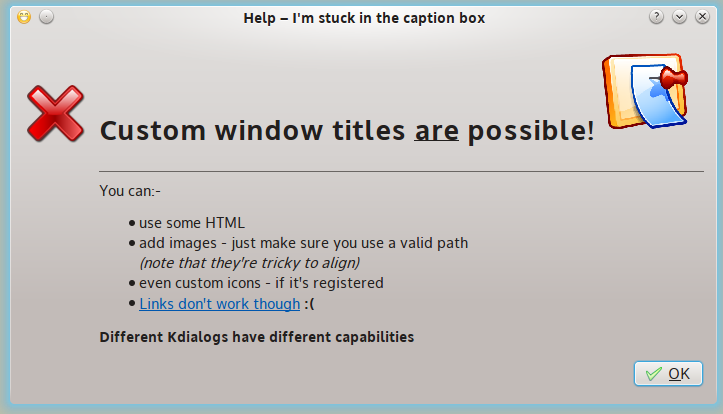
- See Scott’s code:
-
kdialog --error "<h1>Custom window titles <u>are</u> possible!</h1><img src='/usr/share/icons/nuvola/256x256/apps/klipper.png' width="100"><hr>You can:-<ul><li>use some HTML</li><li>add images - just make sure you use a valid path<br><i>(note that they're tricky to align)</i></li><li>even custom icons - if it's registered</li><li><a href='https://scottferguson.com.au'>Links don't work though</a> <b>:(</b></li></ul><h4>Different Kdialogs have different capabilities</h4>" --title "Help" --caption "I'm stuck in the caption box" --icon face-smile-big<br>
- An example of a KDialog message box with no caption and no title:
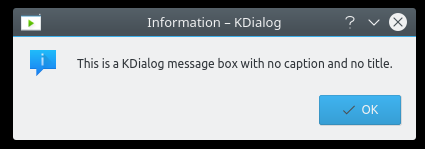
- See the code:
-
kdialog --msgbox "This is a KDialog message box with no caption and no title."
- An example of a KDialog message box with a caption and no title:
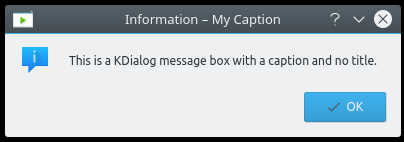
- See the code:
-
kdialog --msgbox "This is a KDialog message box with a caption and no title." --caption "My Caption"
- An example of a KDialog message box with a title and no caption:

- See the code:
-
kdialog --msgbox "This is a KDialog message box with a title and no caption." --title "My Title"
- An example of a KDialog message box with a caption and a title:

- See the code:
-
kdialog --msgbox "This is a KDialog message box with a caption and a title." --caption "My Caption" --title "My Title"
See also:
- The KDE TechBase tutorial is an excellent place to learn about Kdialog.
- The Handbuch Linux dialog / kdialog page.
- The lunaryorn KDialog snippet.
- A thread in the German Ubuntu Users forum.
Links on this page:
- HTML line break tags = http://www.w3schools.com/tags/tag_br.asp
- command substitution = http://tldp.org/HOWTO/Bash-Prompt-HOWTO/x219.html
- sleep = http://ss64.com/bash/sleep.html
- this zip file = http://www.box.net/shared/kygra8pie74r7z57516d
- Jotti’s malware scan = http://virusscan.jotti.org/en
- KDE TechBase tutorial = http://techbase.kde.org/Development/Tutorials/Shell_Scripting_with_KDE_Dialogs
- Handbuch Linux dialog / kdialog = http://lhb.baireuther.de/dialog-kdialog/
- lunaryorn KDialog snippet = https://github.com/lunaryorn/snippets/blob/master/kdialog_progressbar.bash#L2
- German Ubuntu Users forum = http://forum.ubuntuusers.de/topic/kdialog-progressbar/
Obligatory Happy Ending
And they all lived happily ever after. The end.

 Little Girl's Mostly Linux Blog
With regard to your first line you can also do this.
With a file which has two (maybe more but not tested) columns you can, pipe the file though kdialog –menu “Select a language:”
New command line.
kdialog –menu “select your course: ” $(cat ClassesAvailable) –geometry 700×400
where the ClassesAvailable file contains:
a French
b English
c German
d Chinese
You get the same result.
Comment by ompaul — April 5, 2011 @ 9:08 am
Thanks! I’ve added it above under Menu (alternate method). :)
Comment by mostlylinux — April 6, 2011 @ 12:23 pm
How do you get the list and coloum option available in zenity under kdialog. Kdialog looks really great but there are no proper tutorial (with example) available on the internet.
I am writing a bash script with GUI both zenity and kdialog so as to avoid no dependency error. I have completed the zenity part sucessfully but struggling in kdialog, especially in list and coloum (available in zenity). If you know more about kdialog please share with us.
Thanks and regards,
sundar_ima
Comment by sundar_ima — April 13, 2011 @ 4:23 pm
I think the closest thing KDialog has to Zenity’s list and column would be the –menu option shown at the top of this page. From everything I’ve been able to find out, KDialog is not as comprehensive as Zenity. Maybe the official KDE TechBase KDialog tutorial will help.
Linux Magazine did a brief overview comparison of KDialog and Zenity that shows what each is capable of. Enjoy! :)
Comment by mostlylinux — April 14, 2011 @ 1:00 pm
Wow, the detail is excellent on this. This has been extremely helpful to me, thanks for making the effort to publish this!
Comment by Anonymous — June 6, 2012 @ 11:46 am
Any time, and I’m glad you like it! Let me know if I can improve it in any way. :)
Comment by mostlylinux — June 6, 2012 @ 5:43 pm
Nice post thank you.
The link to the Linux Magazine article if broken (needs a href with a url to match the a tags).
Comment by https://scottferguson.com.au — August 14, 2012 @ 7:14 am
Good catch! The link is fixed now. :)
Comment by mostlylinux — June 2, 2013 @ 8:53 am
[…] here as Zenity is the default for Ubuntu desktops. For information specific to Kdialog check out https://mostlylinux.wordpress.com/bashscripting/kdialog/ which has great examples of using the different options for all you KDE […]
Pingback by Automate your life with Bash – Part 2 | The Ubuntu Army — September 8, 2013 @ 5:29 pm
Does this mean I’m now a soldier in the Ubuntu Army? (:
Comment by mostlylinux — September 8, 2013 @ 6:32 pm
You have made me a profound impresion! I was looking for a kind of introduction to use gdialog or kdialog and this article has reached all my aims.
Thanks indeed
Comment by Anonymous — May 24, 2015 @ 5:30 am
You’re welcome! I’m glad you like it! Next will come a page using matedialog and another using zenity. (:
Comment by mostlylinux — May 24, 2015 @ 3:07 pm
You are fucking pro. Respect.
Comment by Luca Seemungal — April 7, 2016 @ 4:56 am
Far from it, but thank you! (:
Comment by mostlylinux — April 7, 2016 @ 8:43 am
Anyone knows if it’s possible to not have the word “Kdialog” forced on the window title?
We don’t really need to have it thrown on your faces that it’s kdialog specifically and not something using QT more directly, not anymore that we need to be reminded that it’s a bash script or which kernel version it is. Usually we’d prefer to have more of the title space for how we want to label, instead of titles being cut like “Please confirm the… Kdialog”.
Of course the text on the dialog itself would make it clear, but this is something that objectively affects the interface usability in a negative manner.
Comment by George Costanza — July 16, 2016 @ 5:39 am
It doesn’t look like that’s possible. You can use –title to put a title before KDialog, but you can’t seem to get rid of KDialog from the top of the window entirely. Here’s an example with –title being used with an –error message:
kdialog –error “YOUR MESSAGE HERE” –title “YOUR TITLE HERE”;
One way to get away from KDialog in the title entirely is to use passive pop-up messages with –title, like this:
kdialog –title “EXAMPLE” –passivepopup “MESSAGE” 5;
Comment by mostlylinux — July 23, 2016 @ 1:07 am
Yes. You can have whatever window title you want. Note that the dashes in the following example get mushed by WordPress – replace them with two ordinary dashes
Comment by Scott Ferguson — December 10, 2016 @ 12:25 am
Sorry – WordPress ate my code, I could work around it with ASCII codes but I don’t have the time. I’ve emailed the blog author the code, if you’re lucky she’ll find the time to post the answer.
Comment by Scott Ferguson — December 10, 2016 @ 12:43 am
I managed to use ASCII to get WordPress to un-eat the code. I’ll also add a section above that shows the screenshot you sent of this code running on your computer, and will add a few examples of my own that are a bit simpler (no HTML or images), for comparison.
Comment by mostlylinux — December 11, 2016 @ 12:33 pm
Thank you for those edits. There’s a full list of undocumented KDialog options and pictures of examples on my website,
Notes: there is a link on that page to this excellent page of example scripts; the link in this comment is for those interested in undocumented KDialog options, it’s not to game Google as you, wisely, have “nofollow external” set for comments; I emailed you those examples a few minutes ago, feel free to use what’s on my webpage and to contact me if you need any further explanation/expansion/examples.
Comment by Scott Ferguson — December 11, 2016 @ 5:00 pm
Instead of using what’s on your page I decided to add a link to your page (in the Custom Caption and Title section above). The more resources there are for this, the merrier.
Comment by mostlylinux — December 14, 2016 @ 8:34 am
Could you please share an example on using kdialog to send notification to desktop of current user from crontab job? I could not make something like this work although I know it is about the DBUS_SESSION_BUS_ADDRESS or related.
Comment by CnZhx — August 23, 2017 @ 12:01 pm
I’ll try to help solve it without that first since I no longer use KDE. What have you tried, and what does the (relevant part of the) crontab job look like? I took a quick look around, without knowing exactly what’s going wrong, and maybe this page can help (do a search for “cron” on the page).
Comment by mostlylinux — August 24, 2017 @ 8:14 am
And here’s an example of it, with a little help from Scott:
Comment by mostlylinux — August 26, 2017 @ 1:24 pm
Thank you, @mostlylinux. Your code works well if one executes it from Konsole on KDE desktop and it does not need the part of
export DISPLAY=:0 &&. But it won’t work correctly if called by cron (or maybe it worked some time before ). I used something like below according to https://unix.stackexchange.com/a/28496This will popup a box at the top left corner of the screen with ugly style instead of the bottom right corner with KDE notification style.
Comment by CnZhx — August 30, 2017 @ 6:24 am
And this code probably only works when
xhost +si:localuser:root # replace root with your mythtv-user,is set first according to the post you referred to.Comment by CnZhx — August 30, 2017 @ 6:29 am
From these last two comments, it sounds like you would benefit from visiting Scott Ferguson’s Using KDialog page. He explores KDialog far more deeply than I do. The fact that you’re getting an ugly notification in the wrong location is a good sign, though. At least you’re getting the notification. Now you just need to make it look the way you like.
Comment by mostlylinux — September 2, 2017 @ 10:48 am
Thank you for the recommendation. But I found that `notfiy-send` works well now so I am going to use it instead.
Comment by CnZhx — September 4, 2017 @ 5:56 am
Oh, I’m glad that you got it sorted out and working!
Comment by mostlylinux — September 4, 2017 @ 8:31 pm
Please note that –caption is deprecated since QT5: https://api.kde.org/frameworks/kdelibs4support/html/namespaceKGlobal.html#aef7bdfeb650df93b62619b5ae1b95808 Just rewriting my scripts…
Comment by Nina — August 28, 2017 @ 6:13 am
Thank you for the information. I’ve added a comment to the introduction for this page letting people know they should check the comments for the latest information.
Comment by mostlylinux — September 2, 2017 @ 9:46 am
I’ve been trying to code a kdialog progressbar with the cancel button. When the cancel button is pressed, my script is supposed to do something. I never got this to work properly. Any clue as to how I should do this?
Comment by Ej — September 25, 2017 @ 8:10 pm
I haven’t messed with that particular progress bar and no longer use KDE, but it should be like any of the other KDialog scripts using a cancel button. What you can do is:
echo "$?"into the terminal window and press the Enter key. It should display something (like zero or one or whatever).You can do a search for “cancel” in this page and will see three examples of how Cancel was handled in the conditional statements for the dialogs that were available when I wrote the page. You can copy any of those and modify them to use the new progress bar with your commands and messages.
Comment by mostlylinux — October 5, 2017 @ 7:28 pm
At the beginning it’s said:
Some examples below use HTML line break tags (the
element).
it seems that someone tried to put a line break “ tag but it didn’t work.
And thanks for the page!
Comment by Sys — December 8, 2019 @ 6:05 am
And we can see that that tag is not shown either in the comments section :-)
Comment by Sys — December 8, 2019 @ 6:06 am
Thank you for letting me know. WordPress likes to mess those up every so often. I’ll see what I can do.
Comment by mostlylinux — December 10, 2019 @ 10:14 pm
The PyDialog is a desktop-independend dialog with better functions (like Tabs, html tags, etc) and compatible with kdialog as well
Comment by ckb2018 — May 8, 2020 @ 3:32 am
Thank you for mentioning it. I hadn’t heard of it and maybe it will be useful for anyone who would like to install it.
Comment by mostlylinux — May 8, 2020 @ 1:39 pm
Having the tag list in a separate file or variable, would make kdialog much morr flexible.
echo “tag1 “A 1” tag2 “B 1″” >file.lst
kdialog –menu “select item:” $(file.lst)
This does not work in a bash script. Kdialog interpretes ” or ‘ not as a special character although the string looks fine.
I would appreciate any hint for a correct syntax.
Walther
Comment by Walther — November 1, 2020 @ 9:14 am
That would work nicely and make for neater code, too. Thanks for the suggestion. It looks like yours isn’t working because you used the same character. Since you’re surrounding quoted material in quotes, you either need to escape one set of the quotes or use different kinds of quotes. I chose the latter. This works for me:
Comment by mostlylinux — November 2, 2020 @ 5:05 pm
Your Zip File Has been removed or the share link has expired, i am unable to downlaod the zip file with your examples
Comment by Anonymous — September 16, 2021 @ 11:58 am
I’m sorry about that. I just checked it and was able to download it without any problems. If you click the link, box.com should open in a new tab or window and you should see the kdialog_scripts file listed. If you then click the “Download” button in the top right, it should download the file. It worked for me just now in Firefox. Hopefully what you saw was a temporary issue. If not, let me know and I’ll find another way to get it to you.
Comment by mostlylinux — September 16, 2021 @ 12:15 pm
Hello!
How can I get the button in the “–passivepopup” notification?
KDE uses such notifications, but I can’t find any information about them anywhere.
Comment by bialyikar — November 30, 2022 @ 1:59 pm
I think that KDE uses the KNotifications API for those notifications and I don’t think you can do it with KDlaiog.
If you type:
in a terminal window, only these two options are listed for passive popups:
Maybe YAD can do it. It’s in the Ubuntu and Debian repositories in the event that you use either of those operating systems.
Comment by mostlylinux — December 1, 2022 @ 5:05 pm
https://api.kde.org/legacy/pykde-4.7-api/kdeui/KPassivePopup.html
Note it’s marked as legacy so you may need a different api as it is likely to be obsolete over time.
Regards
Paul
Comment by ompaul — December 2, 2022 @ 9:58 am
Thank you for the help.
Comment by mostlylinux — December 3, 2022 @ 8:32 am